Getting started with the Cisco CLI
Contents
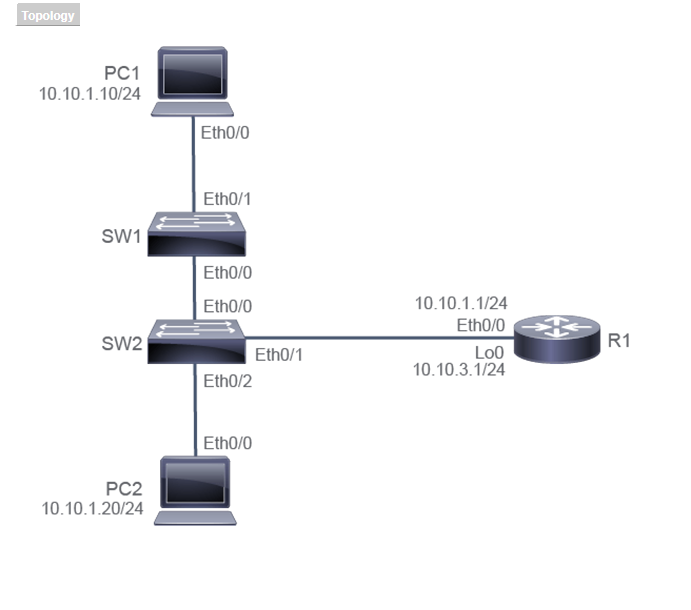
First lab on the Cisco CLI: one switch (SW2), one router (R1), and my notes from the session, written down so I can find this stuff again later.
Command modes
Logged into SW2 and landed at Switch>. That’s user EXEC.
Typed enable and the prompt changed to Switch#, which is privileged
EXEC. From there configure terminal got me to Switch(config)#, and
interface Eth0/0 dropped me into Switch(config-if)#.
- User EXEC,
Switch>: where login drops you.exitleaves. - Privileged EXEC,
Switch#:enableto get in,disableto drop back. - Global config,
Switch(config)#:configure terminalto get in;end,exit, orCtrl-Zto get out. - Interface config,
Switch(config-if)#:interface <id>to get in;exitgoes up one level,endjumps straight back to privileged EXEC.
Two things I noticed while bouncing between modes. exit only backs
out one level, while end and Ctrl-Z jump all the way back to
privileged EXEC from any config sub-mode. And ? in user EXEC shows
way fewer commands than in privileged EXEC: the command set changes
with the mode.
Getting help
Spent some time just poking at ? to see how it behaves:
?lists every command available in the current modes?lists commands starting with “s” (no space before the?)show ?lists the arguments valid aftershow(space before the?)show r?narrows those to arguments starting with “r”Tabcompletes a unique abbreviation
The space matters. s? filters command names, but s ? asks what
arguments follow a command called s.
Tab completion needs enough characters to be unambiguous. sh plus
Tab completed to show, but con plus Tab did nothing. Typed con?
and saw why: configure and connect both match.
Paging through output
At the --More-- prompt, Space goes to the next page and Enter goes
to the next line. Ctrl-C, Q, or another key quits the output (which
key varies by device and IOS version).
Editing and terminal history
Up and Down arrows recall previous commands. Two things I learned here.
Each mode keeps its own history buffer. In config mode I couldn’t recall the EXEC commands I typed earlier, and vice versa.
And history stores every command I entered, including the mistyped ones that never ran. That’s what makes it useful for fixing typos.
The cursor shortcuts:
Ctrl-Ajumps to the beginning of the line,Ctrl-Eto the end- Left and Right arrows move one character; Backspace deletes to the left
Ctrl-Zexits config mode
My typo-fix routine ended up being: Up Arrow to recall, Ctrl-A,
arrow right to the bad character, Backspace, type the fix, Enter.
Same trick handles repetitive config. After setting up Serial 1/0 on
R1, configuring Serial 1/1 was three Up-Arrow recalls with one
character changed each time.
Configuration files
There are exactly two files to care about. running-config lives in RAM: it’s the live config, changes take effect immediately, and it’s lost on reload. startup-config lives in NVRAM and gets loaded at boot.
The commands that move between them:
show running-config/show startup-configdisplay each onecopy running-config startup-configsaves changes so they survive a reloaderase startup-configwipes the saved config, and it’s the one command here that cannot be abbreviatedreloadreboots the device
I proved the volatility to myself on SW2: changed the hostname, ran
reload, answered No to the save prompt, and the device came back
with the old name. Changes live in RAM until you copy them to NVRAM.
Saying yes at that prompt overwrites startup-config, so No is how you
throw changes away on purpose.
I also ran erase startup-config and reloaded, which took the switch
back to factory defaults, including the default hostname Switch.
What I entered on R1:
hostname Temp
interface Serial 1/0
 description Link to SP1
 no shutdown
no shutdown was needed because router interfaces default to
administratively down.
Output filtering
Append a pipe | after a show command, then a filter keyword and an
expression:
includeshows only lines containing the expressionexcludeshows only lines not containing itbeginshows everything from the first match onwardsectionshows the matching line plus its indented sub-lines
What I ran:
show running-config | include hostname
show startup-config | include hostname
show running-config | begin interface
show running-config | section interface
show running-config | exclude !
section is the one I’ll actually use for config review. It pulls the
whole interface block, not just the header line. exclude ! strips
the comment lines that pad out show running-config.
For the exam
- Know which prompt corresponds to which mode, and the command to move between each.
enableanddisablemove between user and privileged EXEC;configure terminalenters global config.erase startup-configcannot be shortened.- Changes live in RAM until copied to NVRAM.
include,exclude,begin,section: know what each one returns.