My used PA-220 came with someone else's password
Contents
Palo Alto firewall configuration is the next lab on the list, so I bought a used PA-220. It didn’t come fresh. The login prompt had the previous owner’s hostname on it, and admin / admin didn’t work. All I wanted on the first day was the exact version of PAN-OS it was running, because this box is going to be one half of an HA pair. Getting that number took a console cable and a factory reset, with two rounds of garbled serial output in between.
This post is mostly so I can find the commands again next time.
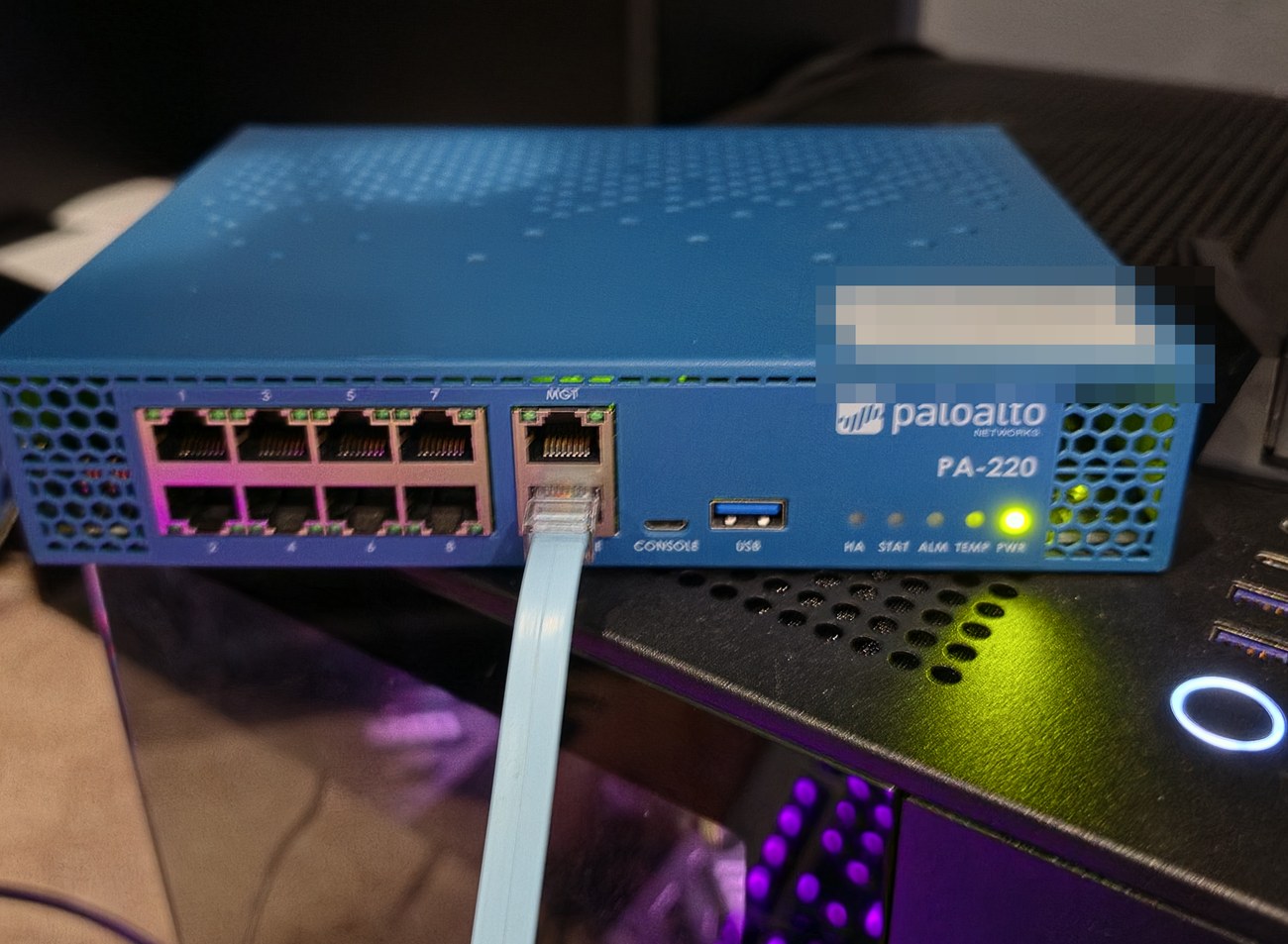
Why the version has to match
HA (high availability) works by copying the running config from the
active unit to the peer over the HA1 control link, and that copy is
only allowed between identical PAN-OS versions. On a mismatch the pair
still forms and can even fail over, but config sync is blocked. You
see Running Configuration: not synchronized with an out-of-sync
reason citing a version mismatch with the peer, and a manual
sync-to-remote fails with an error that the operation isn’t allowed
because of the mismatch. Some runtime state won’t sync either, such as
DHCP lease and client settings.
So you’d have two boxes in HA that don’t actually mirror each other, which is the exact failure I want to practice fixing, except that without a support contract I can’t download PAN-OS to fix it. Whatever version this box has, the other one has to match it.
‘Same’ means the whole string that show system info reports as
sw-version, e.g. 10.1.14-h2. In PAN-OS the version string is the
build: major.feature.maintenance plus any -hN hotfix, so 10.1.14
and 10.1.14-h2 are different. The only time a mismatch is tolerated
is during an upgrade, one peer at a time, and sync stays off until
both match again.
One more thing that has to match: the installed App & Threat content version. Unlike PAN-OS, that one is fixable without a license. On the active unit, Device, Dynamic Updates, Sync To Peer pushes the installed content over HA1.
The cable
The console cable ends in a Prolific USB-serial adapter. Linux has the driver in the kernel, so there was nothing to install for it. There were two serial devices, though, and the first command I reached for doesn’t say which is which:
ls /dev/ttyUSB* /dev/ttyACM*/dev/ttyACM0
/dev/ttyUSB0This one does:
ls -l /dev/serial/by-id/lrwxrwxrwx. 1 root root 13 Sep 1 04:41 usb-HP__Inc_HyperX_Cloud_Alpha_Wireless_00000001-if04 -> ../../ttyACM0
lrwxrwxrwx. 1 root root 13 Sep 3 04:46 usb-Prolific_Technology_Inc._USB-Serial_Controller_D-if00-port0 -> ../../ttyUSB0The ACM device is my headset. The Prolific one is the console cable, so:
sudo screen /dev/ttyUSB0 9600screen wasn’t installed, so that was a package install first. The
9600 is the only setting that matters: the PA-220 console is 9600
baud, 8 data bits, no parity, one stop bit, no flow control, and
screen defaults to the rest. Ctrl-A then K kills the session
when you’re done, and Ctrl-A then Esc is scrollback.
The boot log
The PA-220 prints plenty on the console before there’s anything to log in to. The lines worth reading, exactly as they came across:
Board type: KINGFISHER
Entry: come to the PanOS Bootloader.
Entry: 9.1.1.0-19 (Build time: Dec 30 2019 - 11:09:04)
OCTEON CN7130-AAP pass 1.2, Core clock: 1000 MHz, IO clock: 500 MHz, DDR clock: 800 MHz (1600 Mhz DDR)
DRAM: 8 GiB
KINGFISHER is the PA-220 board and the Octeon CN7130 is its CPU. The bootloader version comes from whichever PAN-OS release last updated it, so this box has had 9.1.1 or newer on it at some point. The serial number is printed a few lines further down, which is handy for the support portal.
The Entry: fragments eating the start of every other line were me. I
was pressing Enter to wake up a login prompt that didn’t exist yet,
and as far as I can tell every keypress makes the bootloader reprint
its Entry: input prompt over whatever it was in the middle of
printing. Those keypresses also interrupt the 5-second autoboot, so it
sat at Entry: until I pressed Enter one more time and then kept my
hands off the keyboard.
Then the login prompt: a hostname with a company prefix and what
looked like a person’s name, followed by a wall of [A[A[A[A. Also
me. Arrow keys go straight through screen to the firewall, and at a
login prompt they’re escape codes typed into the username field.
admin / admin: Login incorrect.
Palo Alto has no password recovery. If the previous owner didn’t reset the box, the only way in is a factory reset from maintenance mode, which wipes the config and logs I didn’t want anyway.
Garbled, twice
Maintenance mode is entered from the bootloader: power-cycle, and when
the autoboot countdown appears, type maint and Enter within five
seconds. The first time I got there, the menu came out all garbled:
< SeFIPSCCode11SC(Di                         < 6>
y Reasocome tthe Mainteance Recoery Tool        1<inteeEntrReson                       >
Starting NFS mountd: [  OK  ]
               Q=Qui, owgateNTERS  ESC=k1H        Maintenance y Reaso
The next boot was garbled too, with no menu involved this time, just kernel messages missing a third of their letters:
Lux version 3.17-ct-m (build2cd82f3223 (gcc verson Cvium c. Version: SDK_BUD build 49 )  SMP nc 30 :T20
Checking for the muliply/shift bug... no.
Same cause? No. Two different things were wrong, and they looked identical on screen.
The first is the firewall’s doing. The recovery tool draws its menu
with cursor-positioning escape codes while the boot scripts are still
printing Starting NFS daemon lines on the same console. A boot line
that lands in the middle of an escape sequence either swallows
characters or prints the sequence as text, which is where the [60C
and ;1H fragments come from. It stops once the boot scripts finish,
and Ctrl-L redraws the menu.
The second is the classic serial-port problem: two programs reading
one port, each getting a random share of the bytes. I killed every
screen I had and opened one fresh session, and the next boot came
through clean.
sudo lsof /dev/ttyUSB0
sudo screen -ls
sudo pkill screen
sudo screen /dev/ttyUSB0 9600
Somewhere in the middle of that I also typed maint at the Linux
login: prompt, which is just a wrong username. It only means
something at the bootloader’s Entry: prompt.
Maintenance mode
The official reset procedure
starts with debug system maintenance-mode from a logged-in CLI,
which is no use when the login is the problem. The console route is in
a knowledge base article
instead.
Power-cycle, since there’s no way to reboot from the CLI without a
login. The autoboot prompt comes right after the
Net: octeth0, octeth1, ... line, and it’s the first time the output
pauses:
        Autoboot to default partition in 5 seconds.
        Enter 'maint' to boot to maint partition.
Entry:
Type maint, Enter. It doesn’t echo. Miss the window and it boots
normally, so power-cycle and try again. Once the Maintenance Recovery
Tool’s welcome screen is up, Enter opens the menu, the arrow keys work
there, and Factory Reset is a few lines down. Confirm, then wait:
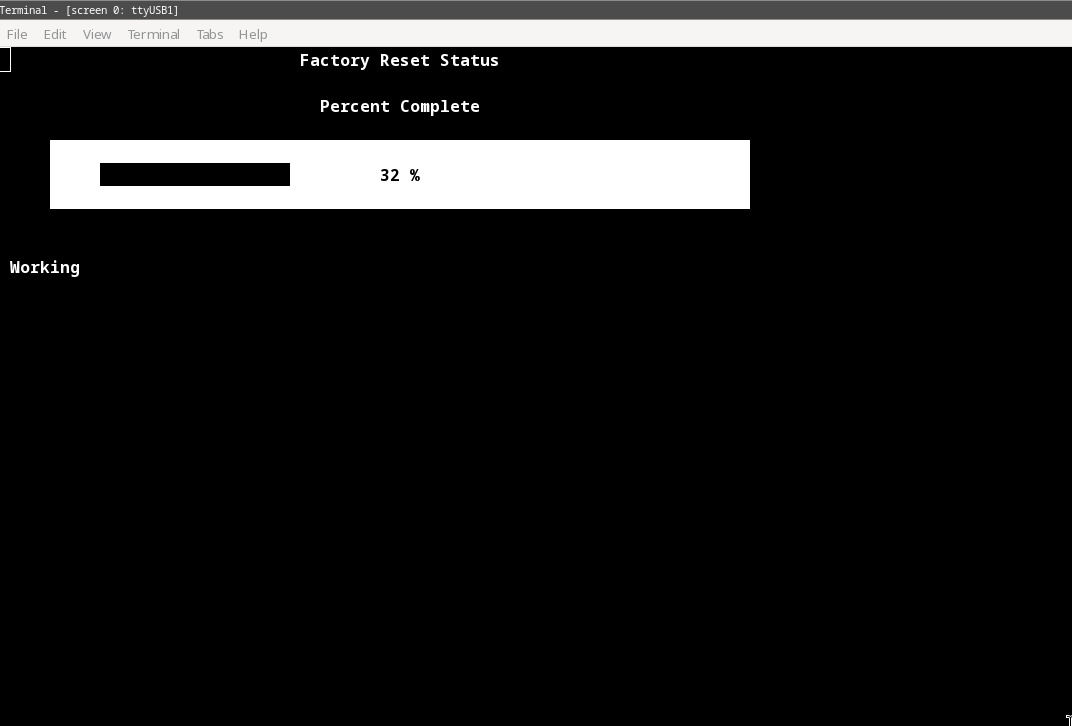
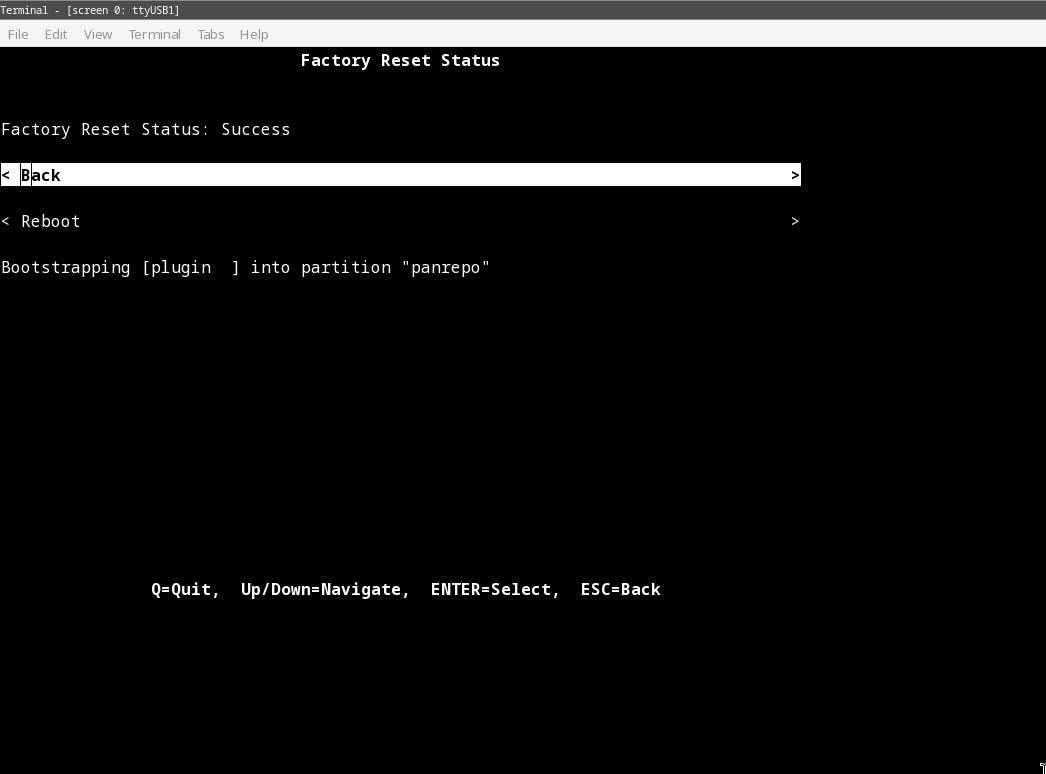
The bar crawled to done, the status read Success, and a stray line under the menu mentioned bootstrapping a partition called panrepo:
PA-HDF login, which is not a login
The reset ran, the box rebooted, and it came up to this:
CentOS Linux 7 (Core)
Kernel 3.10.87-oct3-mp on an mips64
220 login: Waiting for another core to setup the IPD hardware...Done
PA-HDF login: admin
Password:
Login incorrect
admin / admin, Login incorrect. So I typed it again. Same thing.
The prompt was the first suspect, and it is strange: it flashed
PA-220 login: once, flipped to 220 login: and PA-HDF login:
before I could type, and kept flipping. After a factory reset the
console cycles through intermediate prompts while the post-reset
autocommit runs, and admin / admin gets rejected the whole time. On a
PA-500 the documented sequence is 500 login:, PA-HDF login:,
PA-500 login:, and only the last one is supposed to work. PA-HDF is
a stage, not a hostname.
So the early admin / admin attempts were never going to work, no
matter what the password was, and there’s no command to hurry it
along. The wait is longer than feels reasonable: about ten minutes on
mine, on the slowest box in the line, with a post-reset autocommit
that’s heavier than a normal boot. The move is to press Enter once for
a clean line, then leave the keyboard alone and check it about once a
minute. Typing admin over and over just fills the log with failures,
and stray keystrokes land on the login line as junk (there’s a lone
l sitting in my scrollback from exactly this).
The docs make the prompt sound like a progress bar that ends on the
model name. Mine never got that tidy. The label was still
PA-HDF login: when, about ten minutes in, the same admin / admin
that had been failing all along just took, and walked straight into
the forced password change:
PA-HDF login: admin
Password:
Enter old password :
Enter new password :
Confirm password   :
Password changed
Number of failed attempts since last successful login: 0
Warning: Your device is still configured with the default admin account credentials. Please change your password prior to deployment.
admin@PA-220>
That earned a checklist line of its own: after a factory reset, give
the box ten quiet minutes before believing any Login incorrect. The
stage prompts reject admin / admin while the autocommit runs, and the
prompt label is a poor readiness signal; the thing that finally tells
you where you are is the admin@PA-220> after login.
The warning threw me for a second, since I’d just changed the password
one line above it. It’s checking the account name, not the password:
PAN-OS flags the default-credentials state whenever the admin user is
still called admin, no matter what its password is now. The password
change did stick (the old admin / admin gets rejected on the next
login). Killing the warning for good means creating a superuser under
a different name and deleting the admin account, which I’m not going
to bother with on a lab box.
The version
admin@PA-220> show system info | match version
sw-version: 9.1.1
app-version: 8232-5926
threat-version: 0
av-version: 0
wildfire-version: 0
url-filtering-version: 0000.00.00.000
logdb-version: 9.1.21
So the whole point of the exercise: sw-version: 9.1.1, which is the
same number the bootloader printed on the very first boot log at the
top of this post. Whatever the previous owner ran, they never moved
off 9.1.1, and now that it’s back to factory it’s still 9.1.1. The
second PA-220 has to land on exactly 9.1.1, hotfix suffix and all,
or config sync over HA1 stays blocked.
The content side tells its own story. app-version is 8232-5926, a
stale Apps and Threats package frozen at whatever date this box last
had a valid update, and everything license-gated reads zero:
threat-version: 0, av-version: 0, wildfire-version: 0,
url-filtering unset. That’s a box that hasn’t had a support
entitlement in a long time. For the HA lab the content versions have
to match too, but unlike PAN-OS that half is fixable without a
license: once both boxes are paired, Device, Dynamic Updates, Sync To
Peer pushes the active unit’s installed content across HA1. Matching
two boxes at 8232-5926 is easy when the way you match them is
copying one to the other.
Conclusion so far
Bottom line: a used PA-220 with somebody’s password on it is a console cable and a factory reset away from usable, and most of the fight is knowing which prompts to ignore. The firewall’s share of the work was one word typed at the right second and then a lot of not typing. It’s running 9.1.1, the number’s been the same since the first boot log, and that’s the target the second box now has to hit.
Next is a static management IP so the console cable can go back in the drawer. Not today, though: work has networking issues of its own waiting on me, so I’m off to troubleshoot those, and the PA-220 gets a graceful shutdown for now:
admin@PA-220> request shutdown system