I built a cloud-only AVD lab to break FSLogix on purpose
Contents
The lab plan calls Phase 3 virtual desktops, and this is it: an Azure Virtual Desktop host pool with FSLogix profile containers and RemoteApp publishing. In practice that means two session hosts, a desktop for one test user, published apps for another, and profiles on an Azure file share. The part I built all of this for comes last: seven experiments where I break profile access on purpose and practice finding the failure in the logs.
Everything runs on cloud-only Entra accounts with Microsoft Entra Kerberos: no domain controller, no directory sync, no Windows file server.
It’s built on an Azure free account and an M365 Business Premium trial.
The tenant
I signed up for the Azure free account first, with a personal Microsoft account. Azure created a tenant on the spot, named it Default Directory, and dropped the new subscription into it.
The cleaner order is the reverse: create the M365 trial tenant first, then sign up for Azure from inside it, so the subscription starts out in the same tenant as your users. Rather than build a second tenant and transfer the subscription across, I attached the Business Premium trial to the tenant Azure had already made.
Either way, the subscription and the licenses end up together, which is what matters later. I’d do trial-tenant-first if I were doing this again, but this worked fine.
The first real account was labadmin, created in Entra and handed the Global Administrator role. I did its first sign-in in a separate browser profile so it wouldn’t pick up my personal account’s cookies, and I registered an MFA method for it the same day.
Four small problems checking out a free trial
Four things got in the way of a working trial, and not one of them said what was actually wrong:
- The billing menu item the documentation points at, Purchase services, no longer exists. It became Marketplace in a December 2025 rename, and most guides haven’t caught up.
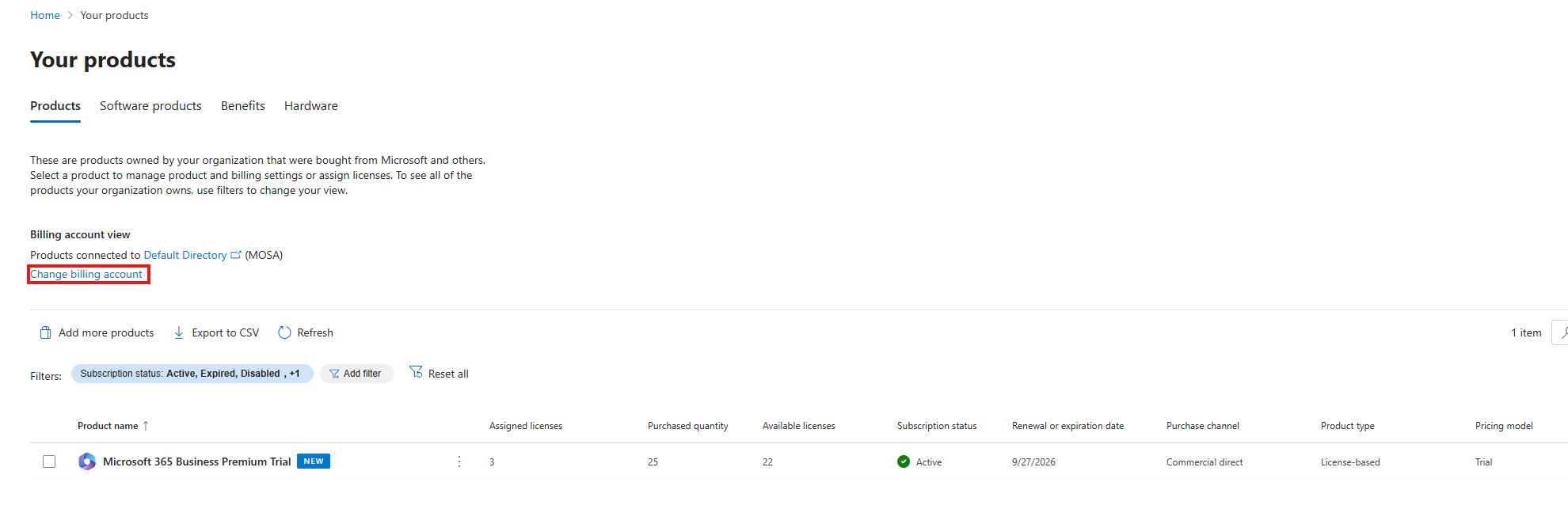
- The trial checked out into a second billing account, so the Your products page looked empty after purchase. The licenses weren’t missing. The page was filtered to the wrong billing account, and the small Change billing account control was the entire fix.
- The Try now button stayed grayed out until the billing account had both a payment method and a complete sold-to address. Nothing on the page said that was the reason.
- Auto-renew arrived set to Off, which is new and welcome, but I verified it anyway. The expiry date next to it is the lab’s hard teardown deadline.
Users and licenses
The first license assignment failed with:
License cannot be assigned to a user without a usage location specified.Users created in Entra start with no usage location, and nothing in the user-creation flow asks for one, so this error is waiting for anyone who makes users there first. I set the usage location on the user, assigned the license again, and it went through. The other way around this: create users in the M365 admin center instead, where the wizard collects the location as part of the flow.
The lab users are labuser1 and labuser2, both with the forced password change at first sign-in turned off. They’re throwaway test identities that will get typed into session hosts over and over, and I didn’t want a password reset landing in the middle of that.
One security group, AVD-Users, with just the two test users in it. labadmin stayed out on purpose. That group gets the app assignments and the storage permissions later, and the admin account needs neither.
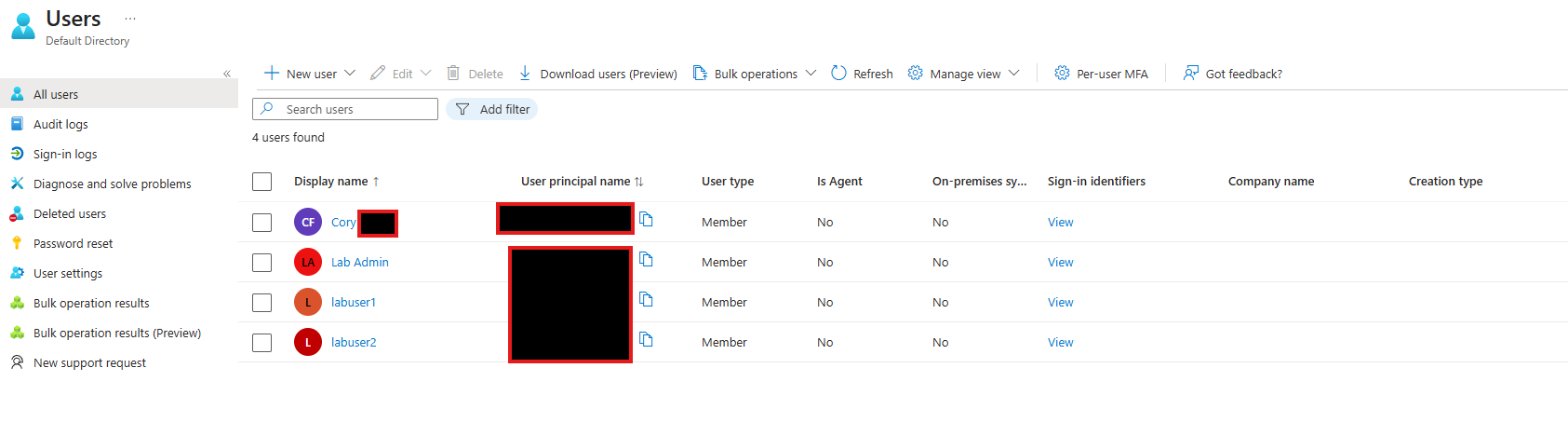
Entra showed four accounts rather than the three I created. The extra one was the personal Microsoft account that created the tenant, unlicensed and unused, left over from signing up for Azure first.
Security defaults off, and the four policies Microsoft deploys in their place
This is the one that cost me the most time.
The storage Kerberos auth this lab is built around can’t handle MFA at all. The ticket is fetched silently at logon, and there’s no UI where a prompt could appear. But a fresh tenant enforces MFA for everyone through security defaults, and security defaults can’t do exclusions.
So the plan was the standard swap: security defaults off, then a single Conditional Access policy requiring MFA for labadmin only. Business Premium includes Entra ID P1, so Conditional Access is available.
Entra enforces that order, which I learned by trying to build the replacement policy first:
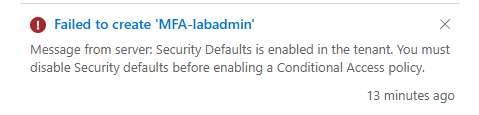
I turned security defaults off and went back to build the policy.
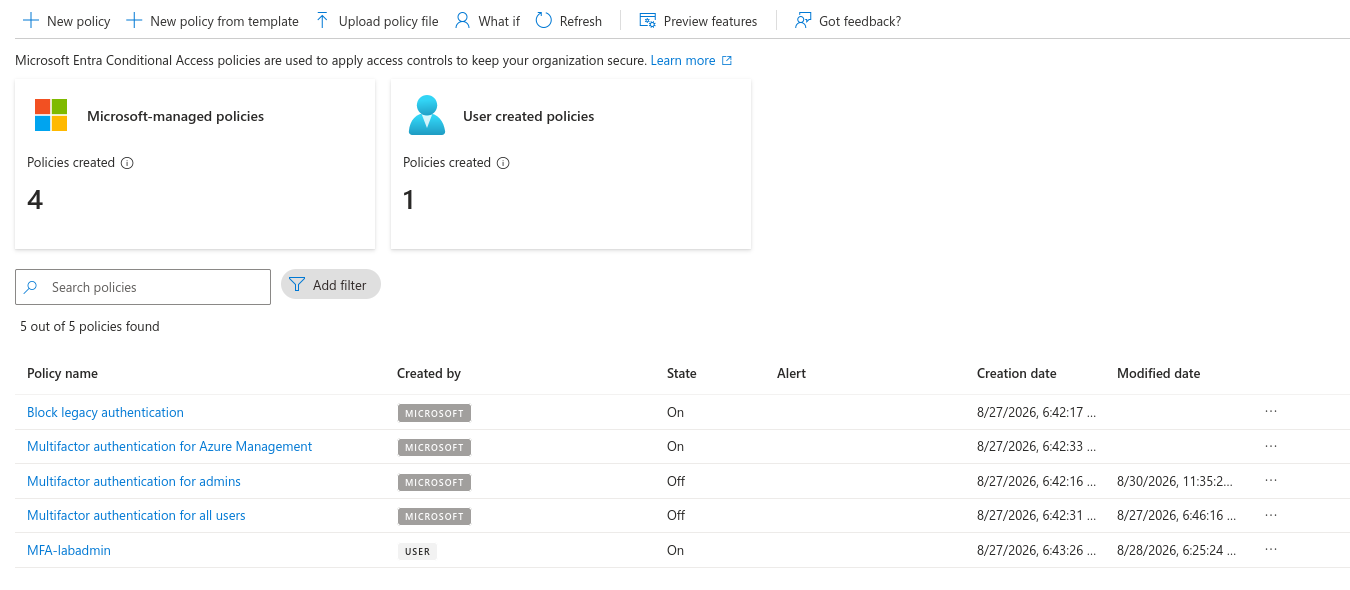
In the same minute the switch flipped, Microsoft auto-deployed four managed Conditional Access policies into the tenant, every creation timestamp reading 6:42. One of them is called Multifactor authentication for all users, and it re-enabled the MFA enforcement I had turned off less than a minute earlier.
If I hadn’t gone looking, every labuser sign-in would have gotten an MFA prompt during the silent ticket request, the request would have failed, and nothing would have been logged anywhere. I set that policy to Off.
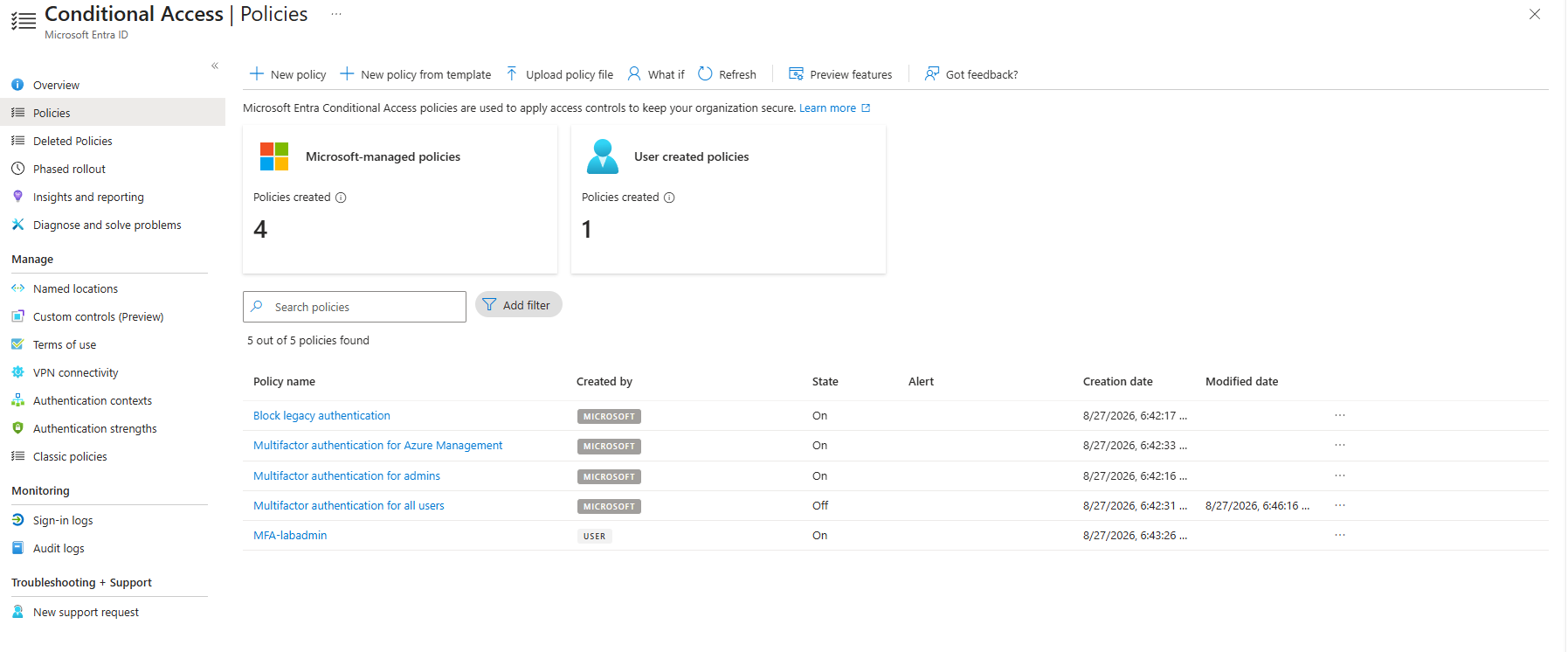
I left the other three on:
- Block legacy authentication. Nothing in this lab uses POP, IMAP, or anything else legacy, so this costs me nothing and removes some attack surface.
- Multifactor authentication for Azure Management. labadmin is the only account that touches the Azure control plane, and it already has MFA registered.
- Multifactor authentication for admins. This one would have locked labadmin out if I hadn’t registered an MFA method on day one. Since I had, it just prompted. It didn’t survive the lab either: it went Off at the storage step below, because managed policies can’t exclude the storage account app, so it would have MFA-gated labadmin’s own Kerberos ticket to the profile share.
None of the three touches an ordinary labuser sign-in, so the silent Kerberos auth is safe. My own policy, MFA-labadmin, went in a minute after the managed ones: one user, all resources, require multifactor authentication.
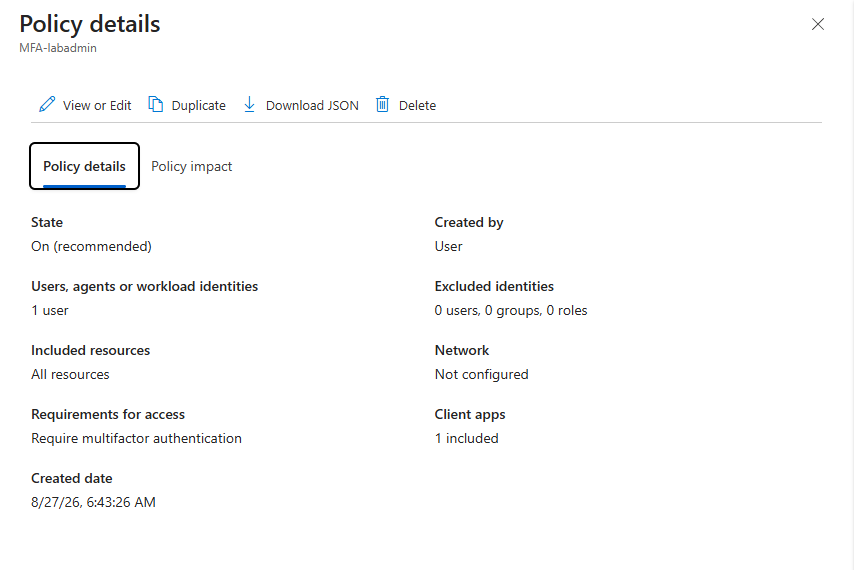
This earned the first line on my troubleshooting checklist: after disabling security defaults, check the managed policies Microsoft deploys in their place, because one of them re-enables MFA for all users.
Global Admin owns nothing in Azure
labadmin ran the whole tenant and couldn’t create a resource group.
Entra roles and Azure RBAC are two separate permission systems that happen to share a sign-in page. Global Admin sits at the top of the first and means nothing in the second, where the only name on the subscription was the personal account that created it. Entra does have an elevate access switch for exactly this situation, but the personal account was right there, so I just used it.
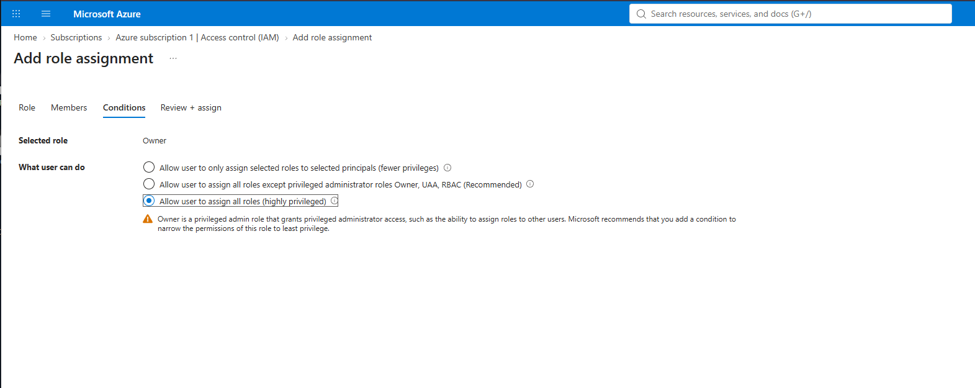
One last errand as the personal account, then: Subscriptions, Access control (IAM), and labadmin became an Owner. Owner rather than Contributor, because labadmin later hands storage RBAC roles to AVD-Users, and Contributor can do everything except grant access.
The assignment flow has grown some friction since the guides I learned from were written. Owner now lives on a separate Privileged administrator roles tab behind a warning that asks whether a lesser role would do, and a Conditions step makes you say out loud that the new owner may assign all roles.
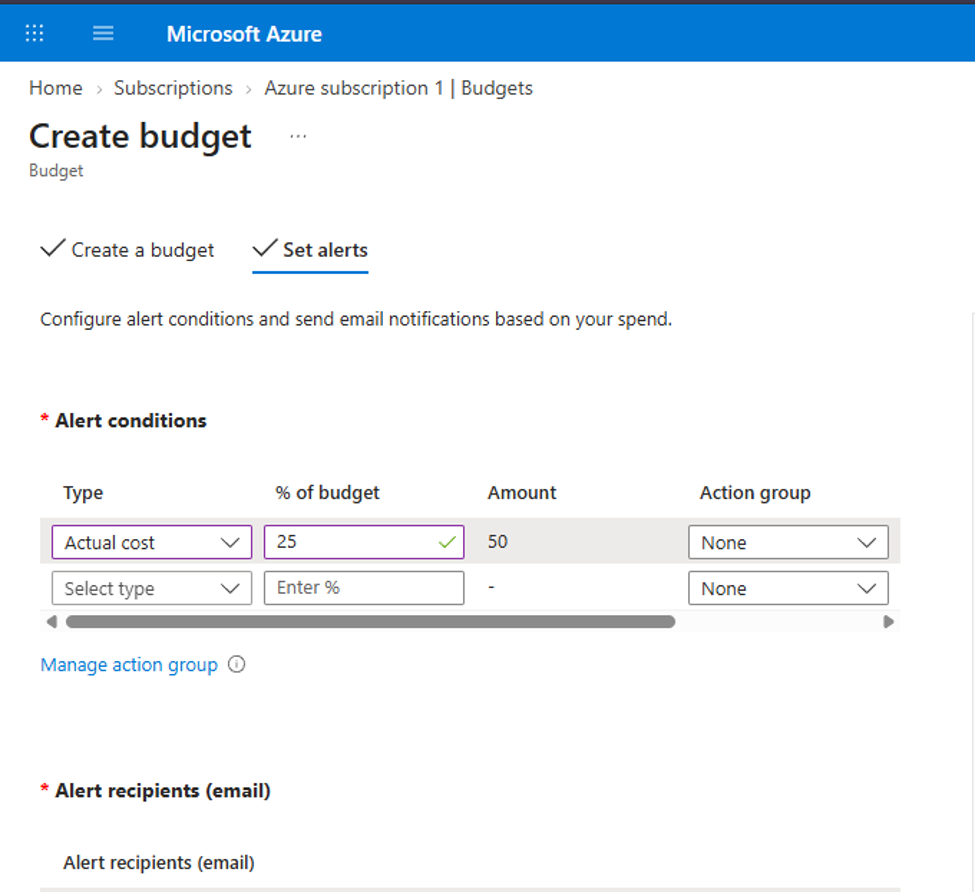
While I was still signed in with the account that could see billing, I put a budget on the subscription: $200 monthly, with alerts at 25 and 50 percent. Auto-renew was already off on the M365 side, so the Azure subscription is the only place a charge could still show up.
One more decision from this first day: the region is West Central US, because when I planned this in mid-August it was the only US region Microsoft’s doc listed as supporting per-group RBAC for cloud-only Entra Kerberos, and only on premium file shares. (Microsoft removed that regional restriction from the doc in an August 24 update, after this tenant was already built, so if you’re following along you can apparently do this anywhere now. I haven’t personally tested another region.)
The vnet
vnet-lab should have been the easiest resource of the day: one address space, 10.10.0.0/16, one subnet, snet-avd at 10.10.1.0/24, no Bastion or firewall, nothing extra. It ended up being the part I fumbled the most, twice over.
The Address space tab now has two tables that both accept CIDR ranges, and I typed mine into the wrong one. Advertised address prefixes governs what a VPN gateway advertises to on-prem networks, which this lab will never have, and the blade kept insisting I hadn’t added an address space. It took me longer than I’d like to admit to accept that the blade was correct and my /16 was sitting in a field meant for a VPN gateway.
The real table is up top, and the Add a subnet link floats above the address space box rather than inside it, so I hunted for it everywhere except where it was. Somewhere in the retyping my /16 also became 10.9.0.0, which would have worked fine and then contradicted every path and diagram I wrote afterward. I caught it on the Review + create tab.
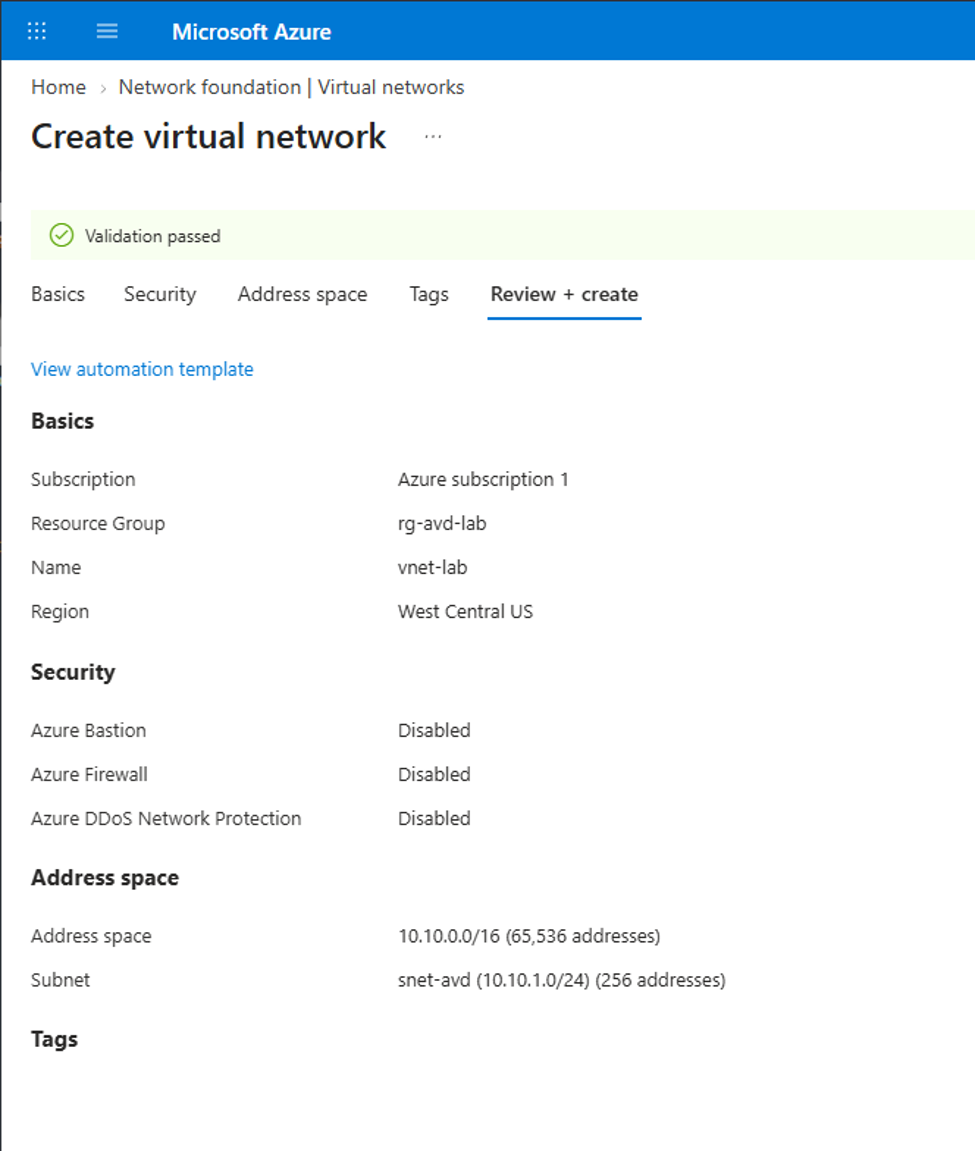
The checkbox was the bigger problem.
Enable private subnet (no default outbound access) arrived checked, because private subnets became the default for new vnets after March 31, 2026. Leave it checked and the session hosts deploy with no outbound internet at all: Windows can’t activate or update, the AVD agent can’t reach the brokering service to register, and the SMB connection to the profile share fails for the same reason. None of it errors at deploy time.
Microsoft’s answer is a NAT gateway at roughly $32 a month plus data charges, which I wasn’t going to pay for a sandbox that gets torn down in 30 days, so I unchecked the box and took classic default outbound instead. It’s the wrong answer for production, but this vnet has 30 days to live.
This went on the checklist too: a new 2026 vnet has no outbound access until you either uncheck that box or pay for a NAT gateway.
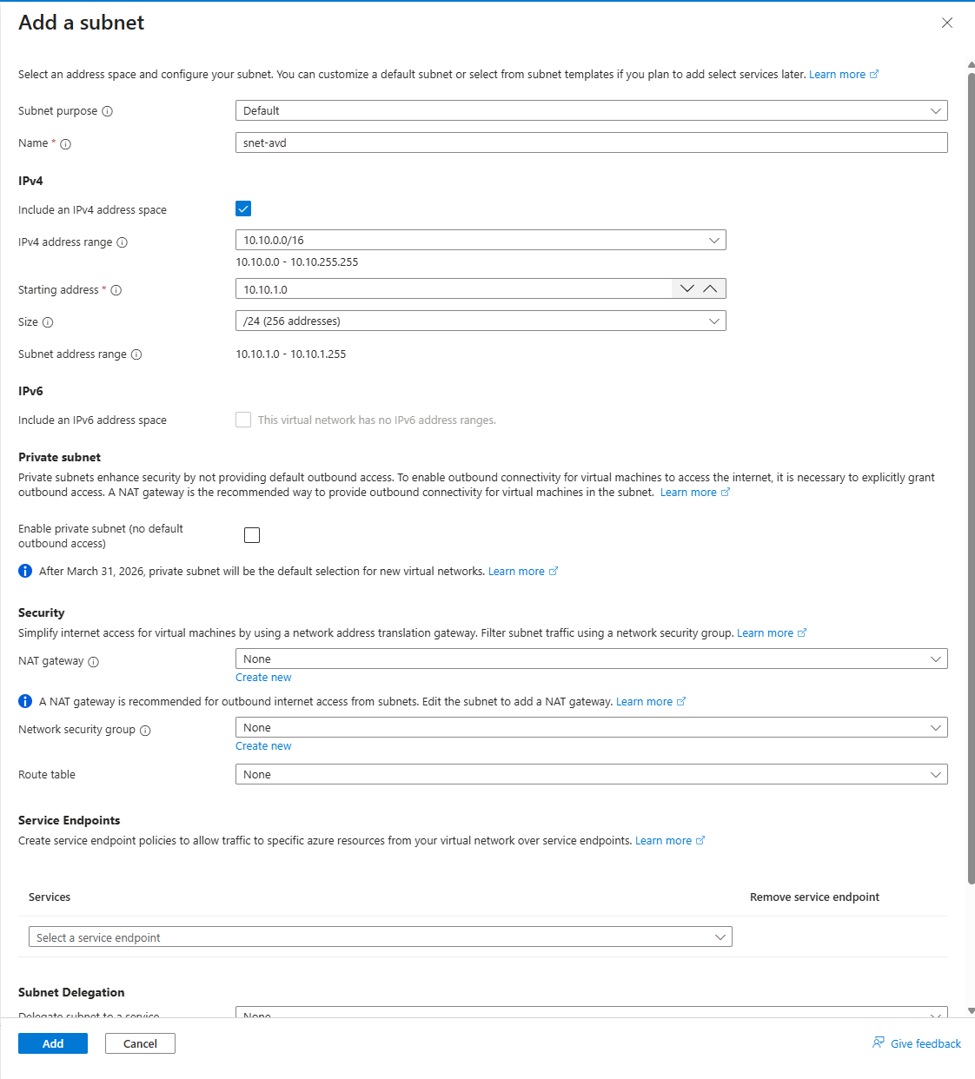
And then, as I only discovered three days later, I closed the tab to go write up my notes without ever clicking Create, and walked away believing rg-avd-lab held a network.
Storage account
The next session was storage: the share the FSLogix profile containers will live on.
The requirements were strict: FileStorage kind, premium performance, LRS, in West Central US, because that combination was what the doc required for per-group RBAC with cloud-only identities when I planned the lab. The 2026 create blade offers several ways to end up with something else.
I reached the blade through a Blob Storage breadcrumb. Primary service arrived unset, and with Performance set to Premium the blade uses that field to pick between three premium account types: block blobs, file shares, page blobs. Come in on a blob-flavored entry path and it can steer you into a premium block blob account, which can’t host a file share at all, and nothing tells you until the file shares blade comes up empty.
I set Primary service to Azure Files, a Media tier selector appeared, and I picked SSD (premium).
Then a choice that didn’t exist when most of the guides were written: File share billing, Provisioned v1 or Provisioned v2, with v2 pre-selected. Microsoft’s June announcement says Entra Kerberos now works across all the billing models, so v2 probably would have worked. But I didn’t want probably in a lab that’s already about debugging auth failures, and v1 is what creates the classic FileStorage account every doc I was following describes blade for blade, so I switched it to v1.
After deployment the Overview page showed Account kind FileStorage, SSD (premium), LRS, westcentralus. One more line there: Default share-level permissions, Disabled. I left it that way. Assigning RBAC to a specific group instead of falling back to a default-for-everyone permission is the whole reason the region got picked in the first place.
The profiles share
The file shares blade is called Classic file shares now that Provisioned v2 exists. I created the share: profiles, SMB, 100 GiB provisioned.
Premium bills on the provisioned size whether you use it or not, and 100 GiB is the minimum, so that’s roughly $16 a month at full price. That makes an empty share the biggest line item in the whole lab, bigger than the session hosts, as long as they spend their nights deallocated.
I skipped backup on the share. Azure Backup creates a Recovery Services vault behind the scenes, and Recovery Services vaults are a pain to delete at teardown time.
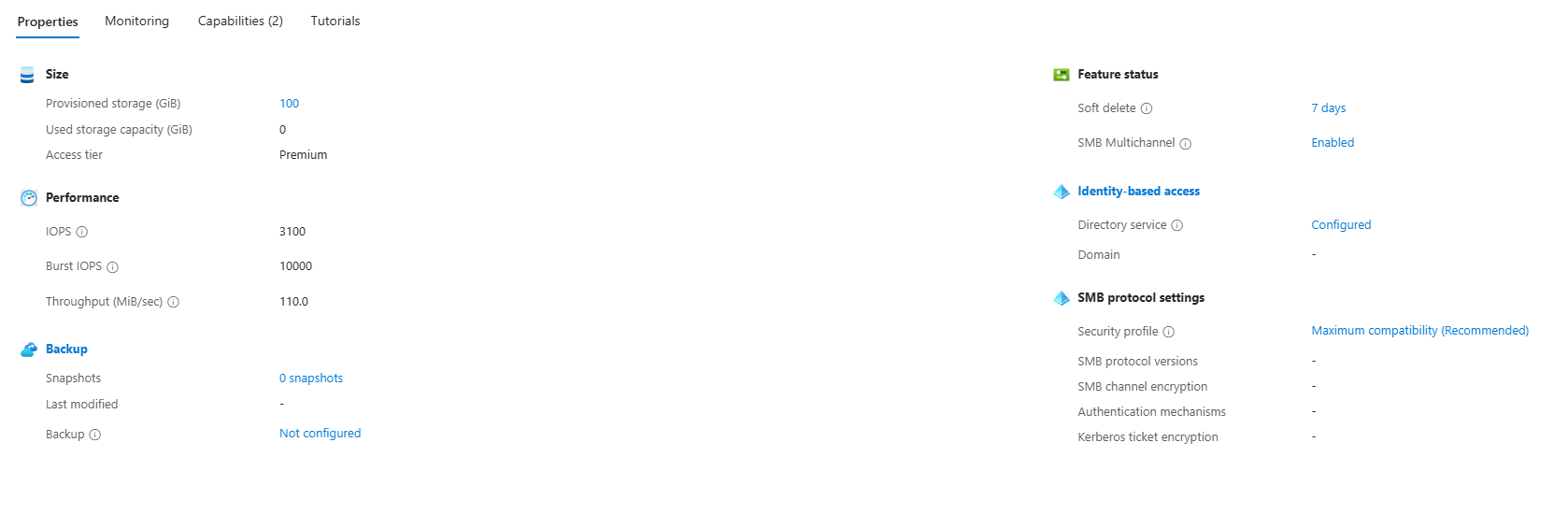
Across the top of the blade sat an orange warning: Windows Kerberos RC4 hardening may affect your Azure Files access, action required, July 2026 update. It applies to storage accounts using on-prem AD DS authentication configured before 2023, whose tickets can still be RC4, and Entra Kerberos tickets are always AES-256, so it has nothing to say about this account. I still read it twice before I was sure I could ignore it.
Entra Kerberos
Identity-based access on the share offers three identity sources: on-prem AD DS, Microsoft Entra Domain Services, and Microsoft Entra Kerberos. Setup under the third one is a single checkbox, and below it two fields for domain name and domain GUID.
I left both empty. Those exist for hybrid identities, where Windows ACL management needs to know about the on-prem domain. On a cloud-only setup there is no domain to name, so they stay blank.
Saving does more than flip a setting. It creates an app registration in Entra named [Storage Account] stavdlab0001.file.core.windows.net, that app represents the storage account for everything identity-related, and the next two errands happened on it.
The app shows up on the All applications tab of App registrations rather than Owned applications, since it was created by the service and has no owner set.
Errand one was admin consent. The app requests three Microsoft Graph delegated permissions (openid, profile, and User.Read), and an admin has to approve them once for the tenant. One button, Grant admin consent for Default Directory, three green checkmarks.
Errand two is the one the whole cloud-only scenario depends on, and it’s a single string in a JSON file. The app’s manifest has a tags array, and it needs this in it:
"tags": ["kdc_enable_cloud_group_sids"]Without the tag, the Kerberos tickets this app issues carry only on-prem group SIDs, and a cloud-only tenant has none. Every ACL granted to AVD-Users then evaluates against a ticket that never mentions AVD-Users, so access fails with nothing logged anywhere and no way to see the cause from inside a session host.
That went straight onto the checklist as the silent-auth-failure entry.
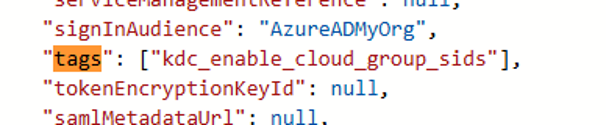
Microsoft’s docs warn against editing anything else in this auto-generated app, and I took the warning seriously: I added the tag and touched nothing else.
Excluding the storage app from MFA
The first day arranged MFA so labadmin is protected everywhere and the lab users nowhere, because the Kerberos ticket for the file share is fetched silently at logon and there’s no UI for a prompt. The storage app exists now, so I could finally build the exclusion: MFA-labadmin, Target resources, Exclude, select the storage account app.
That blade has been renamed since the guides were written, to Resources (formerly cloud apps), but it’s the same thing. labadmin keeps MFA on everything except the one app that can’t tolerate it.
Scrolling through the resource picker I also spotted Azure Virtual Desktop and Azure Virtual Desktop ARM Provider already sitting in the tenant as enterprise apps. Those service principals are what the session hosts will talk to, and in a production design they’re also what you’d target to require MFA on AVD sign-ins specifically. I left them alone for now.
While I was in there, I realized my day-one reasoning had a hole in it.
I had decided the managed Multifactor authentication for admins policy could stay On, reasoning that labadmin has MFA registered so the policy just prompts. What that reasoning missed: managed policies don’t let you edit their target list. That policy can’t exclude the storage app, which means it would MFA-gate labadmin’s own Kerberos ticket to the share: the admin version of the silent temp-profile failure.
So that policy went Off too, and MFA-labadmin, which carries the exclusion, took over as labadmin’s protection.
The policy list after the switch, with both managed MFA policies Off and MFA-labadmin doing the work:
Two permission layers on the share
Permissions on the share come in two independent layers: share-level Azure RBAC on top, Windows ACLs underneath. Telling those layers apart is most of the troubleshooting work whenever profile access breaks, so I laid both down deliberately.
Layer 1 is Azure RBAC on the profiles share itself. The Add role assignment blade offers four SMB data roles:
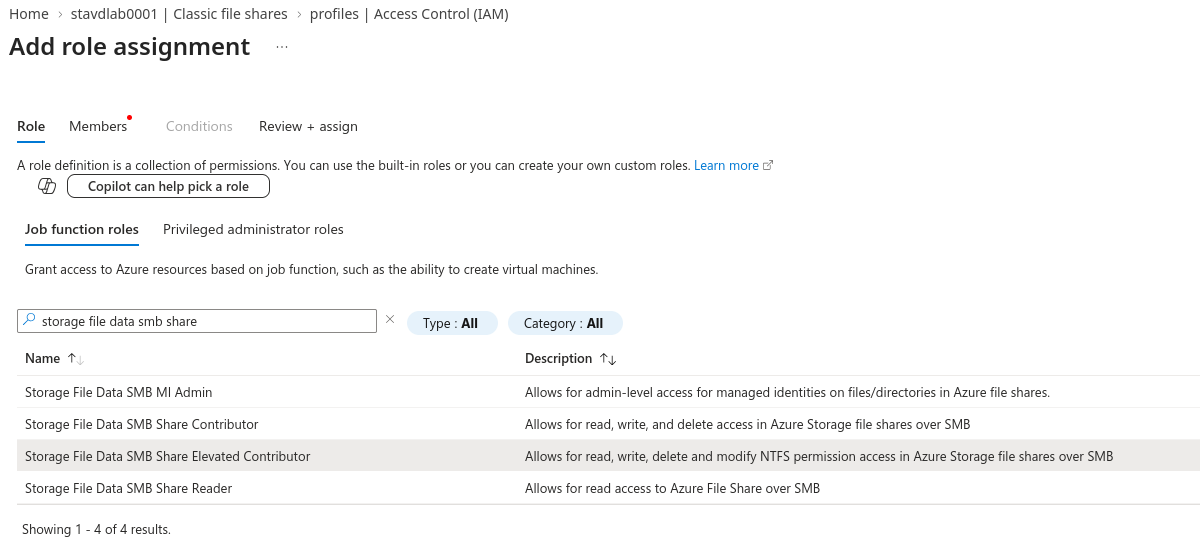
The difference that matters is in the descriptions. Contributor gets read, write, and delete over SMB. Elevated Contributor adds the right to modify NTFS permissions, which is exactly what an admin laying down ACL baselines needs and exactly what ordinary users shouldn’t have.
So: Storage File Data SMB Share Contributor for AVD-Users, Elevated Contributor for labadmin, both scoped to this share only. The result:
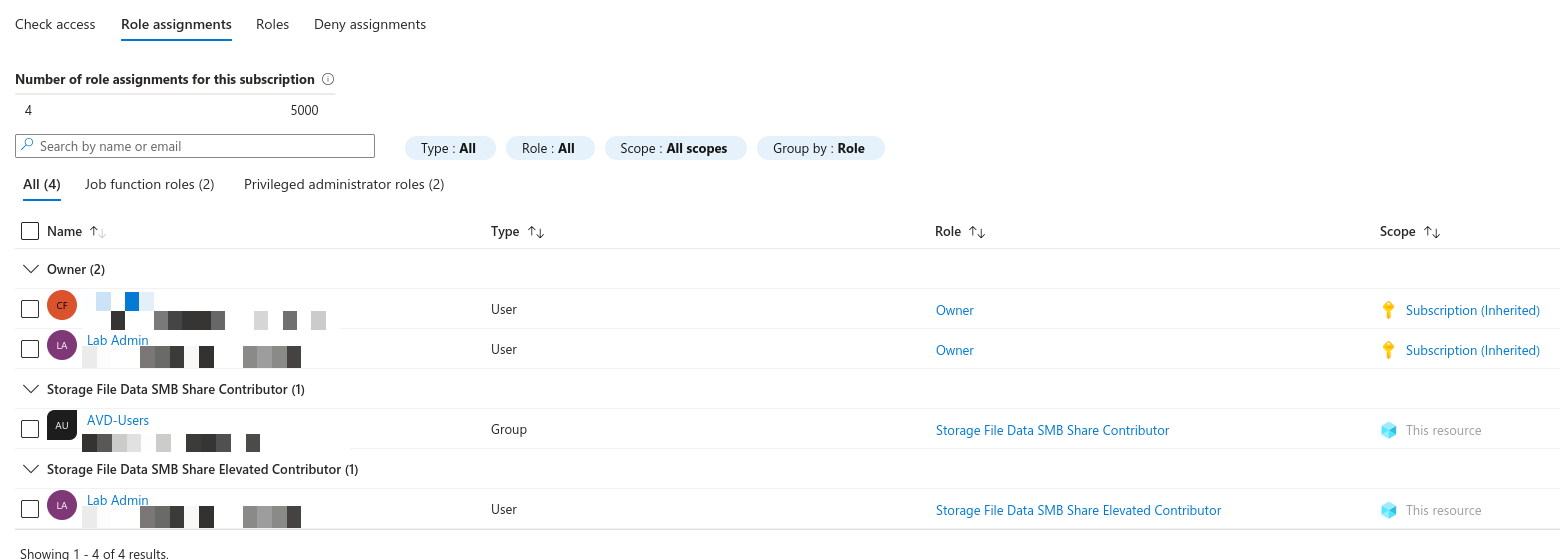
Layer 2 is the Windows ACL baseline on the share root, set through the share’s Manage access blade. Three entries:
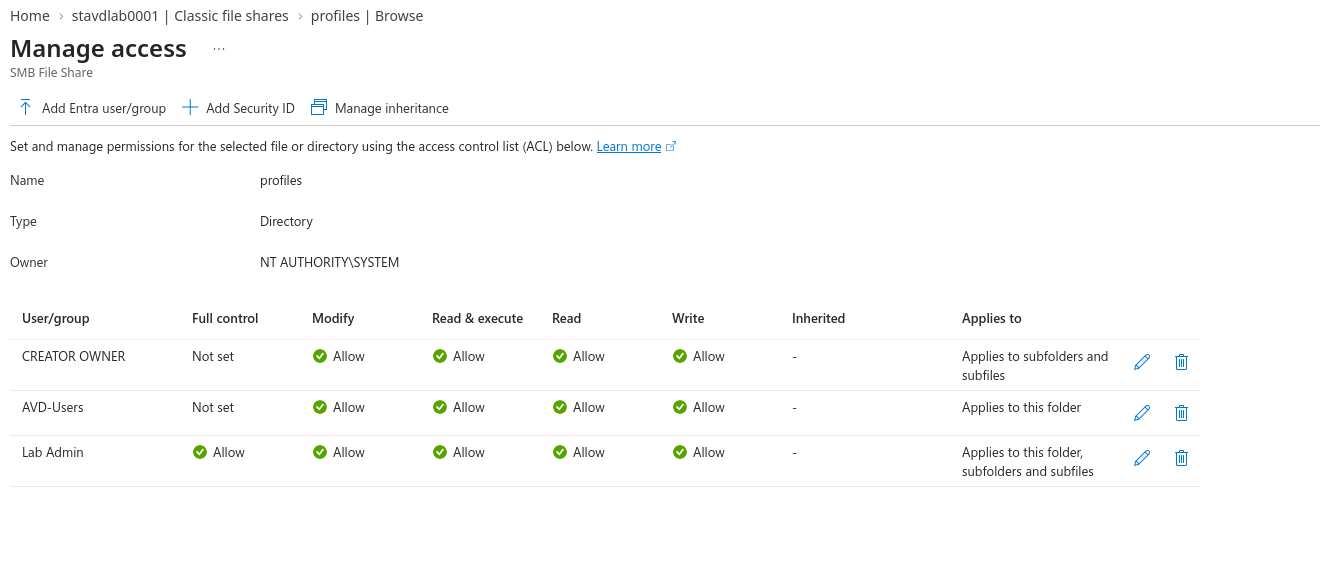
- CREATOR OWNER, Modify, subfolders and files only: whoever creates a profile folder owns what’s inside it.
- AVD-Users, Modify, this folder only: users can create their profile folder at the root but can’t reach into anyone else’s.
- labadmin, Full control, everywhere: for deleting orphaned profile folders and repairing broken ACLs later.
That closed out the storage day: the first resource in the lab that actually costs money, at about 53 cents a day, with every checkmark on it still a claim rather than a result, because with no Windows machine in the lab yet, nothing had fetched a Kerberos ticket.
Host pool
So the third session built the machines: a pooled host pool, two Entra-joined session hosts, a desktop app group for labuser1, a RemoteApp group for labuser2, and one logon to prove the identity stack holds. It took two deployments, and the first one died on the exact network trap I wrote a whole section about above.
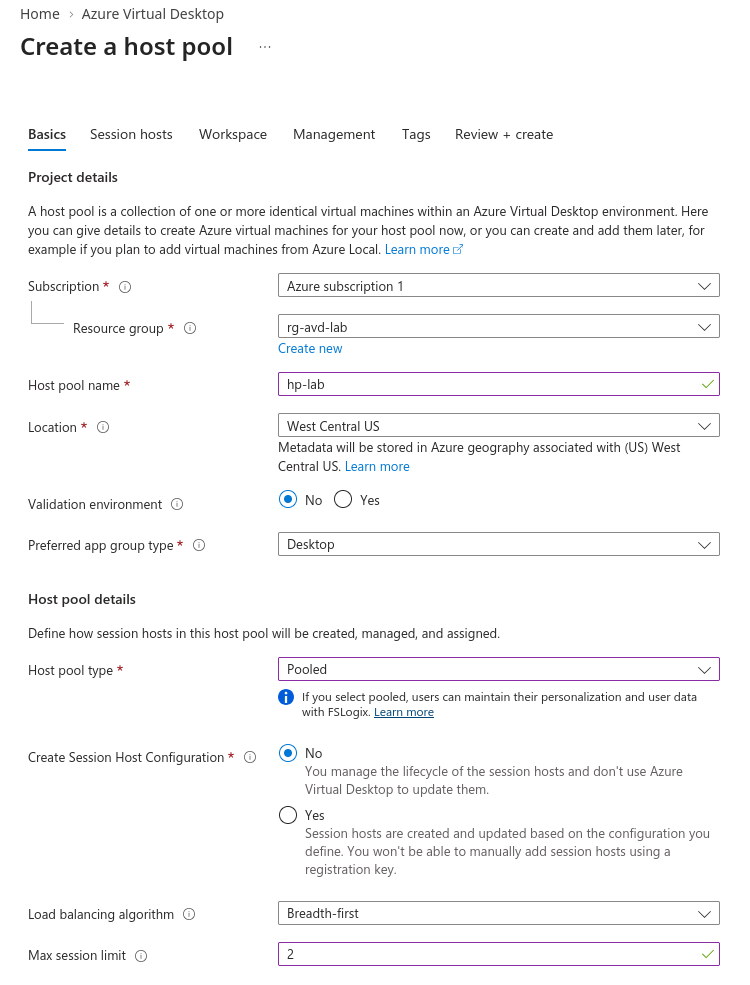
hp-lab: pooled, breadth-first load balancing, max session limit 2. The limit is artificially low on purpose. With two hosts and a ceiling of two, sessions spread across both machines instead of stacking on one, so the cross-host profile lock scenarios I want to practice against this lab will happen naturally instead of being staged.
One choice on the Basics tab didn’t exist when my plan was written: Create Session Host Configuration, Yes or No. Yes hands the VM lifecycle to AVD, which updates hosts from a template you define. No is the classic mode where you own the machines and AVD just brokers to them. For a lab whose entire point is power-yanking a host mid-session, I want to own the machines, so No it was.
The Virtual machines tab had four defaults I didn’t want, and I caught three of them before Review + create:
- Name prefix had quietly become
hp-lab, so the VMs would have been hp-lab-0 and hp-lab-1, the same name as the pool. Fixed toavd-sh. - Domain to join defaulted to Active Directory, with a placeholder UPN of vmjoiner@contoso.com sitting there waiting to fail. Flipped to Microsoft Entra ID, which makes the AD fields vanish and replaces them with one question about Intune (No).
- Image came up as Windows 11 Enterprise multi-session 25H2 + M365 Apps, not the 24H2 my plan names. I kept it. The current doc lists 24H2 and 25H2 both, as long as they carry the March 2026 cumulative update, and a fresh gallery image does.
- Size defaulted to Standard_D2as_v5 instead of D2s_v3. Same 2 vCPU / 8 GiB shape, newer AMD generation, cheaper per hour. Also kept.
The fourth default wasn’t on this tab at all, and I didn’t find it until the deployment failed.
The missing vnet
The Virtual network dropdown said “None available.” My first guesses were a region mismatch or a stale blade, so I toggled the VM location away and back, refreshed, and restarted the wizard, none of which changed anything. Then I opened rg-avd-lab in another tab and it contained exactly one resource: the storage account. There was no vnet. On day one I’d validated it and taken the screenshot, then closed the tab without clicking Create.
So I built it, for real this time, and deleted the default subnet
the blade auto-creates alongside your own. On the Add a subnet panel I
unchecked Enable private subnet (no default outbound access), because
after March 31, 2026 that box arrives checked, and a checked box means
no outbound Internet for anything in the subnet. This is the exact trap
I’d written a section about above, I knew to look for it, and I have
the screenshot showing it unchecked before I clicked Create.
First deployment: failed
The wizard saw vnet-lab, validation passed, and the deployment ran for 20 minutes before both hosts failed on the same extension with the same error:
The DSC Extension failed to execute: Error downloading
https://wvdportalstorageblob.blob.core.windows.net/galleryartifacts/Configuration_1.0.03519.1433.zip
after 17 attempts: Unable to connect to the remote server.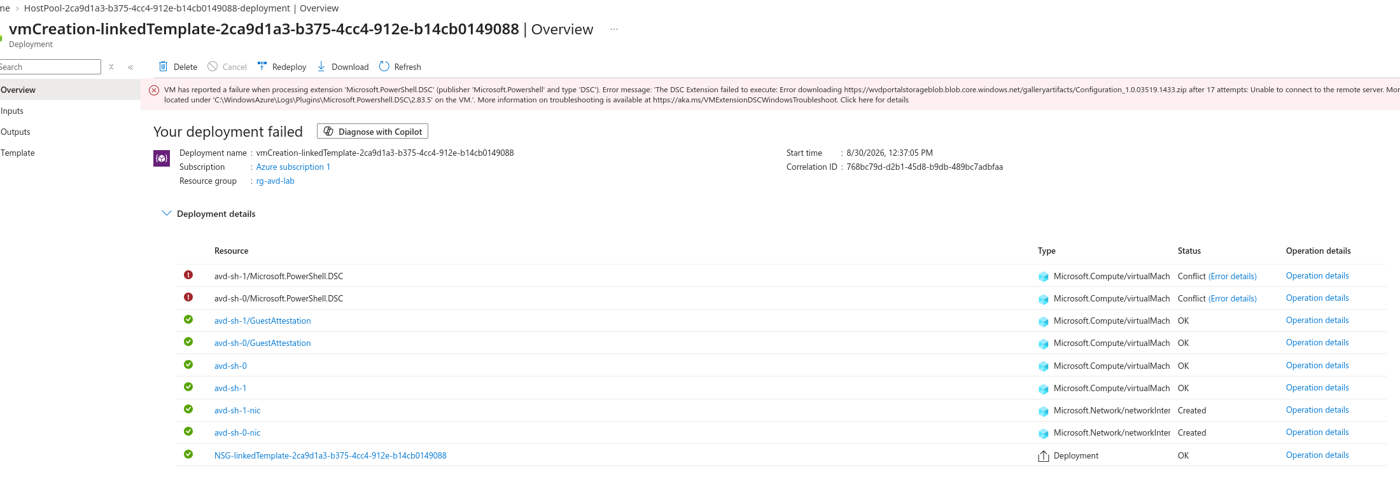
The VMs themselves were fine: allocated, attested, running. West Central US had the capacity and my trial’s 4 vCPU quota fit two D2as_v5s exactly. The AVD agent installer just couldn’t reach Microsoft’s own blob storage to download its configuration, which is the signature of a machine with no route to the Internet. So I opened snet-avd in the portal’s Edit subnet panel, and the private-subnet box was checked. Whether the create panel dropped my setting or the blade re-applied the new default at creation time, I don’t know. What I do know is that the panel before creation showed it unchecked, the subnet after creation had it enabled, and the only setting that matters is the one on the deployed subnet.
The fix was unremarkable: uncheck it on the live subnet, save, delete both VMs, and add two new ones from the host pool’s Session hosts blade. The second deployment finished in about 10 minutes with every extension green. (Yes, a NAT gateway is the production answer. It’s also about $32 a month plus data, and this lab has a September 27 expiry date.)
Then the resource group showed four OS disks for two VMs. When I deleted the first pair of hosts I didn’t tick the boxes to delete their disks with them, and unattached Standard SSD disks bill about $10 a month each just for existing, so I deleted those by hand too.
Session hosts, Available
Both hosts, power state Running, health state Available, agent version 1.0.15008.300, zero sessions.
Two things an Entra-joined host needs before any user can connect, and neither is in the wizard:
- The Virtual Machine User Login role for AVD-Users, assigned at the resource group so it covers both VMs. Without it the AVD broker happily hands the user to a host that then refuses them at the Windows sign-in layer.
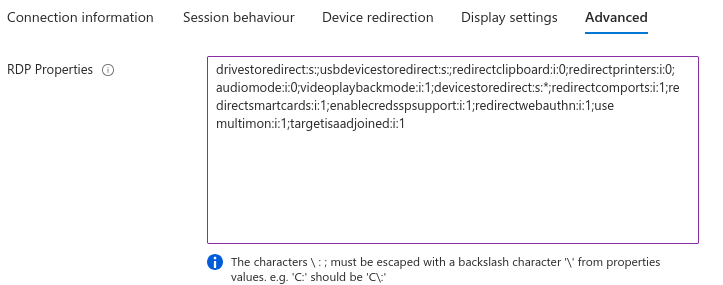
targetisaadjoined:i:1appended to the host pool’s RDP properties. Entra-joined hosts expect the connecting device to be joined or registered too, and my personal PC is neither. The default property string doesn’t include it; I had to add it to the end of the Advanced tab’s value by hand.
The property string after the edit:
App groups next. The wizard had already created hp-lab-DAG and registered it to the ws-lab workspace, so labuser1 just needed adding under Assignments. The RemoteApp group I built by hand: hp-lab-rag, publishing Word, Excel, Sticky Notes, and Microsoft Edge. My plan said Notepad and Calculator, and neither was in the list. The wizard enumerates apps from a running host’s Start menu, which is why it couldn’t be done until the hosts were Available, and on 25H2 those two apparently don’t register there as publishable apps.
I went straight from the Applications tab to Create and skipped the Assignments tab entirely, so labuser2 had to be added from the group’s own Assignments blade afterward. (I also had to reset labuser1’s password on the way to the first logon, because I’d written it down somewhere clever. The M365 admin center reset lets you set your own password and skip the forced change at next sign-in; the Entra one doesn’t.)
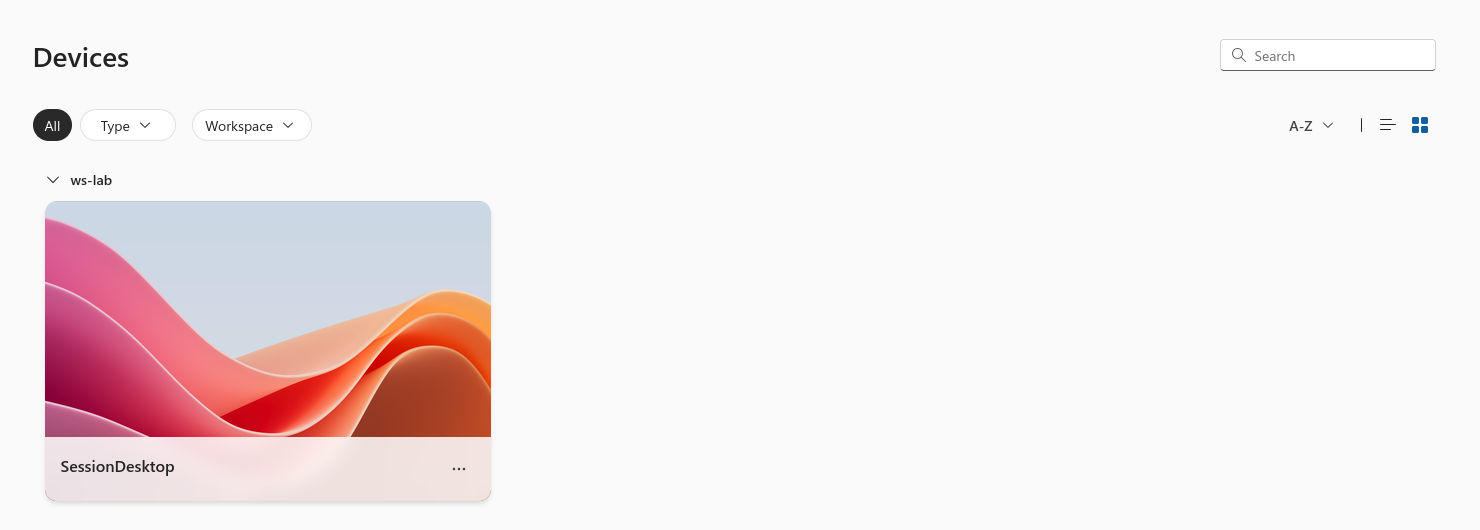
Then windows.cloud.microsoft, signed in as labuser1, one desktop tile under ws-lab:
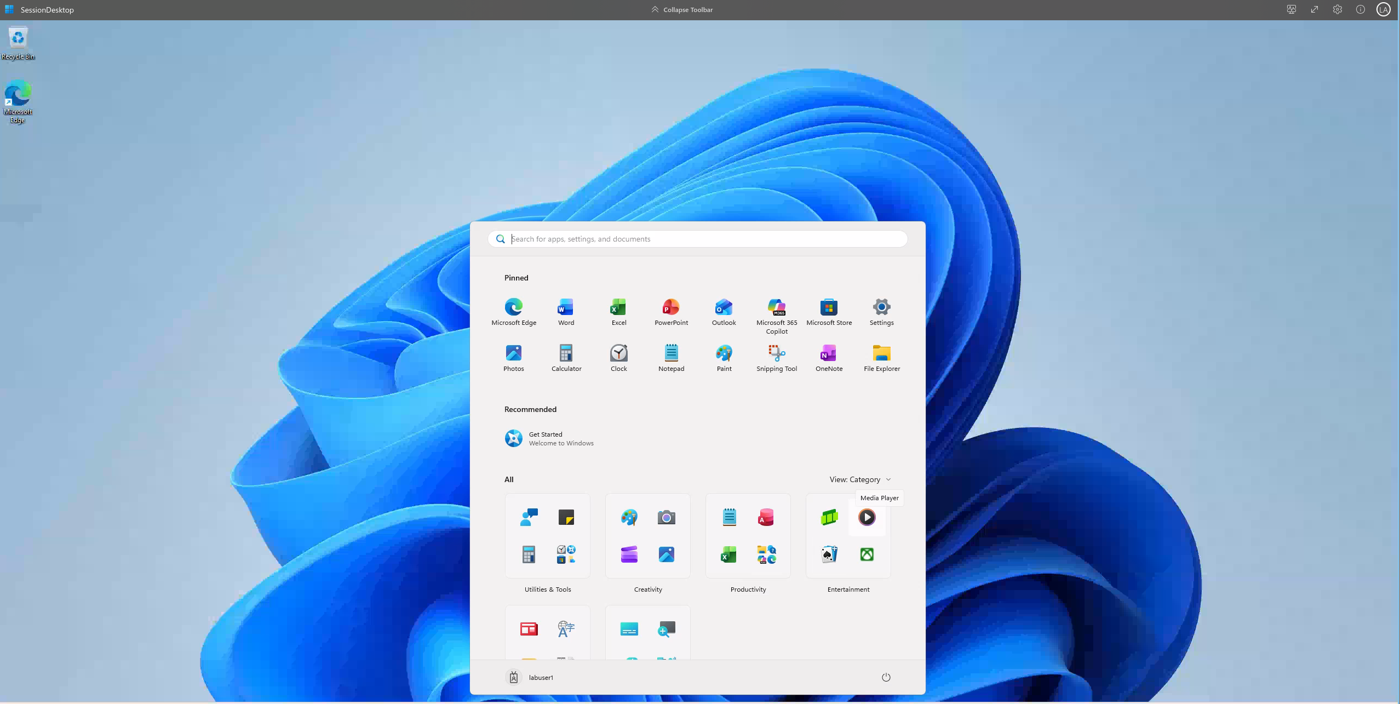
And a full Windows 11 desktop on the other side of it:
labuser2 and the RemoteApps
The fourth session opened with the leftover from the third: labuser2 had never signed in. Password reset first (same M365 admin center route, same unchecked box), then windows.cloud.microsoft showed ws-lab with four app tiles and no desktop tile:
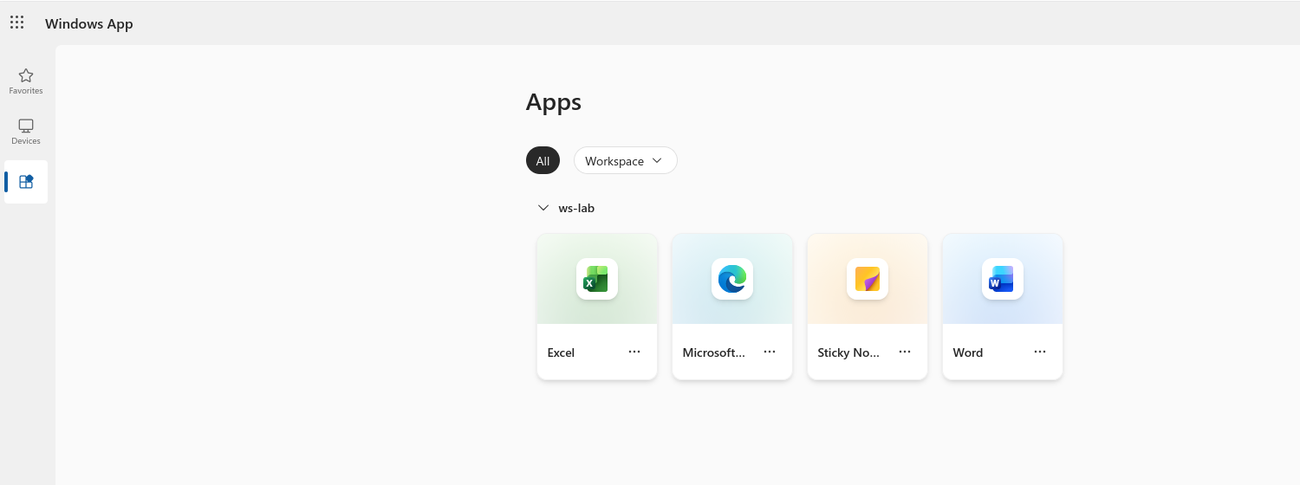
Word opened as a floating window on my own PC. Nothing went wrong in this part.
FSLogix by Run command
I never RDP’d into either session host and never gave labadmin a desktop on the pool. Everything administrative on the VMs went through the portal’s Run command, which runs a PowerShell script inside the VM as SYSTEM over the Azure agent channel, with no public IP or Bastion involved, no break-glass local account, and nothing for a Conditional Access policy to intercept.
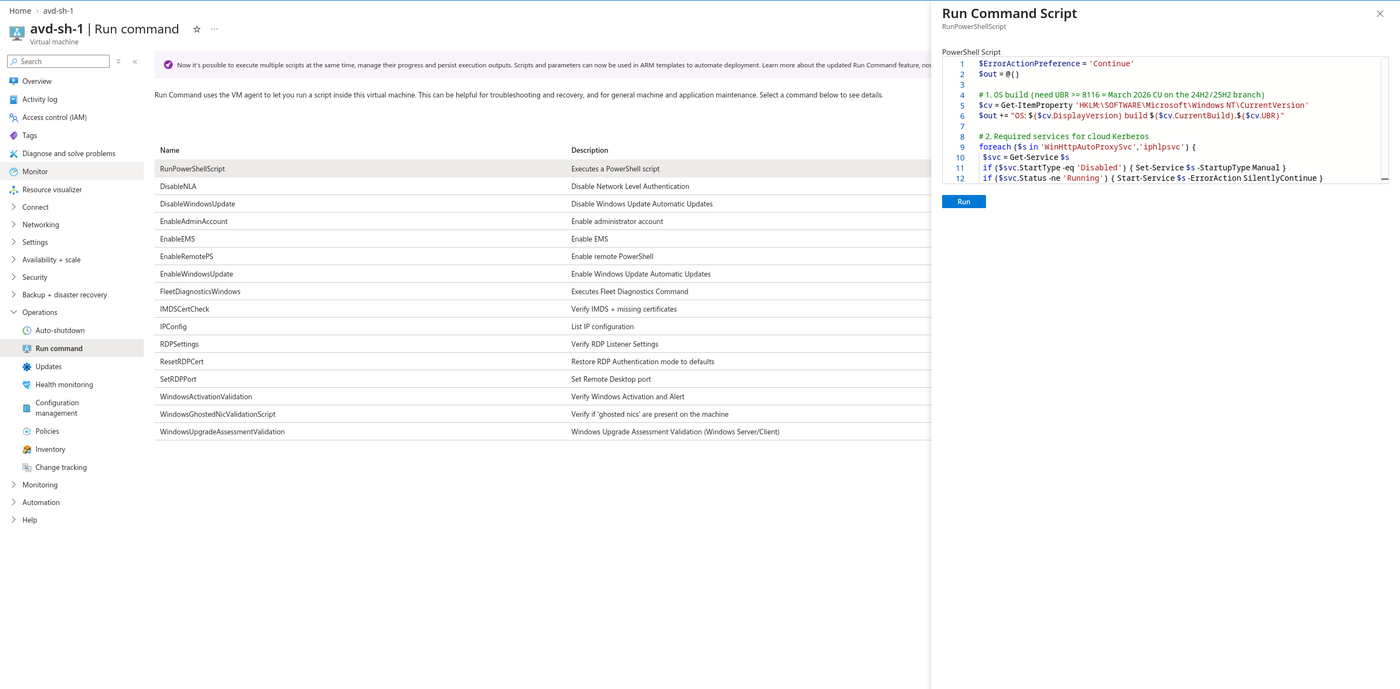
The script checked the OS build, made sure the WinHTTP autoproxy and
IP Helper services were running (the docs list both as prerequisites
for cloud Kerberos), wrote the two Kerberos registry values
(CloudKerberosTicketRetrievalEnabled and LoadCredKeyFromProfile,
both 1), wrote the FSLogix Profiles keys, and read everything back.
The output from avd-sh-1:
OS: 25H2 build 26200.9168
SVC WinHttpAutoProxySvc : Running
SVC iphlpsvc : Running
FSLogix: 3.26.126.19110
Profiles: Enabled=1 VHD=\\stavdlab0001.file.core.windows.net\profiles Type=VHDX Size=5120 FlipFlop=1 Retry=3/5
CloudKerb: 1  CredKey: 1
SMB 445 to share: True
avd-sh-0 printed the same seven lines. Two things in there I didn’t
have to do: the build already carried the March 2026 cumulative update
the doc requires (UBR 9168 against a floor of 8116), and the gallery
image shipped a 2026 FSLogix, so the in-place upgrade my plan called
for was skipped. The FSLogix settings are the ones from my plan: a
5 GB dynamic VHDX per user, folders named username_SID, delete any
stale local profile, three lock retries five seconds apart, and both
PreventLogin values at 0 so a failure lands on a temp profile instead
of blocking the logon.
Then a portal restart of both VMs, because the Kerberos parameter and the FSLogix service both read their values at start.
The first profile on the share
labuser1’s logon was noticeably slower than the day before, which was
the VHDX being created. Once in, I went to launch frxtray to see the
green icon my plan promised, typed
C:\Program Fles\FSLogix\Apps\frxtray.exe into the Run box, and got
“not found.” Fixed the missing letter. Still not found. Then I opened
the Apps folder in Explorer, and between frxsvc.exe and
harfbuzz.dll, where frxtray would sort, there was nothing. FSLogix
3.26 doesn’t ship the tray app, and my troubleshooting toolbox had a
row for a program that no longer exists.
So, Event Viewer instead, Applications and Services Logs, Microsoft, FSLogix, Apps, Operational. Event 25 at 12:42:35 PM:
Profile load: Status: 100 Reason: 0 Error: 0 Username: labuser1 SID: S-1-12-1-3071943890-...Above it sat two red Event 26 errors from 12:29, “Querying computer’s fully qualified distinguished name failed” and “Failed to get computer’s group SIDs.” 12:29 was the reboot. The same pair shows up at 9:34 PM on 8/30 (first boot after deployment) and at 7:13 AM on 8/11, which is when Microsoft built the gallery image. The FSLogix service asks a domain controller for the computer’s details every time it starts, and on an Entra-joined host with no domain controller it logs two errors and carries on. They look alarming, they’re at every boot, and they have nothing to do with any logon.
On the share, browsing as labadmin (the portal browses with the
storage key, so ACLs don’t apply to what it can see), a folder named
labuser1_S-1-12-1-3071943890-1114014340-718742414-2015041209, and
inside it Profile_labuser1.VHDX at 196 MiB, next to a 272-byte
.VHDX.metadata sidecar I hadn’t seen before and assume is new in the
3.x builds. The SID prefix is the tell for anyone reading this from a
hybrid environment: cloud-only identities start S-1-12-1, on-prem
ones start S-1-5-21.
And from the host side, the same Run command channel read the tail of
C:\ProgramData\FSLogix\Logs\Profile\Profile-20260831.log and listed
the virtual disks:
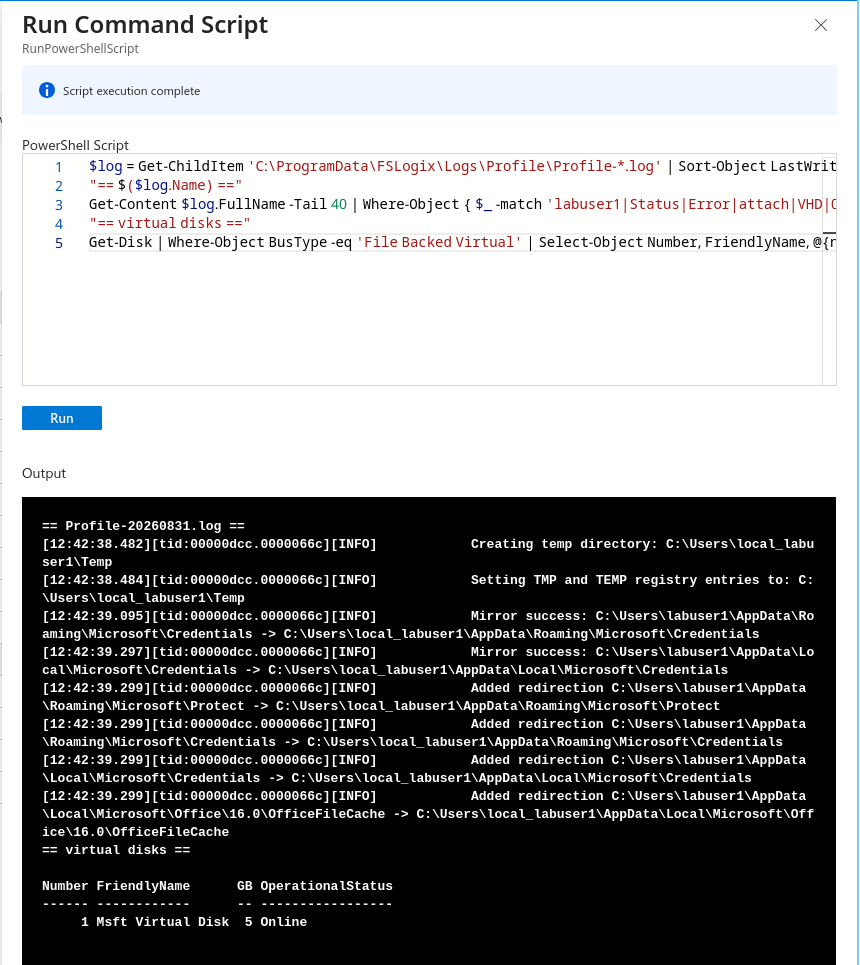
196 MiB on the share, a 5 GB disk online in the VM. That folder existing at all means the ticket carried the AVD-Users group SID (the manifest tag worked), share-level RBAC let the connection in, the “this folder only” ACL allowed the create, and CREATOR OWNER handed labuser1 the rights to what they made. Every checkmark from the storage session is a result now.
The handles
With labuser1 still signed in, Cloud Shell from the portal (ephemeral mode; it printed a yellow warning that the subscription isn’t registered to the Microsoft.CloudShell namespace and then worked anyway):
$key = (Get-AzStorageAccountKey -ResourceGroupName rg-avd-lab -Name stavdlab0001)[0].Value
$ctx = New-AzStorageContext -StorageAccountName stavdlab0001 -StorageAccountKey $key
Get-AzStorageFileHandle -Context $ctx -ShareName profiles -Recursive |
    Where-Object Path -like "*labuser1*" |
Format-Table Path, HandleId, ClientIp, OpenTime -AutoSizePath HandleId ClientIp OpenTime
---- -------- -------- --------
labuser1_S-1-12-1-3071943890-1114014340-718742414-2015041209/Profile_labuser1.VHDX 424804380 10.10.1.5 8/31/2026 12:42:34 PM +00:00
labuser1_S-1-12-1-3071943890-1114014340-718742414-2015041209/Profile_labuser1.VHDX 424804382 10.10.1.5 8/31/2026 12:42:35 PM +00:00Two handles on Profile_labuser1.VHDX, both from 10.10.1.5
(avd-sh-1), opened at 12:42:34 and 12:42:35, the two seconds FSLogix
spent attaching the container. That’s the lock. labuser1 signed out, I
waited about 30 seconds and ran it again, and got nothing back: a
clean detach.
Then I pasted the profile-log script into the same Cloud Shell window and got:
Get-ChildItem: Cannot find drive. A drive with the name 'C' does not exist.Cloud Shell is a Linux container in Azure. It has no C: drive
because it isn’t the VM. I’d spent the previous hour switching between
two shells and had stopped noticing which one I was in.
Breaking the root ACL first
My plan had the RBAC break as experiment 1, but I reordered before starting. With AVD-Users dropped to Reader on the share, every logon fails at layer 1, and nothing happening at layer 2 is observable underneath it. So the ACL experiments have to run while RBAC is healthy, and the RBAC break goes last, where its 15-30 minute propagation waits can land on a lunch break.
The break: on the share root’s Manage access blade, AVD-Users edited from Modify down to Read, and the CREATOR OWNER row deleted:
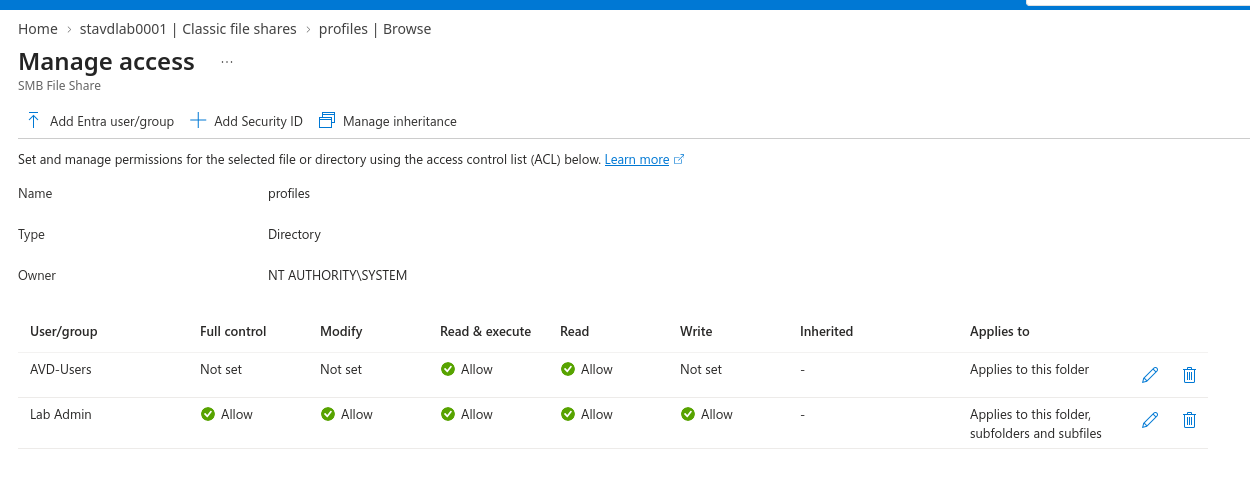
labuser2 had no container yet (the RemoteApp session earlier in the day was before FSLogix was configured), so they were the new user this test needed. They signed in and launched Word. The Session hosts blade showed the session on avd-sh-1, and Run command on that host pulled the two lines that mattered from the profile log:
[13:02:13.139][tid:00000dcc.00001d8c][ERROR:00000005]   No Create access: \\stavdlab0001.file.core.windows.net\profiles\labuser2_S-1-12-1-3359297402-1284255322-2300726944-354249152-test (Access is denied.)
[13:02:13.155][tid:00000dcc.00001d8c][ERROR:00000005]   LoadProfile failed. Version: 3.26.126.19110 User: labuser2. SID: S-1-12-1-3359297402-1284255322-2300726944-354249152. SessionId: 3. FrxStatus: 31 (Access is denied.)
ERROR 00000005, the access-denied code my plan predicted, on a create.
The detail I didn’t know: FSLogix doesn’t try the real profile folder
first. It probes with a throwaway directory named <user>_<SID>-test,
and when that create is refused it gives up with FrxStatus 31 before
ever attempting the real one. No labuser2 folder appeared on the
share.
Reverting was the same blade in reverse: AVD-Users back to Modify,
CREATOR OWNER re-added by SID (S-1-3-0, Modify, subfolders and files
only), labuser2 signed out.
Then I started the next one, the single-user break: on labuser1’s own folder, Manage inheritance, disable it, and delete the labuser1 entry that CREATOR OWNER had generated when the folder was created. That’s where the fourth session ended, with labuser1’s folder left in that state on purpose.
Breaking labuser1’s folder
Fifth session. labuser1 signed in, and I ran the log script expecting
a 0x5 on the open. What came back? The same two
local_labuser1\Temp redirection lines a healthy attach writes:
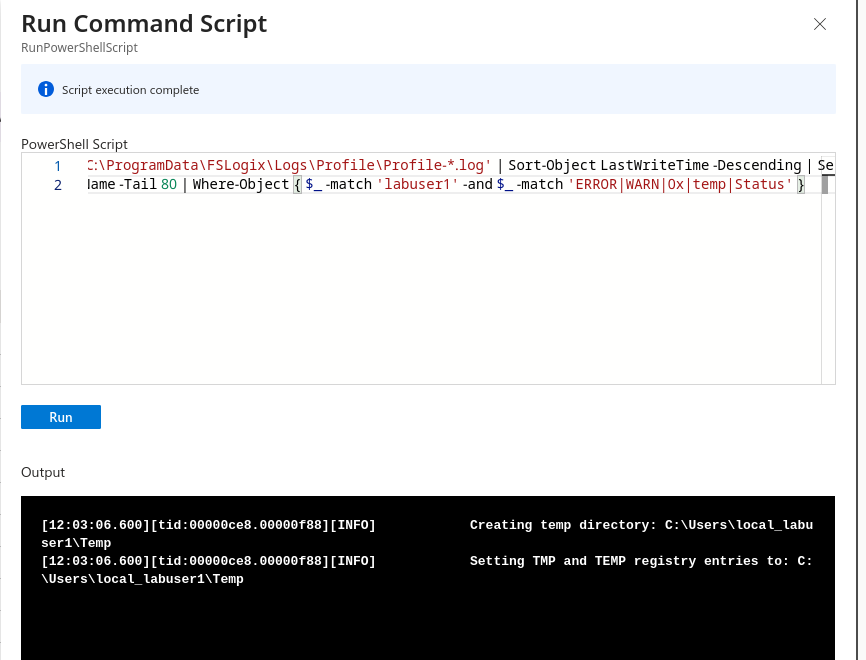
No error at all. The Cloud Shell handle query showed two fresh handles from 10.10.1.5, opened at 12:03. labuser1 had a perfectly good profile, on a folder they had no entry on.
So I opened Manage access on the VHDX file instead of the folder:
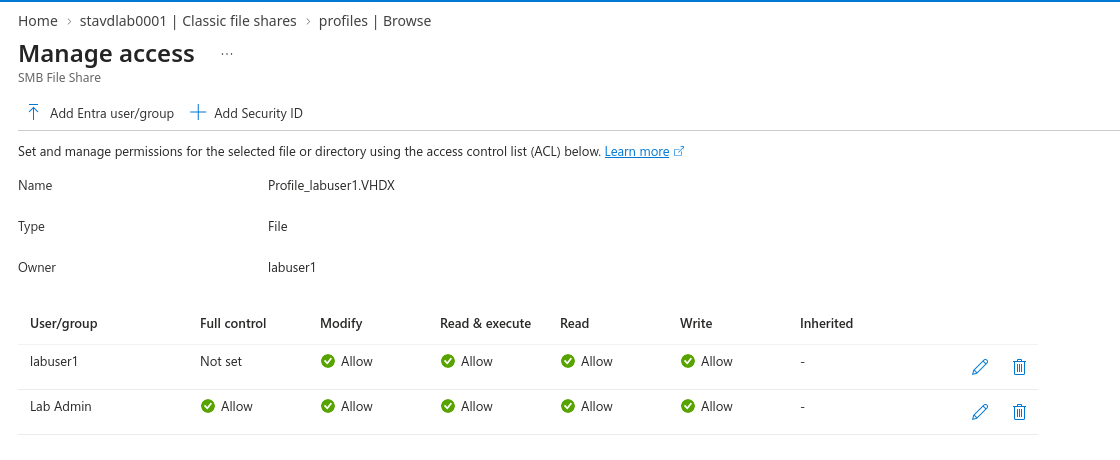
When the folder was created, CREATOR OWNER’s inheritable entry got written onto every child as labuser1’s own explicit entry. Removing labuser1 from the folder a day later never touched the file, and the file is the only thing FSLogix opens. Windows lets an ordinary user open a file by full path without any rights on the folders above it (the “bypass traverse checking” privilege, granted to everyone by default), so deleting labuser1 from the folder blocked nothing; the open lands on the file’s own ACL.
The portal even documents this, in a pane I’d never opened. The
folder’s Manage inheritance button doesn’t toggle anything; it shows a
PowerShell script (Restore-AzFileAclInheritance -Recursive, from a
module called RestSetAcls) and says to re-run it any time you add,
delete, or edit an entry, because portal ACL edits apply to new
children only.
It also printed my storage account key in plain text inside the script, and I’d already screenshotted the pane, so I rotated the key.
So, the real single-user break: labuser1 signed out (handles gone),
labuser1’s row deleted from Profile_labuser1.VHDX itself:
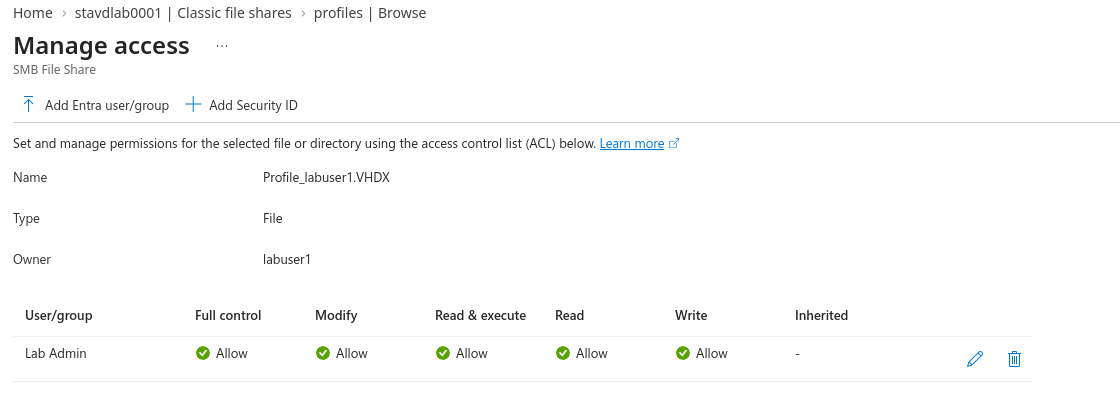
labuser1 signed back in. Session number 5, active on avd-sh-1, and this time:
[ERROR:0000003b]   Failed to open virtual disk: \\stavdlab0001.file.core.windows.net\profiles\labuser1_S-1-12-1-...\Profile_labuser1.VHDX (An unexpected network error occurred.)
[ERROR:0000003b]   LoadProfile failed. Version: 3.26.126.19110 User: labuser1. ... FrxStatus: 31 (An unexpected network error occurred.)
Not 0x5. 0x3B, ERROR_UNEXP_NET_ERR, “an unexpected network error.” The plan had two error codes, 0x5 for permissions and 0x20 for locks. This is a third: when the ACL denial lands on the VHDX file itself, FSLogix opens it through the virtual disk layer, and that layer reports the refusal as a network error. So the log points at the network when the cause is one missing row on one file. No handle on the share, temp profile on the host.
Reverting this one meant putting labuser1 back on the file where the break had actually landed, and a verification sign-in put two handles back on the VHDX at 12:25.
The wrong switch
Experiment four was supposed to be easy: set
PreventLoginWithTempProfile to 1 on both hosts, break the same file
again, and watch the logon get blocked outright.
labuser1 signed in fine. Session number 5 on avd-sh-1, Active, no handle on the VHDX. FSLogix had failed to attach, and Windows let them in anyway, with the setting confirmed at 1 on that exact host.
The FSLogix docs have two prevent-login switches and I’d picked the
wrong one. PreventLoginWithTempProfile covers the case where the
container attached but the profile inside it couldn’t load.
PreventLoginWithFailure covers the case where the container couldn’t
be attached at all, which is every permission break in this post. My
plan named the first one for a scenario that belongs to the second.
PreventLoginWithFailure set to 1 on both hosts, labuser1 signed out
and back in:
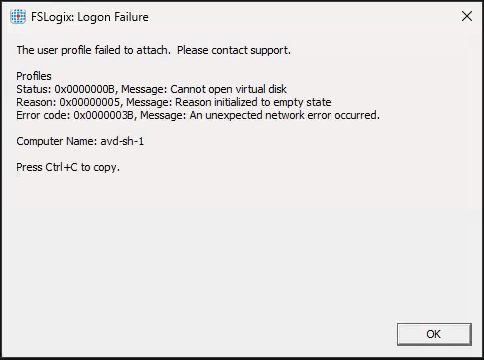
Refused. And the dialog is better than I expected: status code, reason, the underlying 0x3B, and the computer name, which is the one thing a help desk can never get out of a user on the phone. The temp-profile path hides all of that and deletes their work at sign-out.
The revert had two halves. I ran the switches back to 0 on both hosts and moved on. The other half, putting labuser1 back on the file and verifying with a sign-in, I never did, because at exactly that point I stopped for the day to write.
One more thing from this session, small but it will generate a ticket somewhere: labuser2 opened windows.cloud.microsoft and got “It looks like your system administrator hasn’t set up any resources for labuser2 yet.” Their four RemoteApps were fine. The Windows App lands on the Devices view, which lists desktops, and a RemoteApp-only user has none; the apps are under Apps in the left rail, so a fully entitled user gets told they have nothing.
The lock
The sixth session opened with the FSLogix logon failure dialog before I’d broken anything. labuser1 was still missing from the VHDX, the revert step I’d skipped the night before, and getting the dialog rather than a silent temp profile meant the fail-closed switch was still live on that host too, whatever I thought I’d reverted. Both survived the VMs being deallocated overnight, because of course they did: an ACL and a registry value don’t care about power state. Breaking things on purpose needs a written revert list, and I’d been keeping it in my head.
While sorting that out I got experiment seven for free. I signed in as labuser1 in a second browser window while the first was still connected, and instead of a second session, the new connection took over the existing one and the first window got kicked to the sign-in page. One user, one session, on a pooled host pool. There is no two-live-sessions case fighting over a VHDX, which is why real locked-profile incidents come from stale handles left by dead hosts; true concurrency can’t happen.
So, the stale handle. The setup is to hard-kill the host mid-session, so FSLogix never gets to detach. The portal’s Stop button is a graceful shutdown, which defeats the point; the yank is:
az vm stop --resource-group rg-avd-lab --name avd-sh-1 --skip-shutdownMy first attempt at running it went into the Run command box on
avd-sh-1 itself, where it failed because Windows has no az command.
Cloud Shell has no C: drive, and the VM has no az; I have now made
this mistake in both directions.
From Cloud Shell it worked, and the handle query straight after showed
the goods: two handles on Profile_labuser1.VHDX from 10.10.1.5, a
machine that was now powered off. A dead host, still holding the file.

Then I fumbled the second half. The fix for a stale lock is
Close-AzStorageFileHandle -CloseAll on the VHDX path, and I ran it
immediately, while admiring the stale handles, before labuser1 had
tried to reconnect. Which means the fix worked and the evidence never
happened: by the time labuser1 signed back in, there was nothing to
collide with.
Rather than re-stage the race, I made the lock deterministic. avd-sh-1 went into drain mode on the Session hosts blade, so the broker couldn’t place labuser1 there. Then Run command on avd-sh-1 mapped the share with the storage key and mounted labuser1’s VHDX directly with Mount-DiskImage: an on-demand version of the handle a hung host leaves. The handle query showed two handles from 10.10.1.5 again, held by a healthy machine this time.
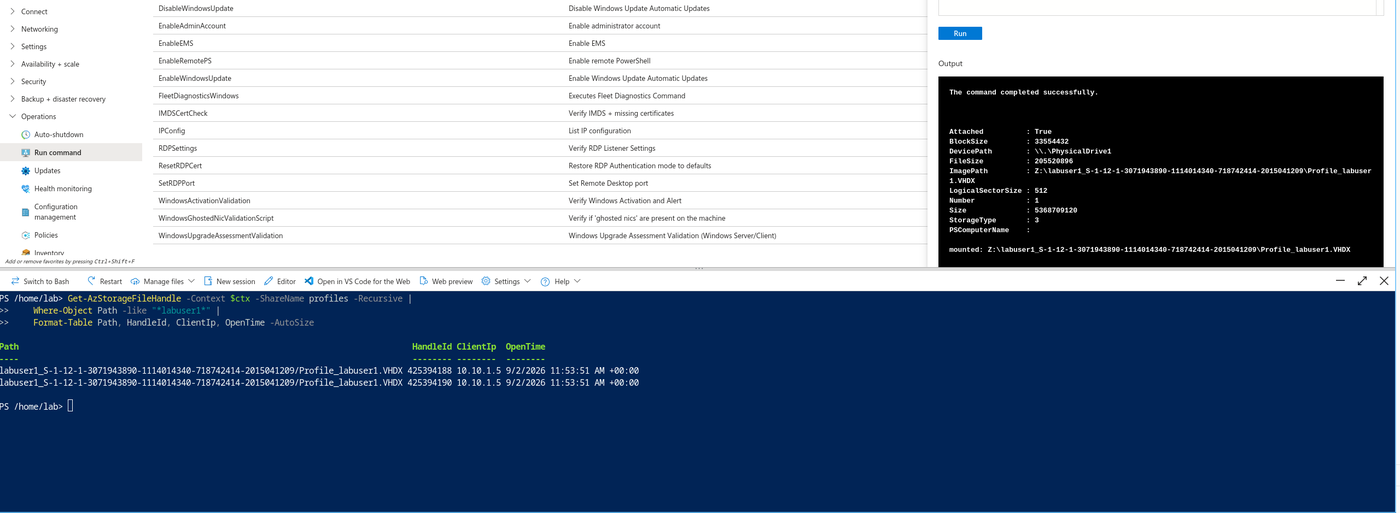
labuser1 signed in, landed on avd-sh-0, waited out a visibly slow logon, and got a temp profile. The log on avd-sh-0:
[11:55:54.670][INFO]   Configuration Read (DWORD): SOFTWARE\FSLogix\Profiles\LockedRetryCount.  Data: 3
[11:55:54.670][INFO]   Configuration Read (DWORD): SOFTWARE\FSLogix\Profiles\LockedRetryInterval.  Data: 5
[11:55:55.971][ERROR:00000020]   Operation 'OpenVirtualDisk' failed.  Retrying 3 time(s) at 5 second intervals (The process cannot access the file because it is being used by another process.)
[11:56:00.983][INFO]   Retrying operation 'OpenVirtualDisk' 1/3
[11:56:07.294][INFO]   Retrying operation 'OpenVirtualDisk' 2/3
[11:56:13.587][INFO]   Retrying operation 'OpenVirtualDisk' 3/3
[11:56:14.906][ERROR:00000020]   This machine 'avd-sh-1' is using labuser1's (SID=S-1-12-1-...) disk. Vhd(x): '\\stavdlab0001.file.core.windows.net\profiles\labuser1_S-1-12-1-...\Profile_labuser1.VHDX' (The process cannot access the file because it is being used by another process.)
[11:56:14.918][INFO]   ErrorCode set to 32 - Message: The process cannot access the file because it is being used by another process.
0x00000020, ERROR_SHARING_VIOLATION, and every piece of it is readable: the retry count and interval are my registry values, the three retries land five seconds apart on the clock, and then FSLogix prints the one line that matters: this machine ‘avd-sh-1’ is using labuser1’s disk. The log names the host holding the lock, which on a real ticket is the difference between a five-minute fix and an afternoon.
Cleanup in the right order this time: Dismount-DiskImage on avd-sh-1, the mapped drive deleted, drain mode off, labuser1 signed out and back in for a clean attach on the first try. And the storage key had by now been pasted into enough places that it got rotated again.
Conclusion
The cloud-only Kerberos path works end to end, and
breaking it on purpose taught me more than building it did. A folder
ACL edit in the portal doesn’t reach existing files, so the
single-user break has to be done on the VHDX itself. Denial on the
file logs as 0x3B, a network error, not 0x5. The switch that refuses a
logon on attach failure is PreventLoginWithFailure, not the one I’d
written down. And when a VHDX is locked, the FSLogix log names the
machine holding it.
Six of the seven experiments happened, though not the way the plan drew them: the double-connect check happened by accident, the power-yank produced a stale lock that I fixed before capturing, and the deterministic mount had to stand in for it. The one I skipped is the share-level RBAC break, on purpose. Dropping AVD-Users to Reader fails every logon at the share layer with a 0x5, the log is a foregone conclusion, and it carries two 15-to-30-minute propagation waits I didn’t want to spend on the least surprising experiment of the set.
I had a good time with this one, the broken parts especially. The next labs are already picked: Cisco ACLs and Palo Alto firewall configurations.