Building a machine catalog and delivery group in Citrix Web Studio
Contents
This is a full Citrix Virtual Apps and Desktops build cycle in Web Studio: an MCS machine catalog provisioned from a Server 2022 master image, an Active Directory computer account created by naming scheme, a delivery group restricted to one user, a published desktop and application, and the machine’s registration with the Delivery Controller watched from Off through Initializing to Registered. Then the operations side: maintenance mode, a message into a live session, a restart sent from Studio through SCVMM to Hyper-V, removing the machine from its delivery group and adding it back, Policy Modeling against a user and a machine, and a final check of the session and the machine in Director.
What I learned: the delivery group, not the catalog, is what powers a machine on and lets it register; Studio can’t browse a VDA’s Start menu for applications until that VDA is on, so the order you run the wizards in matters; the delivery group wizard leaves the Desktops list empty unless you add one; application names are unique across the Site; and StoreFront shows a user the union of every delivery group they’re entitled to, so a new group’s tiles land beside everything they already had.
Tools: Web Studio, Hyper-V Manager, Remote Desktop Connection Manager, StoreFront, and Director.
The Site as I found it
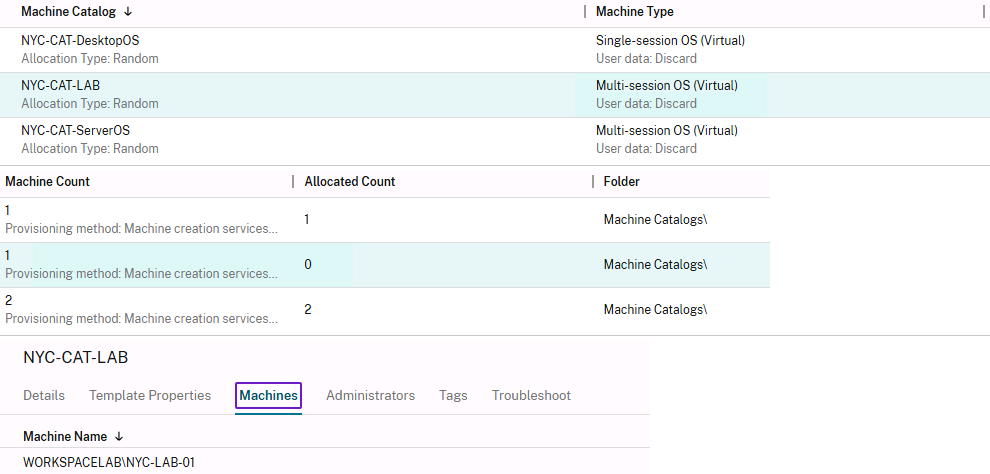
Two catalogs already existed, both provisioned by Machine Creation Services, both Random allocation, both set to discard user changes at log off. One single-session Windows 11 catalog, one multi-session Server 2022 catalog with two machines.
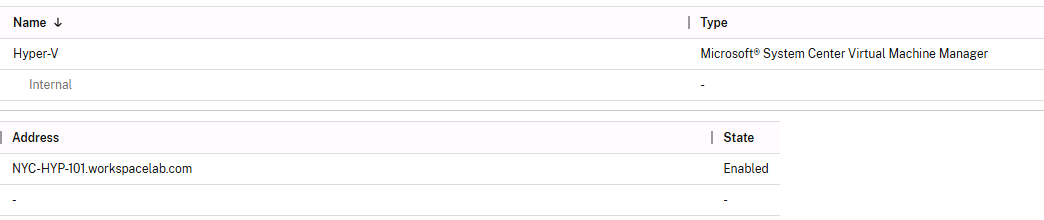
The hosting connection is labeled Hyper-V, but its type is Microsoft System Center Virtual Machine Manager. Studio talks to SCVMM, and SCVMM talks to the Hyper-V host. I would not have guessed that from the name.
The two catalogs also point at their master images two different ways.
The server catalog’s disk image is named Citrix_XD_NYC-CAT-ServerOS, which is the prefix MCS uses when Studio takes the snapshot itself. The desktop catalog’s image is named “NYC-DTP-MST Configuration Update 1 Snapshot”, a checkpoint a person took by hand in Hyper-V and then picked in the wizard. Same feature, two workflows, and the hand-named one tells you somebody has already run a patch cycle on that image.
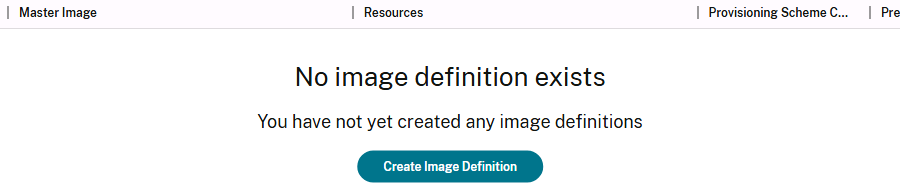
The newer Images node in Studio was empty (“No image definition exists”), so this Site does everything the classic per-catalog way.
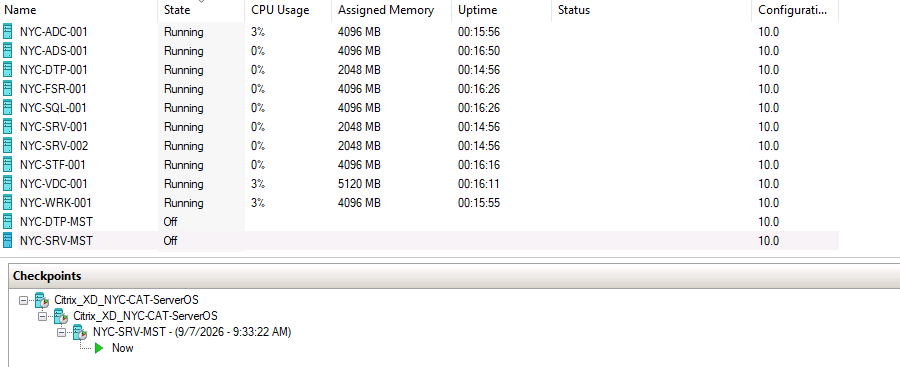
One more thing in Hyper-V Manager: while poking at the master templates I managed to take a checkpoint of NYC-SRV-MST by accident, timestamped 9:33:22 AM. It sat there all morning under the two Citrix_XD_ checkpoints.
Ten screens to a catalog
The Machine Catalog Setup wizard is ten steps down the left rail: Introduction, Machine Type, Machine Management, Desktop Experience, Image, Virtual Machines, Machine Identities, Domain Credentials, Scopes, Summary.
I picked Multi-session OS, power managed machines deployed through MCS, and the Internal hosting resource. On the Image screen the wizard offered the existing Citrix_XD_ snapshot of NYC-SRV-MST and I kept it.
Did my accidental 9:33 checkpoint finally get a job? No. It’s still sitting in the tree doing nothing.
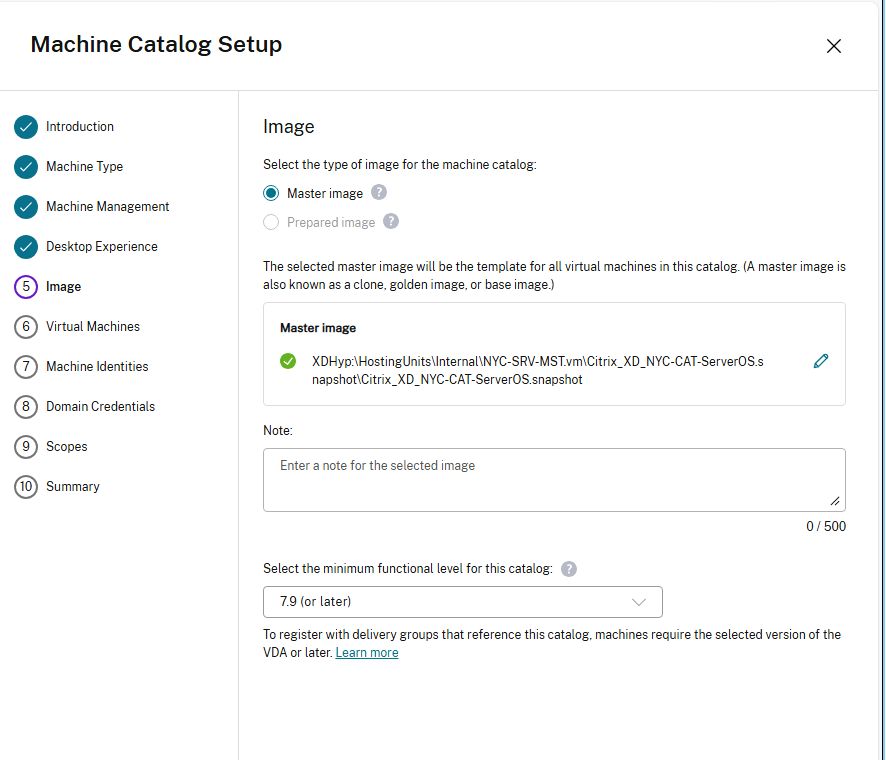
One machine, 1 vCPU, 2048 MB of memory, the inherited 127 GB disk, functional level left at 7.9 (or later). The Machine Identities screen is the one worth staring at: identity type On-premises Active Directory, create new accounts, Default OU, and an account naming scheme. I typed NYC-LAB-## and each # becomes a digit.
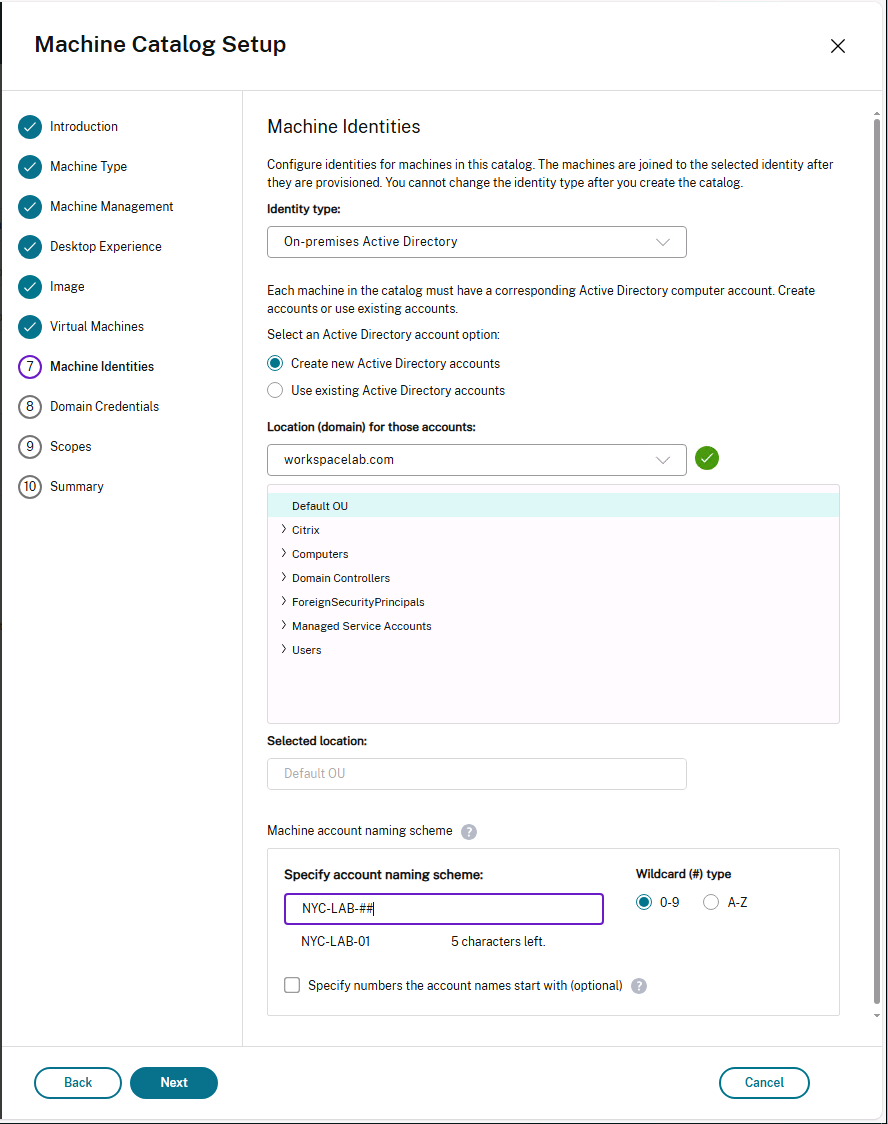
Then Domain Credentials, and my first failure of the day: “Your credentials did not work. Please try again.” I stared at it, decided I could not possibly have mistyped a nine-character password, and retyped it anyway.
It worked. Total time lost, about a minute; total dignity lost, more.
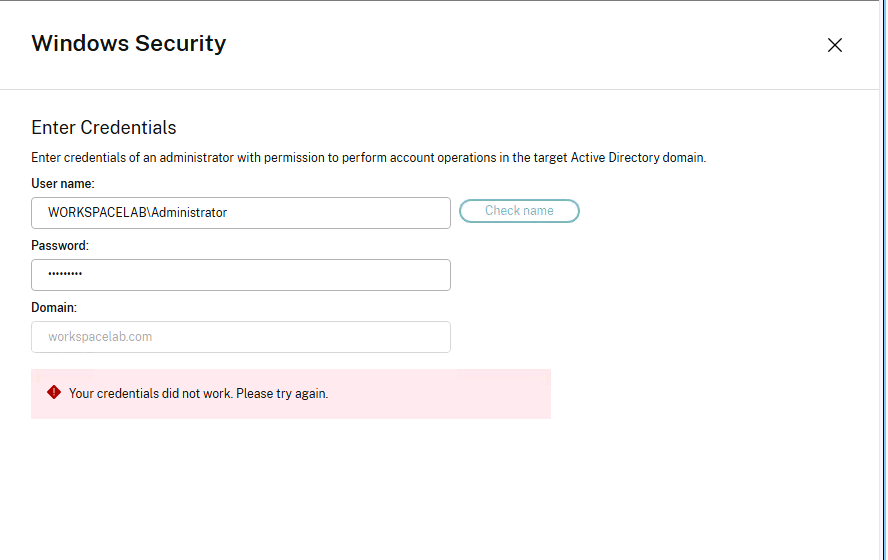
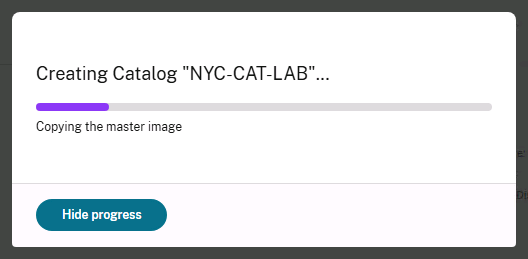
Scopes stayed at All, the summary page showed the whole build on one screen, and I named it NYC-CAT-LAB. The provisioning dialog sat on “Copying the master image” while SCVMM cloned the disk; I clicked Finish at 10:10 and the catalog was in the list by 10:23, Multi-session OS, 1 machine, allocated count 0.
The new machine was WORKSPACELAB\NYC-LAB-01, and its starting state is the before photo I wanted: Power State Off, Registration State Unregistered, Delivery Group blank. Nothing wrong with it. An MCS machine with no delivery group has no reason to be on, and a machine that’s off can’t register.

The delivery group, in the wrong order
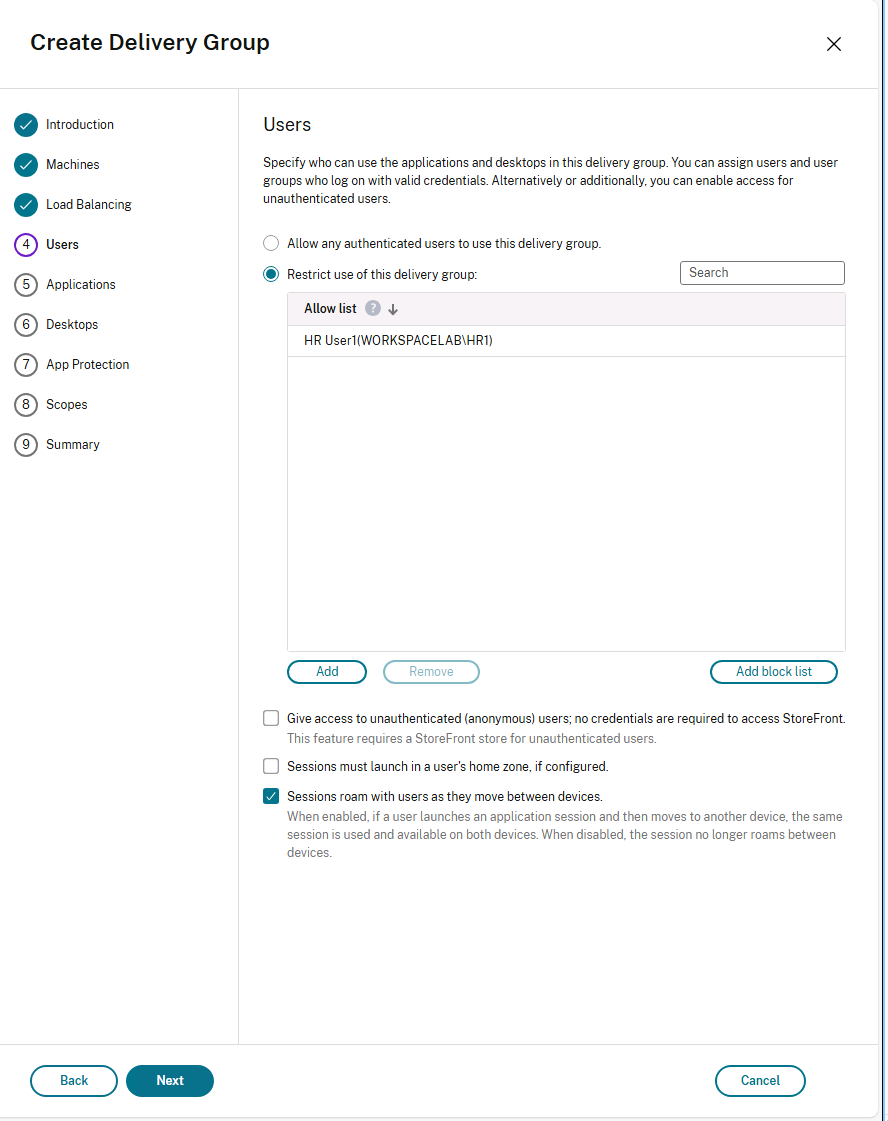
The Create Delivery Group wizard took the one machine from NYC-CAT-LAB, and on the Users step I restricted the group to a single account, HR User1, instead of allowing any authenticated user. The restriction is the demo.
Then the Applications step handed me the day’s best error: “There are no powered-on machines that can be browsed, and you cannot (or do not have permission to) power on a machine.” Studio builds its Start menu list by asking a live VDA what’s installed, and my only machine was off, and mid-wizard Studio won’t start it for you.
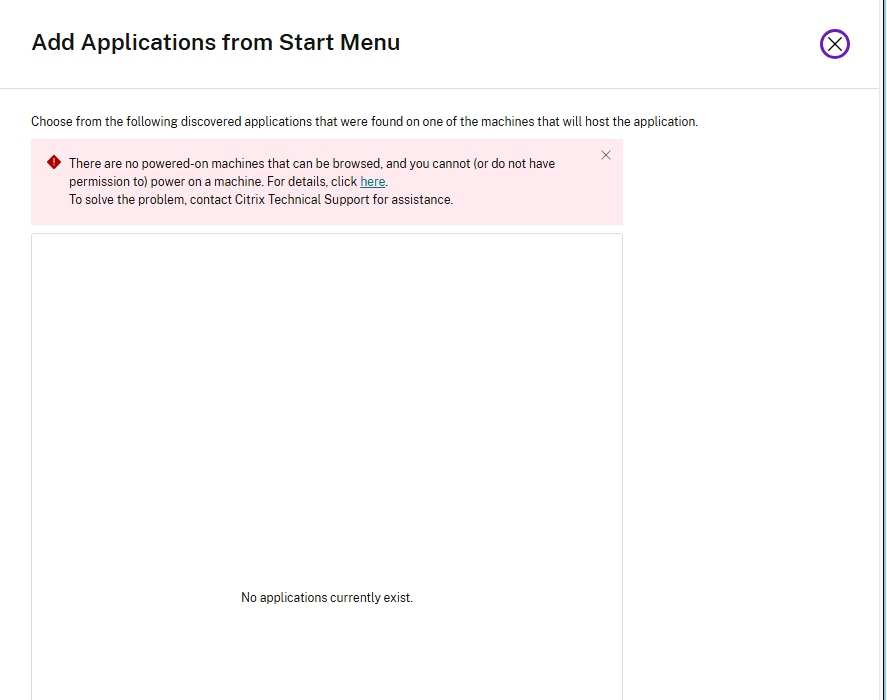
So the order of operations became the lesson. Cancel, skip applications, finish the wizard, and let the delivery group itself power the machine on.
Refreshing the Search view caught all three states: Off and Unregistered, then Power State On with Registration State Initializing, then Registered with NYC-DG-LAB filled in. Initializing is the VDA mid-handshake with the Delivery Controller, and my two screenshots of it and the Registered state are 13 seconds apart.


With a live machine to interrogate, adding the application afterward worked fine, except the Site already had a Notepad published somewhere, and application names are unique Site-wide, so mine had to be Notepad_2. The display name a user sees can be edited later; the internal name keeps the suffix.
What HR1 actually sees
I expected HR1’s StoreFront to show two icons, my desktop and my Notepad. It showed seven apps and one desktop, because enumeration aggregates every delivery group the user is entitled to and HR1 already had entitlements all over this Site.
Two of the app tiles are both called Notepad. One of them is almost certainly mine.
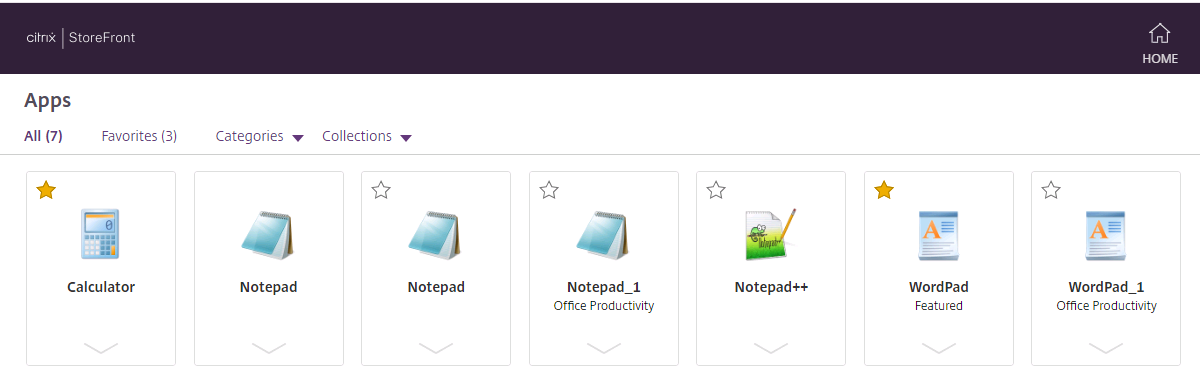
The desktop tile was the bigger surprise: only the pre-existing “HR Srv Desktop”, nothing from my group. Editing NYC-DG-LAB explained it.
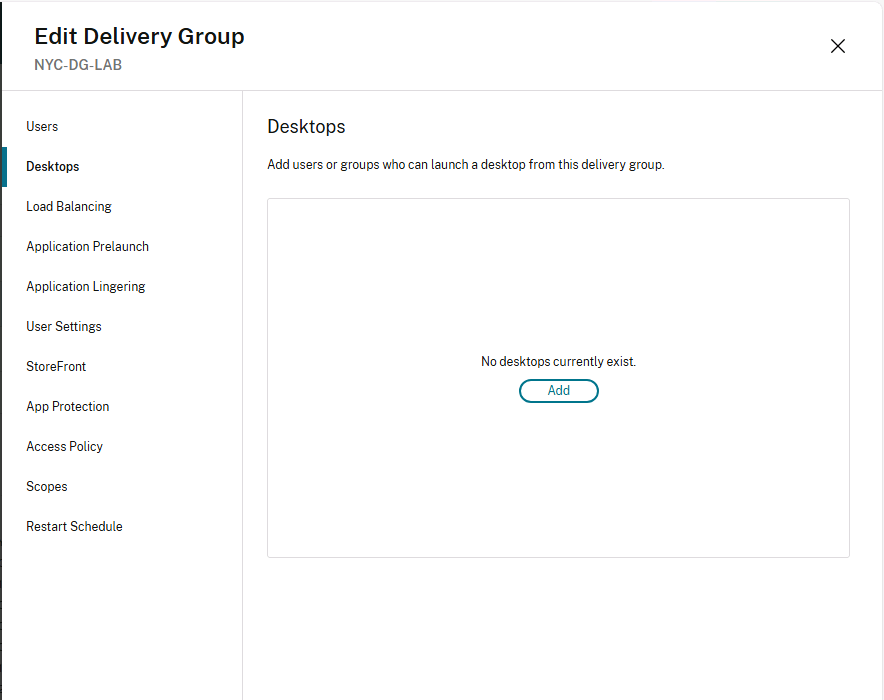
The Desktops list under Edit Delivery Group was empty, “No desktops currently exist.” The wizard had let that step slide by with nothing in it.
I added one, named it LAB Machine, allowed HR1, and on the next StoreFront refresh the second tile was there.
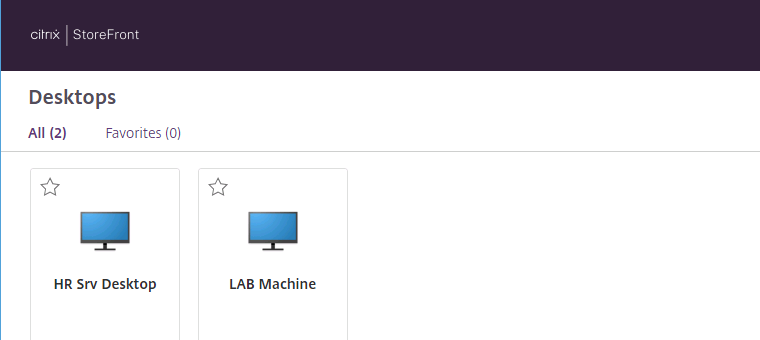
Removing HR1 from the group’s allow list and refreshing StoreFront made my tiles vanish while the pre-existing ones stayed. Adding HR1 back brought them back. That round trip is the whole catalog-versus-delivery-group story in two refreshes: the catalog answers which machines exist, the group answers who sees what.
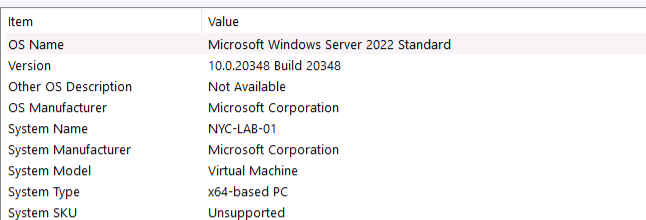
I launched LAB Machine as HR1 and opened msinfo32 inside it. System Name NYC-LAB-01, Windows Server 2022 Standard, 2.00 GB of RAM, “A hypervisor has been detected.” The machine I’d provisioned half an hour earlier, from the inside.
Maintenance mode, a message, and a restart from Studio
With HR1’s session live, Studio’s Sessions view showed it: HR1 on NYC-LAB-01, Active, Desktop. I sent a message into it (“You work too much” / “You need to go home!”, continuing yesterday’s theme of harassing lab users about their hours) and it landed as a dialog inside the Desktop Viewer.
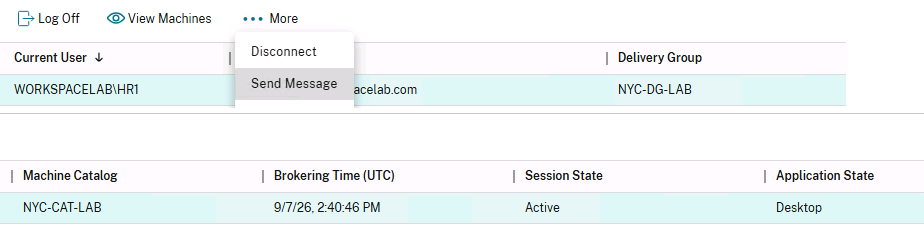
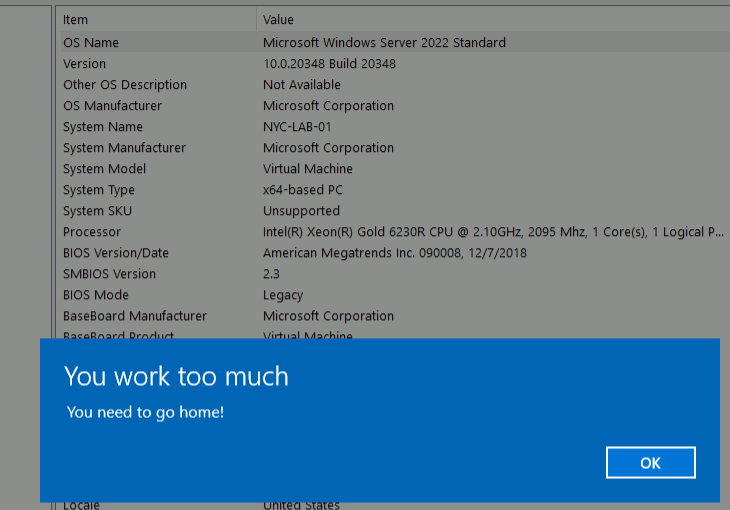
Then I turned maintenance mode on for NYC-LAB-01. The live session stayed up, which is the point: maintenance mode only refuses new connections. I verified a fresh StoreFront launch was blocked while the mode was on; with one machine in the group there was nowhere else for the launch to go.
The restart was the part I most wanted to see. Studio’s toolbar has Shut Down and Restart, and clicking Restart sends the power action through the hosting connection: Studio to SCVMM to Hyper-V.
The Search view showed Power State “Turning Off” while the session count still read 1, then over in Hyper-V Manager NYC-LAB-01 was Running with an uptime of ten seconds. I never touched the Hyper-V console to do it.

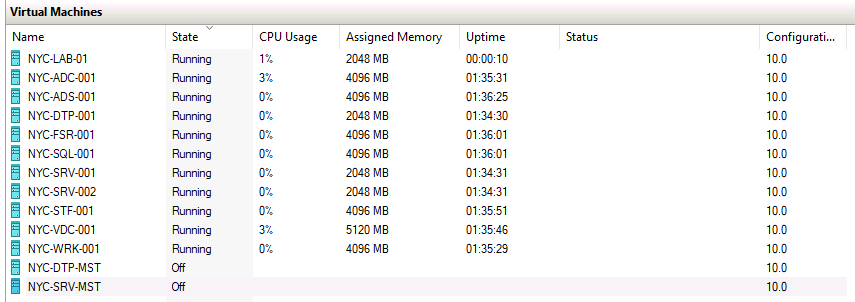
The machine came back On but Unregistered, then Registered. Full circle for the second time.
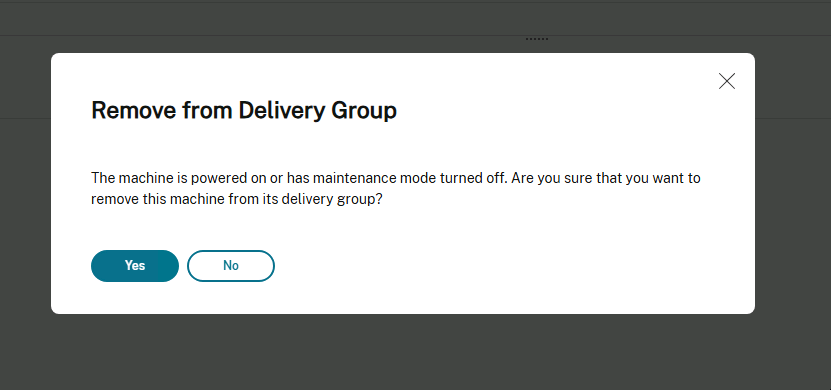
I also found a third way to make a machine unregister, by accident. Clicking Remove from Delivery Group (past a confirmation warning that the machine is powered on) leaves the machine running, VDA and all, but with no group there’s nothing to register for. Delivery Group column blank, Registration State Unregistered, Power State still On.
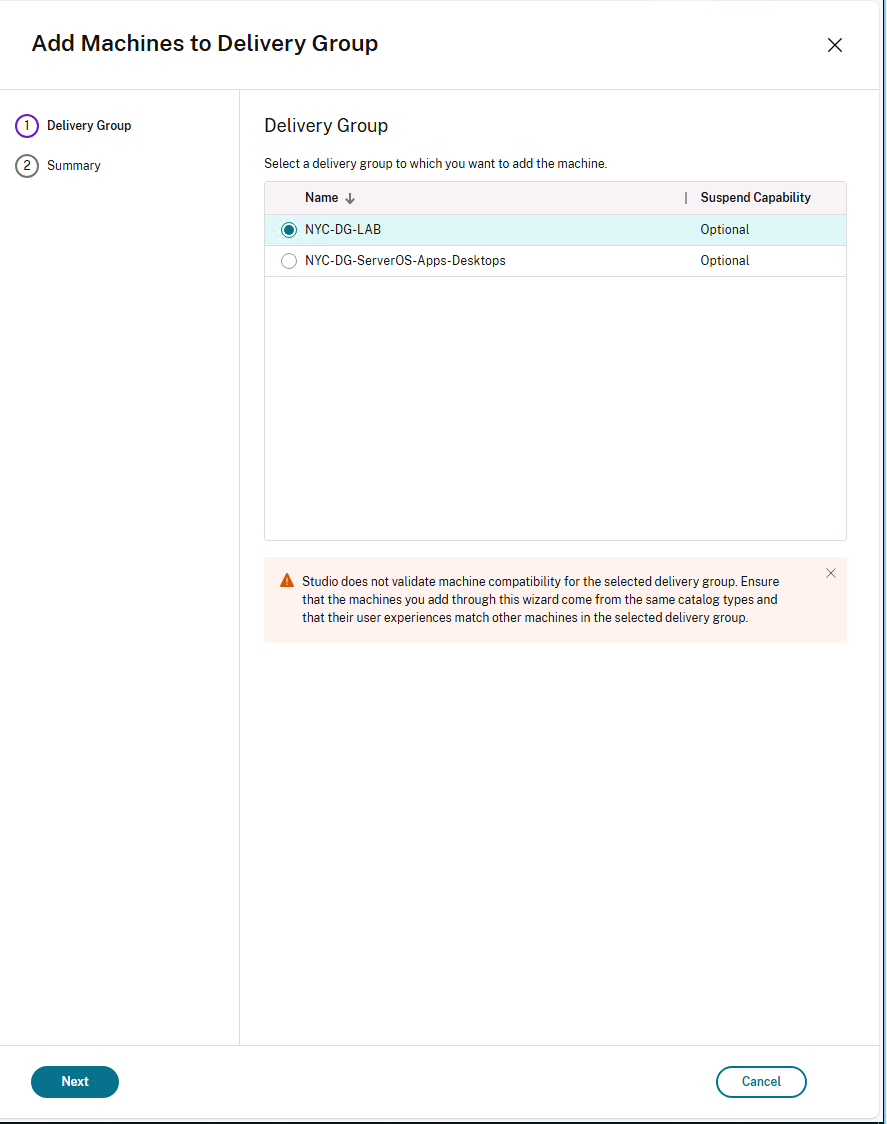
Add to Delivery Group put it back in NYC-DG-LAB and it re-registered on its own.
The Add Machines wizard that fixed my mistake had one more thing to say, in an amber banner: “Studio does not validate machine compatibility for the selected delivery group.” It offered me both multi-session groups, including the wrong one. Matching catalog types is on you.
Modeling policies for a user who isn’t logged on
Studio’s Policy Modeling wizard is Citrix’s answer to gpresult. I pointed it at user WORKSPACELAB\HR1, computer WORKSPACELAB\NYC-LAB-01$ (the trailing $ is the AD computer account MCS created during provisioning), and delivery group NYC-DG-LAB, no Gateway.
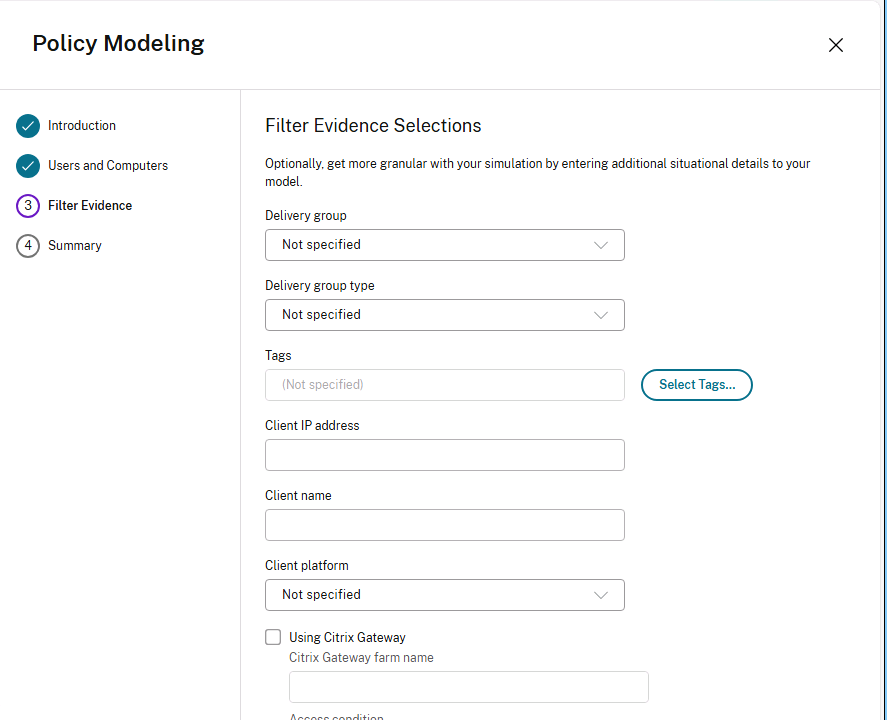
The Filter Evidence screen on the way there is a list of everything a Citrix policy can filter on: delivery group, delivery group type, tags, client IP, client name, client platform, Citrix Gateway, SD-WAN. That list is why the same user can get the clipboard at the office and lose it from home.
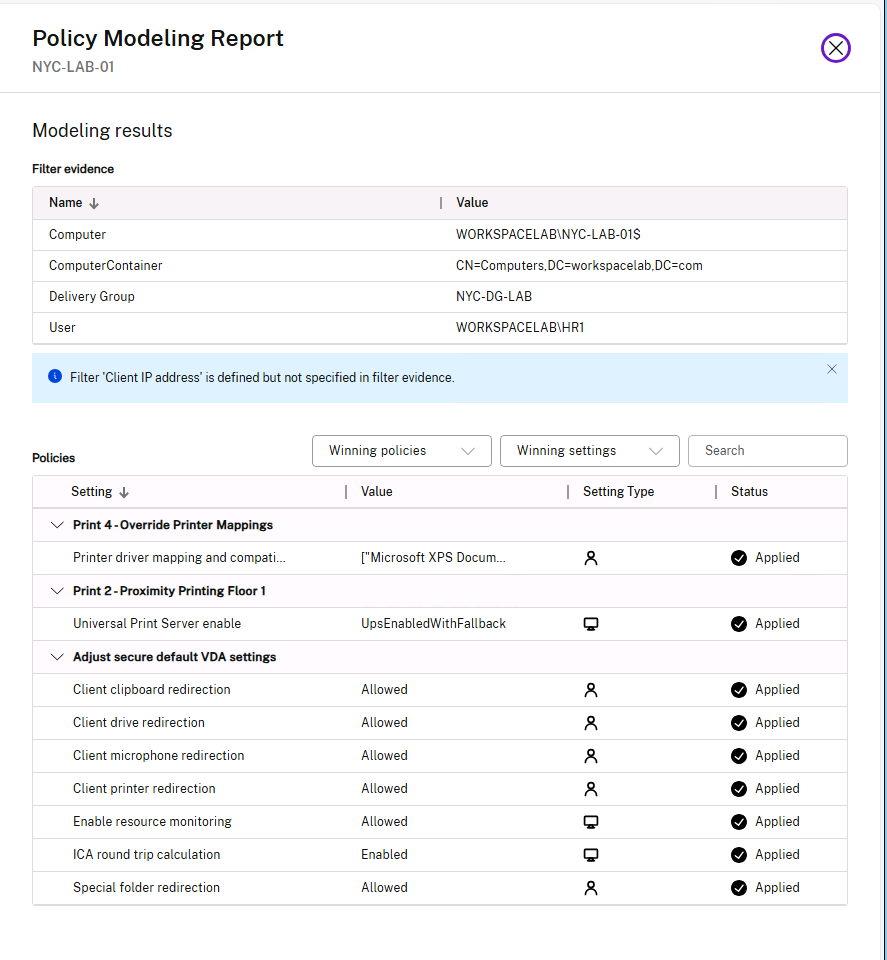
The report came back with real policies winning. A printer mapping setting applied from “Print 4 - Override Printer Mappings”, Universal Print Server from “Print 2 - Proximity Printing Floor 1” (the numbers are the priority order, and the proximity policies are the same family that showed up on a session yesterday), and a policy called “Adjust secure default VDA settings” switching clipboard, drive, microphone, and printer redirection to Allowed. Recent VDAs ship with those blocked; if you want redirection now, you turn it on explicitly.
One info line in the report: a filter on client IP address exists in some policy, but I hadn’t supplied a client IP in the model, so it couldn’t be evaluated.
Director closes it out
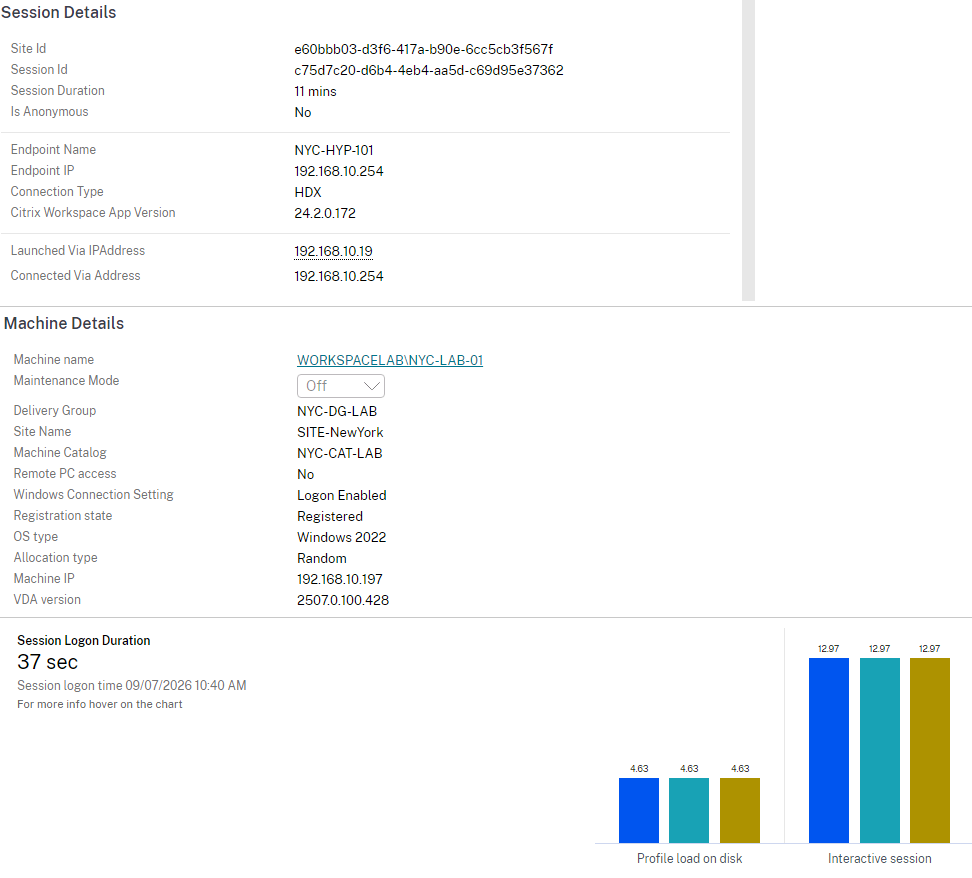
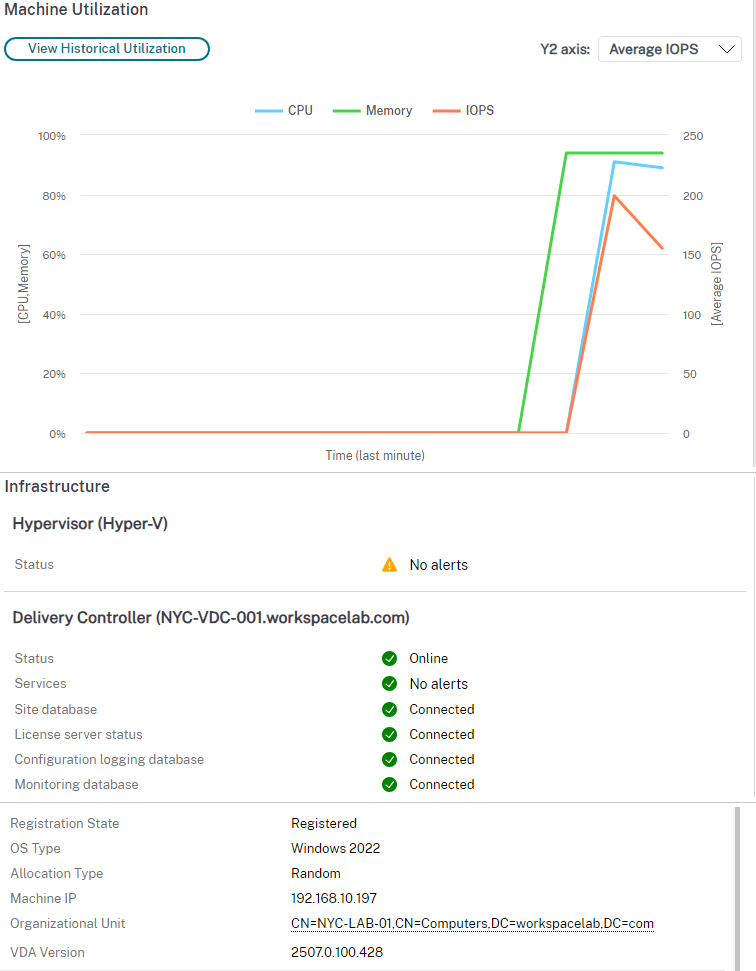
Back in Director, HR1’s User Details page had the whole session: 11 minutes on NYC-LAB-01 in NYC-DG-LAB, HDX, Workspace app 24.2.0.172, and a 37-second logon broken into its phases, with interactive session the biggest bar at about 13 seconds. The machine page showed memory and CPU both jumping past 90% as a fresh session landed on the 2 GB box, the OU line pointing at the computer account from the wizard, and every Delivery Controller check green: online, Site database, licensing, configuration logging, and monitoring all connected.
Yesterday I used those pages to read a Site. Today they were describing things I had built an hour earlier.
Conclusion
One sitting, one machine, and the whole lifecycle: provisioned by MCS from a snapshot, given an AD identity by a naming scheme, powered on by a delivery group, registered, delivered to exactly one user, messaged, put in maintenance, restarted from the console that isn’t the hypervisor’s, unregistered two more ways, and audited in Director at the end. Three errors along the way, all mine: the credentials dialog that just wanted a retype, the application browser that needs a powered-on machine, and the desktops list the wizard quietly leaves empty.
A NetScaler lab is probably next.