


AD DS domain controller in Azure
AVD needs a domain for the session hosts to join. In a real company that’s usually an existing on-prem domain, connected to Azure over a VPN gateway or ExpressRoute. For this lab I don’t have anything on-prem, so the domain controller is just a VM in Azure.
The VM
Virtual machines → Create.
| Setting | Course value |
|---|---|
| Resource group | New: demo-org |
| Name | NYC-DC1 |
| Region | East US, no zone redundancy |
| Image | Windows Server 2022 Datacenter: Azure Edition |
| Size | Default, 2 vCPU / 4 GB |
| Inbound ports | Public RDP (to configure it) |
| OS disk | Standard HDD (saves credit) |
| Network | New VNet avd-vnet. Course: 10.0.0.0/16; mine: 172.16.0.0, DC at 172.16.0.4 |
| Auto-shutdown | On, 7 PM |
| Boot diagnostics | Off |
Then Go to resource → Connect → RDP → download the RDP file and sign in with the admin account.
What Microsoft does differently for a real DC in Azure:
- Static private IP on the NIC, set in Azure, not inside Windows. The promotion prerequisite check warns about no static IP on the adapter; Microsoft says to ignore it because Azure assigns it.
- VNet DNS servers set to the DC’s IP, so other VMs in the VNet (the AVD session hosts later) can find the domain and join it.
- Separate data disk for NTDS, logs, and SYSVOL, host caching None. The course leaves them on C:.
- No public IP / public RDP on a DC. Azure Bastion instead.
- Two DCs in different availability zones.
- Don’t stop a DC from the portal. Stop/deallocate (auto-shutdown too) resets the VM-GenerationID, throws away the RID pool, and marks SYSVOL nonauthoritative. Shut down from inside Windows instead. Fine for a lab, not production.
Install the role
Server Manager → Manage → Add Roles and Features → Next through to Server Roles → Active Directory Domain Services → Add Features. Comes with Group Policy Management and the AD DS tools (RSAT, the AD PowerShell module, AD Administrative Center).
Installing the role doesn’t make it a DC. Afterward the flag in Server Manager shows a warning:
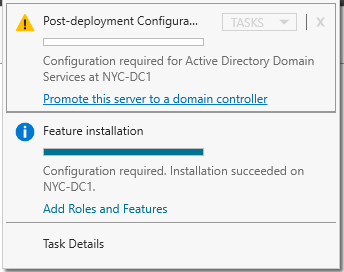
Promote to a domain controller
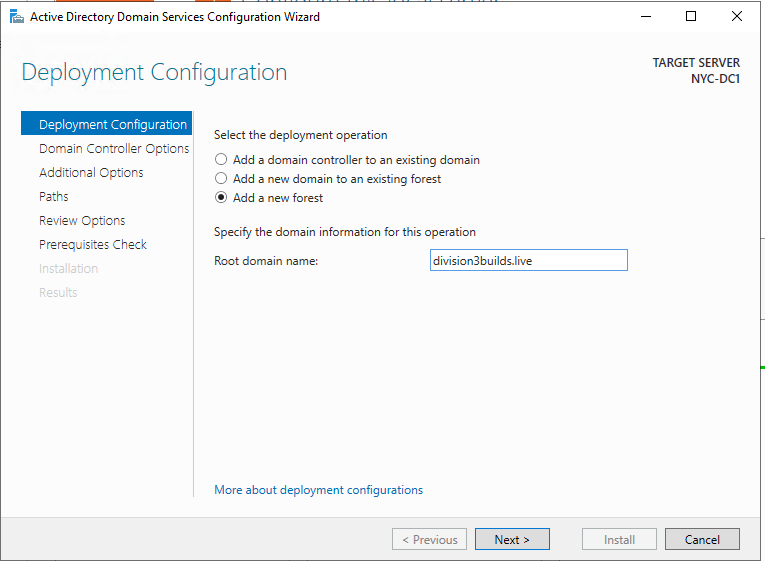
| Page | Setting |
|---|---|
| Deployment | Add a new forest, root domain name |
| DC options | Leave functional levels, DNS + GC checked |
| DSRM password | Set one and keep it |
| DNS options | Delegation warning: ignore |
| Additional | NetBIOS name, auto-filled |
| Paths | Defaults: C:\Windows\NTDS, C:\Windows\SYSVOL |
| Prereq check | Warnings OK, then Install, reboots |
- Deployment options: new forest (first DC anywhere), new domain in an existing forest, or another DC in an existing domain.
- Course domain
examlabpractice.live. I first built mine asdivision3builds.live(the screenshots), then rebuilt it asdivision3builds.com, a domain I own. Same name as the domain verified in Entra, so synced users keep theiruser@division3builds.comsign-in. Private DNS only on the DC, not tied to the public DNS. - Functional level: Windows Server 2016 is the highest a 2022 DC offers. There’s no 2019 or 2022 level; Server 2025 added the next one.
- DSRM (Directory Services Restore Mode) password: the local admin password for booting the DC into restore mode to recover AD.
- DNS delegation warning: the wizard can’t find an authoritative
parent zone (
.live) to add a delegation to. Expected for an internal domain. - NetBIOS name: the legacy pre-DNS name. No dots, 15 characters
max.
DIVISION3BUILDSis exactly 15. - SYSVOL: the replicated folder holding Group Policy templates and logon scripts.
- NT 4.0 crypto warning (shown at the Installation step): 2022 DCs default to blocking the weak NT 4.0-compatible algorithms for secure channel sessions. Informational, nothing to do.
PowerShell does the same thing:
Install-WindowsFeature AD-Domain-Services -IncludeManagementTools
Install-ADDSForest -DomainName "division3builds.com" -InstallDns
Install-ADDSForest prompts for the DSRM password and reboots when it
finishes.
Check it worked
After the reboot, sign in again (now a domain account).
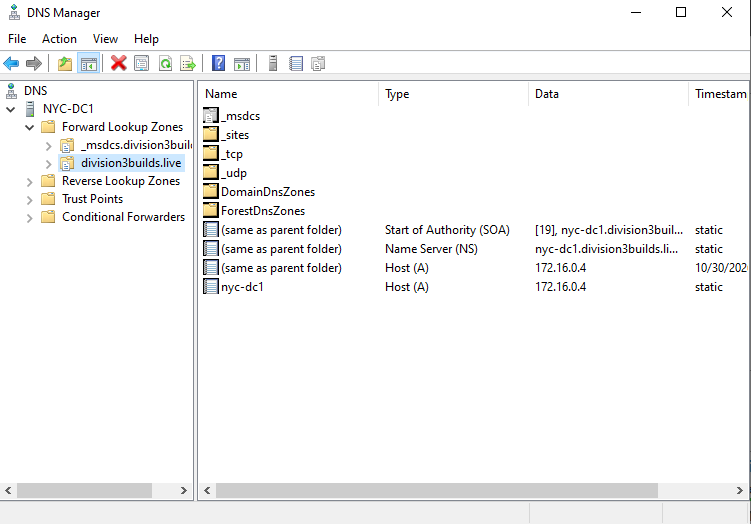
- Tools → DNS: forward lookup zone for the domain, with
_msdcs,_sites,_tcp, and_udpin it. Those SRV record folders are how clients find DCs; if they’re there, AD registered properly. Two zones: the domain and_msdcs.<domain>, both AD-integrated. The DC’s own A record (nyc-dc1 → its private IP) is the address the VNet DNS setting will point at.
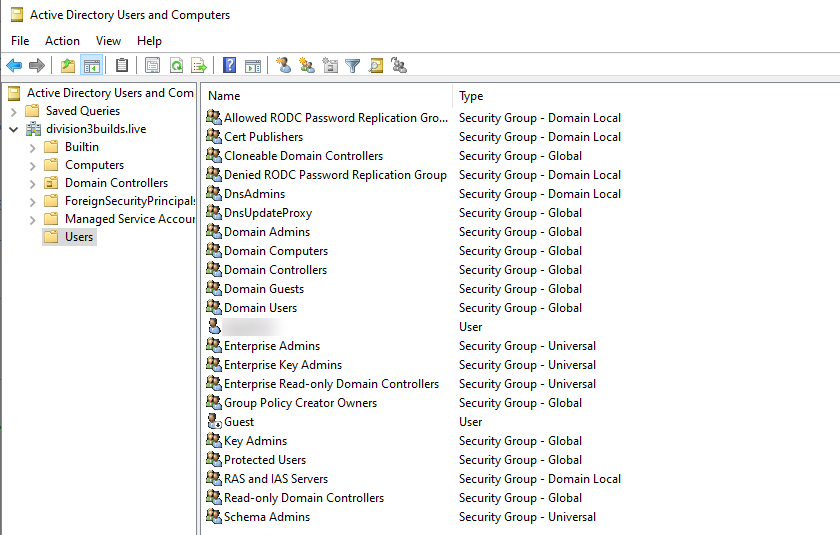
- Tools → Active Directory Users and Computers: the domain shows, and the Users container has the VM’s admin account (it became the domain’s admin), the built-in groups like Domain Admins, Domain Users, and Enterprise Admins, and the disabled Guest account.
- A DC hosting public DNS for the company isn’t the goal. It serves the private zone for the domain.
 My Computer


 Getting around


