


Syncing AD to Entra ID with Entra Connect
The AVD users have to exist in Entra ID, and for domain-joined session hosts they also have to be in AD. Entra Connect Sync (the course still calls it Azure AD Connect) copies the AD users up to Entra ID so it’s the same account on both sides.
Pilot OU and test users
Don’t sync the whole domain the first time. Make an OU, put a few test users in it, and sync only that OU.
- ADUC → right-click the domain → New → Organizational Unit: AVDSync.
- In AVDSync → New → User: Jane Dobbson, Jason Camp, Adam Young. Password set, “must change password at next logon” unchecked.
- One admin account, avd admin. The course adds it to Enterprise Admins and Schema Admins. Enterprise Admin is what the Connect Sync wizard asks for (below); nothing in this lab needs Schema Admins.
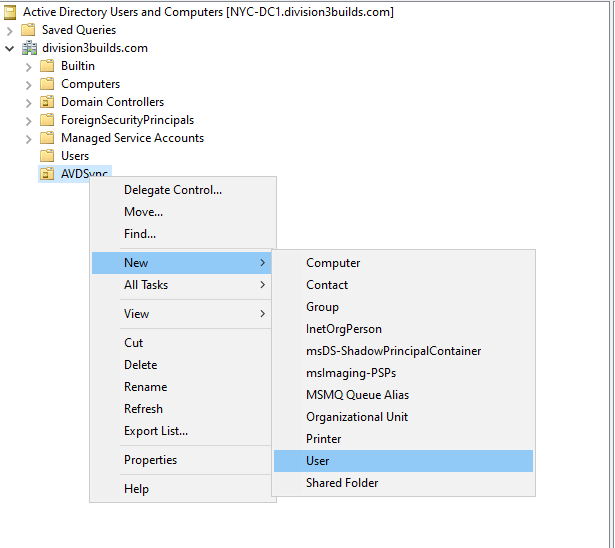
Users get @division3builds.com sign-in names because the AD domain
is division3builds.com. That domain is also verified in Entra (TXT
record), so they sync with the same UPN. If the UPN suffix isn’t a
verified Entra domain, the user lands in Entra as
@<tenant>.onmicrosoft.com instead.
Where to download it now
The course says search “download Azure AD Connect”. That page on the Microsoft Download Center doesn’t get new versions anymore.
- Entra admin center → Entra ID → Entra Connect → Get started → Manage tab → Download Connect Sync.
- Download and install it on the server that will run sync. In the lab that’s the DC. Supported, but production puts it on its own server. Microsoft lists 6 GB RAM as the minimum for the sync server; the lab DC has 4 GB, fine for a few test users.
- Sign in with Global Administrator or Hybrid Identity Administrator.
The Microsoft 365 admin center has a guided setup for the same thing (Add or sync users to Microsoft Entra ID → Continuous sync), but going straight to the Entra admin center is quicker.
Install: Customize, not Express
Express syncs the whole forest with password hash sync and no filtering. Customize to pick the OU and turn on SSO.
| Page | Setting |
|---|---|
| Required components | Defaults, Install |
| User sign-in | Password Hash Sync + Enable single sign-on |
| Connect to Entra | Global Admin (cloud account) |
| Connect directories | Add the forest, Create new account, Enterprise Admin credentials |
| Entra sign-in | UPN suffix shows Verified |
| Domain/OU filtering | Only AVDSync |
| Identifying users | Defaults |
| Filtering | Synchronize all users and devices |
| Optional features | Defaults |
| Single sign-on | Domain admin credentials again |
| Configure | Start sync when done, Install |
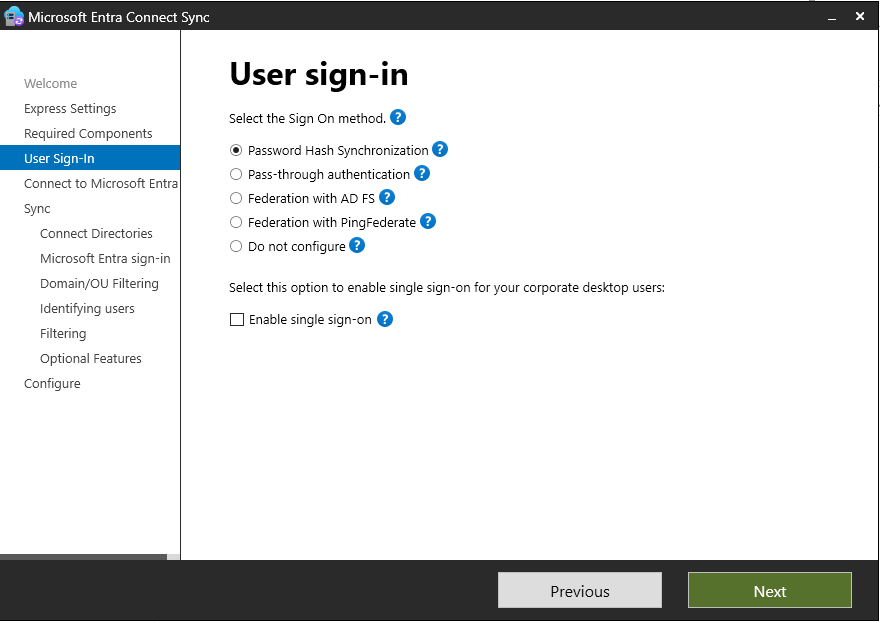
Sign-in methods
| Method | Password checked by | DC down? |
|---|---|---|
| Password hash sync | Entra ID (hash of the hash) | Still signs in |
| Pass-through auth | On-prem agent → AD | Can’t sign in |
| Federation (AD FS) | AD FS servers on-prem | Can’t sign in |
Password hash sync is Microsoft’s default and recommendation: least infrastructure, and cloud sign-in keeps working if on-prem goes down.
Seamless SSO: a domain-joined machine on the corporate network signs in to the cloud without asking for the password again. The wizard creates a computer account in AD for it. The completion screen points out it also needs a Group Policy setting (the Entra sign-in URL in the Intranet zone) before browsers use it. For Windows 10/11 Microsoft recommends hybrid join instead (SSO through the PRT sign-in token); Seamless SSO is for older Windows. It’s also not AVD’s own Microsoft Entra single sign-on to session hosts, a separate exam topic.
What’s different from the video
- Group writeback: the course turns it on (writing cloud groups back down into the OU). That version (v2) was retired in June 2024 and can’t be enabled anymore. Cloud Sync’s “group provisioning to AD” replaced it. The Group Writeback option left in the wizard is the old v1, for Microsoft 365 groups only, and it’s only available when the forest has on-prem Exchange (not in this lab).
- Application-based authentication: during Configure the wizard sets up application-based authentication to Entra ID. Microsoft retires the old method on April 7, 2027; anything below version 2.6.84.0 or without app-based auth stops syncing after that. A fresh install from the Entra admin center already has it.
- Course tip: a WS-Trust authentication error at the cloud sign-in step usually goes away after rebooting the VM and rerunning the wizard.
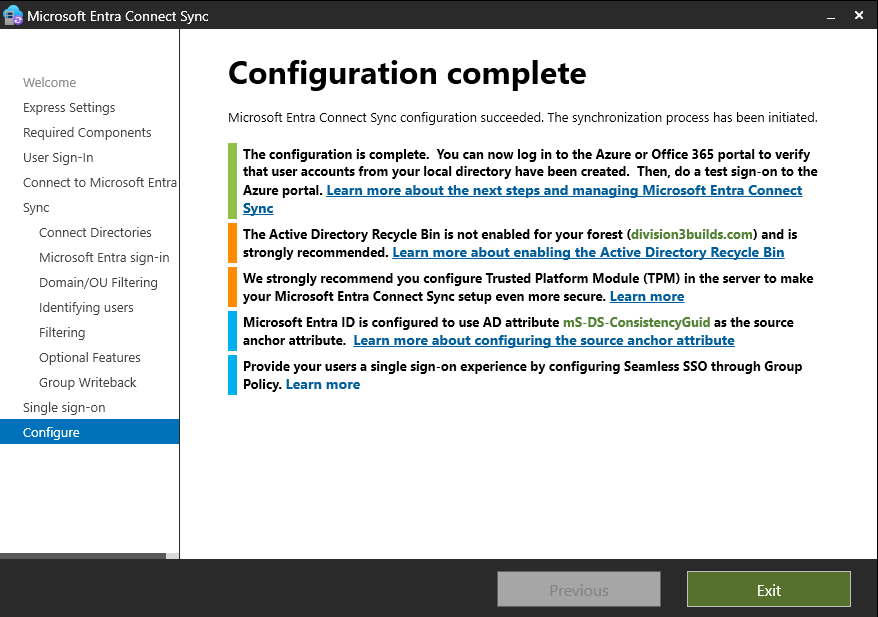
The completion screen’s notes:
- AD Recycle Bin isn’t on by default. Turn it on so deleted
objects can be restored with their attributes:
Enable-ADOptionalFeature 'Recycle Bin Feature' -Scope ForestOrConfigurationSet -Target division3builds.com(one-way, can’t be turned off). - Source anchor is
mS-DS-ConsistencyGuid: the attribute that ties an AD user to its Entra user for good. - TPM on the sync server is recommended to protect its credentials.
Check it worked
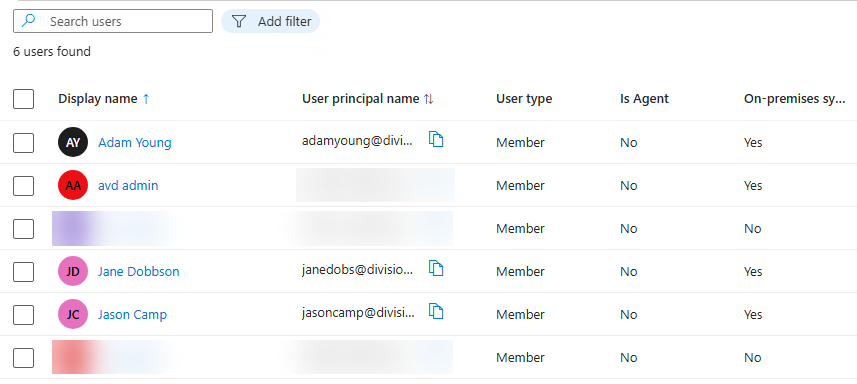
- Entra admin center → Users: Adam Young, avd admin, Jane Dobbson
and Jason Camp are there with On-premises sync enabled: Yes and
@division3builds.comnames. Cloud-only accounts show No. - Entra Connect → Connect Sync: last sync time, Password Hash Sync enabled, Seamless SSO enabled for the domain.
Sync runs every 30 minutes. To push a change now, on the sync server:
Start-ADSyncSyncCycle -PolicyType DeltaIf PowerShell doesn’t recognize the cmdlet, run Import-Module ADSync
first.
Delta sends only changes; Initial does a full sync (after changing
filtering or rules).
Connect Sync vs Cloud Sync
| Connect Sync | Cloud Sync | |
|---|---|---|
| Runs as | Full app + SQL on a server | Small agent |
| Config lives | On the server | In the cloud |
| Group writeback | v1 only (M365 groups) | Group provisioning to AD |
| Direction | Microsoft’s older tool | Where new features go |
The course uses Connect Sync. Microsoft points new setups at Cloud Sync first if it covers what’s needed.
 My Computer


 Getting around


