


Az PowerShell module and Connect-AzAccount
Windows doesn’t come with the Azure cmdlets. They come as modules from the PowerShell Gallery, and the session has to sign in to Azure before any of them do anything.
Check what’s installed
Get-Command -Noun *Az*          # every cmdlet with Az in the noun
Get-Command -Verb Connect       # every Connect-* cmdlet available
Get-Module -Name Az* -ListAvailable
* is a wildcard on both sides of Az. Lots of results means the
module is already there, but maybe not the newest version.
PowerShell Gallery and modules
- Cmdlet: a single PowerShell command (
Connect-AzAccount). - Module: a package of cmdlets.
- PowerShell Gallery (powershellgallery.com): Microsoft’s public module repository. Each module page shows the version, last update, and the install command to copy.
The gallery is community-driven: Microsoft runs it, but anyone can publish. That’s why PowerShell calls it untrusted and asks before installing.
Which module for what:
| Module | For |
|---|---|
| Az | Azure resources (VMs, networks, AVD) |
| Microsoft.Graph | Entra ID users, groups, licenses |
| ExchangeOnlineManagement | Exchange Online |
| MicrosoftTeams | Teams |
The course mentions the MSOnline (MSOL) cmdlets for Microsoft 365.
MSOnline stopped working in spring 2025, and AzureAD lost support in
March 2025 (retirement was set for that July). Microsoft Graph
PowerShell replaces both (Connect-MgGraph, Get-MgUser), as does
Microsoft Entra PowerShell, built on top of it.
Install the Az module
Install-Module -Name Az -Repository PSGallery -Force -AllowClobber-Force: skips the untrusted-repository prompt and installs even if a version is already there.-AllowClobber: lets it overwrite commands with the same names from other modules.- NuGet prompt: the first install on Windows PowerShell 5.1 asks to install the NuGet provider (what downloads the packages). Answer Y.
- Untrusted repository prompt (only without
-Force): answer Y (or Yes to All). - It’s big:
Azis a rollup of every generally available Az.* service module (previews are inAzPreview). Takes a few minutes.
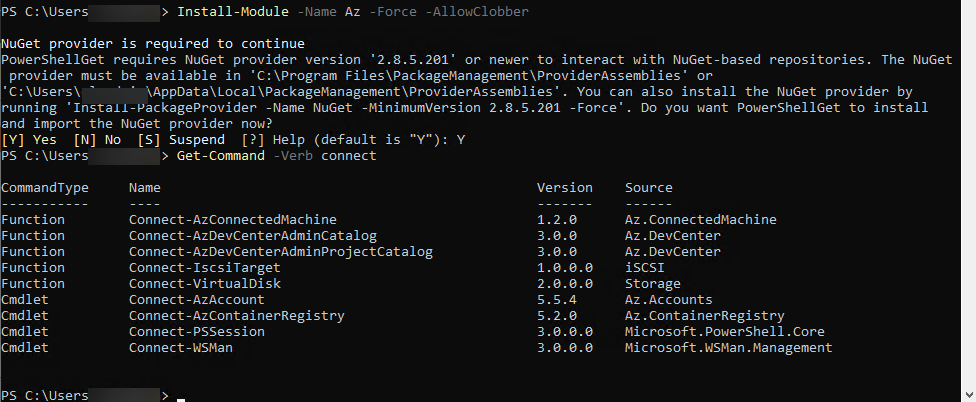
What Microsoft’s docs add:
- Recommended: PowerShell 7. On Windows PowerShell 5.1, first update
PowerShellGet (
Install-Module -Name PowerShellGet -Force), have .NET Framework 4.7.2+, and set execution policy to RemoteSigned. - Every Az.* module depends on Az.Accounts, the one that holds
Connect-AzAccount. - Faster option:
Install-PSResource -Name Az(PSResourceGet, built into PowerShell 7.4+) installs Az.Accounts once instead of per submodule. Or install only what’s needed:Install-PSResource -Name Az.Compute, Az.Network, Az.DesktopVirtualization. - Update later with
Update-Module -Name Az -Force. Old versions stay installed alongside.
Sign in
Connect-AzAccount- The sign-in is saved by default (in
%USERPROFILE%\.Azure), so new PowerShell windows are already signed in until the token expires. For this window only:Connect-AzAccount -Scope Process, or turn saving off withDisable-AzContextAutosave. - Since Az 12.0.0 on Windows 10+ / Server 2019+, the sign-in pops up as a Windows account picker (WAM, Web Account Manager) instead of a browser window.
- With more than one subscription it asks which one to use.
Set-AzContext -Subscription <name or id>switches later. - Personal Microsoft accounts (@outlook.com) with MFA need the tenant:
Connect-AzAccount -Tenant <tenant id>. Get-AzContextshows who and which subscription the session is using;Disconnect-AzAccountsigns out.
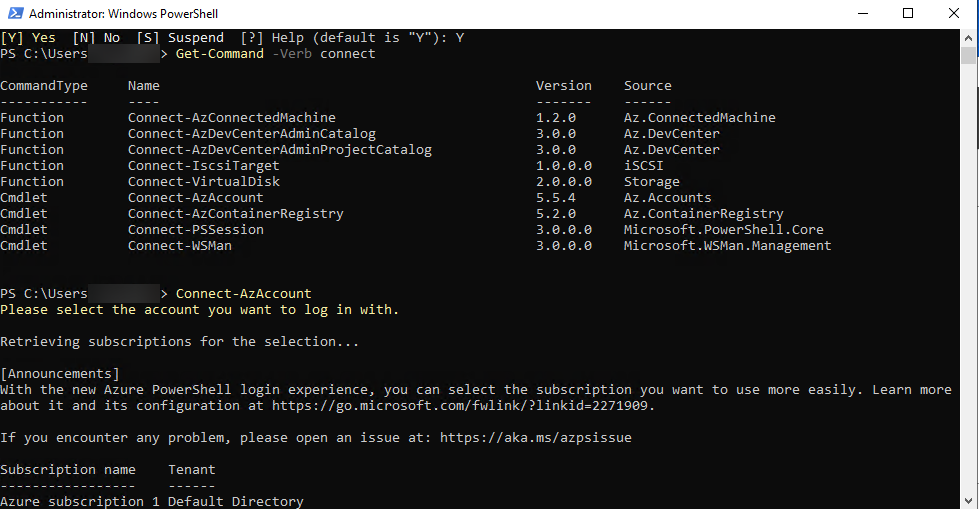
Signed in, the Az cmdlets run against the chosen subscription.
 My Computer


 Getting around


