


Using PowerShell with Azure AD
Anything in the portal can be done in PowerShell, and some newer or advanced things are command line only for a while. The real reason is speed and repetition: 50 clicks becomes one line, and one line can run against 50 resource groups.
Session already signed in with Connect-AzAccount.
Finding the cmdlet
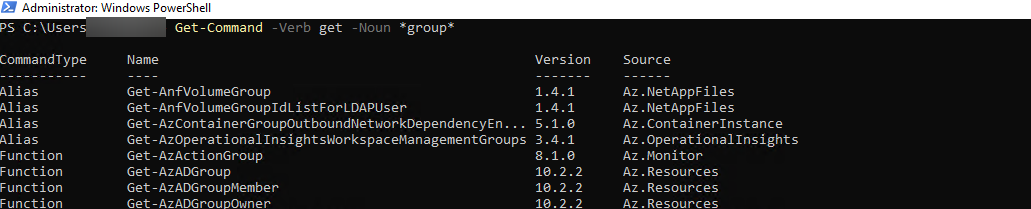
Don’t memorize cmdlet names. Search by verb and noun:
Get-Command -Verb Get -Noun *user*
Get-Command -Verb Get -Noun *group*
Get-Command -Verb New -Noun *user*
Hundreds of matches come back once Az is installed, from every
module. The Entra ones are in Az.Resources with AzAD in the
noun.

Same cmdlets show up for the other worlds too, which is easy to mix up:
| Cmdlet | Talks to |
|---|---|
Get-ADUser |
On-prem AD (ActiveDirectory module) |
Get-AzADUser |
Entra ID (Az.Resources) |
Get-MgUser |
Entra ID (Microsoft Graph module) |
Get-LocalUser |
Local accounts on this machine |
Users and groups
Get-AzADUser                                  # all users
Get-AzADUser -DisplayName "Jane Dobbson"
Get-AzADUser -UserPrincipalName janedobs@division3builds.com
Get-AzADGroup                                 # all groups
Get-AzADGroupMember -GroupDisplayName "<group name>"
Creating a user

$password = ConvertTo-SecureString -String "<password>" -AsPlainText -Force
New-AzADUser -DisplayName "James Williamson" -Password $password -AccountEnabled $true `
  -MailNickname "jameswilliamson" -UserPrincipalName "jameswilliamson@division3builds.com"
ConvertTo-SecureString -AsPlainText -Forceturns the typed password into a SecureString, which-Passwordrequires.-Forceconfirms the plain text is on purpose: required in Windows PowerShell 5.1, optional since PowerShell 7 but still accepted.- Required:
-DisplayName,-MailNickname(the mail alias),-UserPrincipalName, and a password. - The UPN’s domain has to be a verified domain in the tenant. No
custom domain yet means
@<tenant>.onmicrosoft.com; existing users inGet-AzADUsershow which suffix to use. -ForceChangePasswordNextLoginmakes the user pick a new one at first sign-in.- The backtick at the end of a line continues the command on the next line.
Output (trimmed to the useful lines; the rest of the properties come back empty until set):
DisplayName       : James Williamson
Id                : <object id>
UserPrincipalName : jameswilliamson@division3builds.com
OdataType         : #microsoft.graph.user
Course gotcha that’s fixed now: in the video -AccountEnabled
threw “a parameter cannot be found” and got deleted. Current
Az.Resources has it again (-AccountEnabled $true, alias
-EnableAccount), and it ran fine here. The lesson still holds:
Microsoft changes cmdlets faster than the docs and the videos keep
up, so when an example errors on a parameter, check the cmdlet’s page
or Get-Help New-AzADUser -Parameter *.
Plain-text passwords: PSReadLine keeps lines containing
password, asplaintext, token, apikey, or secret out of the
history file ((Get-PSReadLineOption).HistorySavePath), so this one
isn’t saved there. It’s still in the open session (Up arrow,
Get-History), in transcripts and event logs if PowerShell logging
is on, and in any screenshot. $password = Read-Host -AsSecureString
prompts for it instead.
Check in the portal
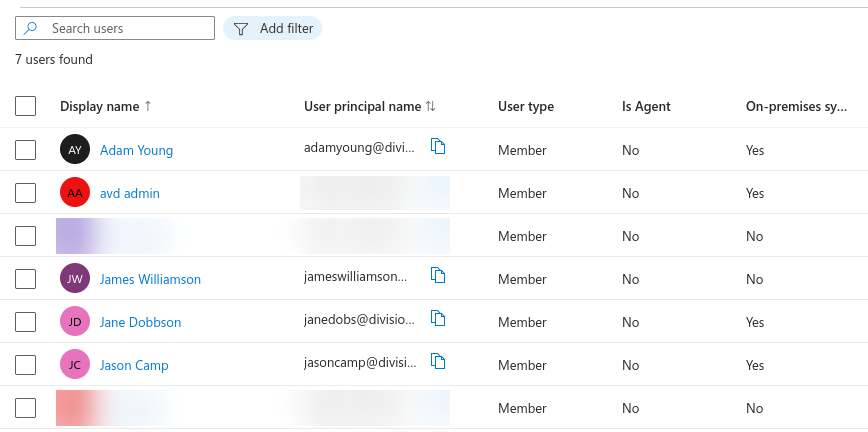
Entra admin center → Users: James Williamson is there with On-premises sync: No. Created in the cloud, not synced from AD like Jane, Jason, and Adam.
Az vs Microsoft Graph PowerShell
The AzAD cmdlets cover the basics (users, groups, apps, service
principals) because Azure work needs them. For real Entra admin work
(licenses, roles, Conditional Access, authentication methods)
Microsoft’s module is Microsoft Graph PowerShell: Connect-MgGraph,
Get-MgUser, New-MgUser. Since Az.Resources 5.1 the AzAD cmdlets
call Microsoft Graph underneath anyway (the #microsoft.graph.user
in the output).
Where it pays off: a script that reads a CSV and runs New-AzADUser
per row creates a whole department in one go.
 My Computer


 Getting around


