


Azure Firewall and firewall policy rules
Azure Firewall is Microsoft’s managed, stateful firewall. It sits in the hub VNet of a hub and spoke design (VNet1 here) and filters at layers 3 to 7: IPs and ports up to domain names.
Before building one, skim What is Azure Firewall?. New features land often.
Basic, Standard, Premium
| Basic | Standard | Premium | |
|---|---|---|---|
| Made for | Small business | Most uses | High security |
| Throughput | 250 Mbps | 30 Gbps | 100 Gbps |
| Threat intel | Alert only | Alert and deny | Alert and deny |
| DNS proxy, web categories | No | Yes | Yes |
| TLS inspection, IDPS, URL filtering | No | No | Yes |
| Per hour | $0.395 | $1.25 | $1.75 |
| Per GB | $0.065 | $0.016 | $0.016 |
East US list prices, Nov 2026.
- Basic is for SMBs, small and medium businesses. The course reads SMB as Server Message Block (file sharing). Not what it means.
- Basic also needs an
AzureFirewallManagementSubnet(/26) and a second public IP for management. - IDPS (intrusion detection and prevention) is signature based. The course says 58,000 signatures in 50 categories; the docs now say over 67,000 in more than 50 (malware, phishing, coin mining, trojans).
- TLS inspection decrypts traffic, inspects it, and re-encrypts
it. URL filtering matches full paths (
www.contoso.com/a/c), not just the domain. - Standard can be upgraded to Premium later (Change SKU), and Premium downgraded once its Premium features are turned off.
The firewall subnet
The firewall needs its own subnet in the hub, named exactly
AzureFirewallSubnet, with nothing else in it.
VNet1 → Subnets → + Subnet → Subnet purpose: Azure
Firewall. That fills in the name and fixes the size at /26 (64
addresses). Starting address 10.1.10.0:
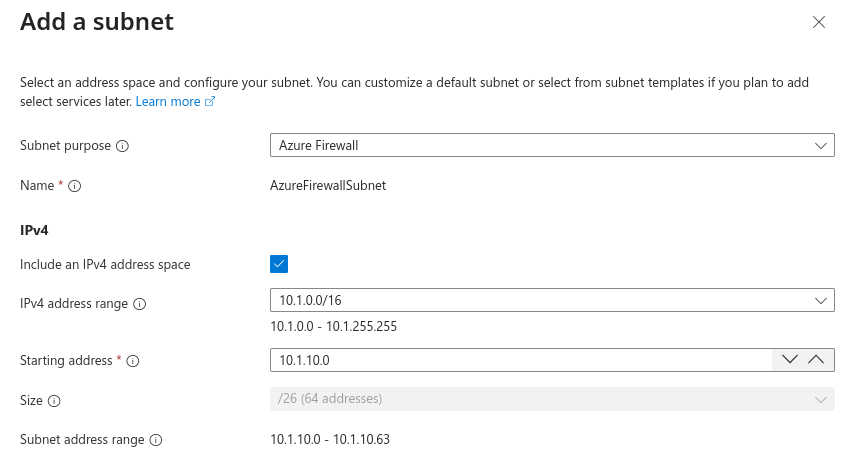
- The course makes it a /24. No need: /26 is the minimum, and Microsoft’s FAQ says a /26 covers all scaling.
- The firewall’s create page says so too if an existing VNet doesn’t have one yet.
Creating the firewall
Resource group → + Create → search firewall → Firewall by
Microsoft (the Marketplace has plenty of third-party firewalls too)
→ Create.
| Setting | Lab value |
|---|---|
| Name | myfirewalldemo |
| Region | East US |
| Firewall tier | Standard |
| Firewall management | Use a Firewall Policy |
| Firewall policy | New: myfirewallpolicydemo |
| Virtual network | Existing: vNet1 |
| Public IP | New: firewallPIP |
| Management NIC | Off |
Review + create → Create. It takes a while.
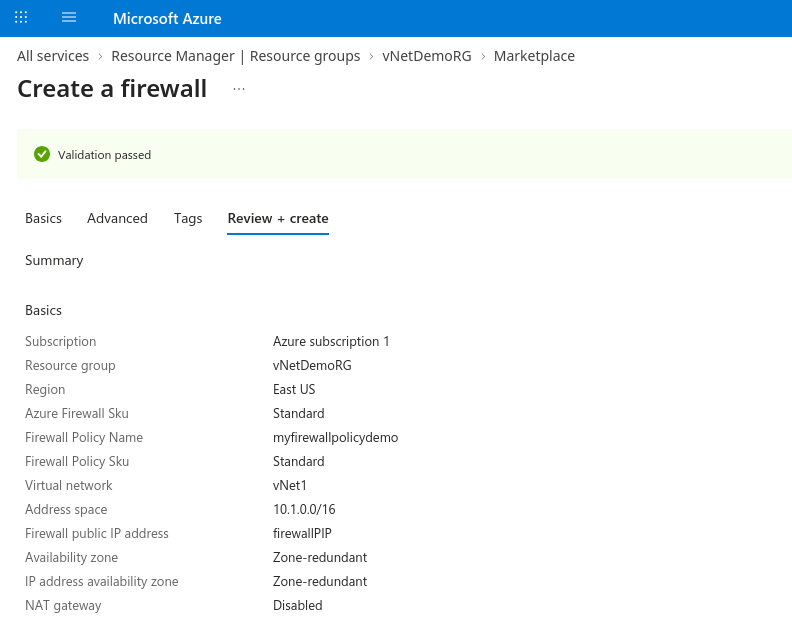
- Availability zones: the video turns them off. Microsoft now says not to set zones on a new firewall at all. Azure makes it zone-redundant on its own in regions with zones (the review says Zone-redundant).
- Policy vs classic rules: classic rules live on the firewall itself. A Firewall Policy is a separate resource that holds the rules and settings, and one policy can serve many firewalls. Microsoft recommends policies, and web categories, TLS inspection, IDPS, and URL filtering only exist in a policy.
- Firewall Management NIC: the video calls it forced tunneling
and explains it as static vs automatic NAT. That’s not it. Forced
tunneling sends the firewall’s internet-bound traffic to on-prem or
another appliance instead of straight out. The firewall still needs
its own path to Azure for management, so the Management NIC adds an
AzureFirewallManagementSubnet(/26) and a management public IP. Off here.
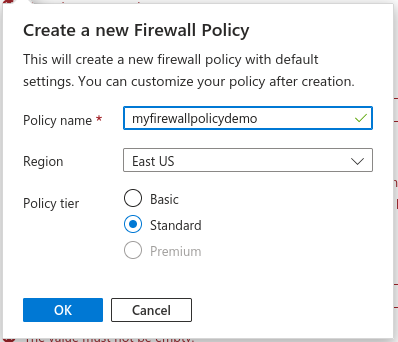
The policy tier has to fit the firewall tier:
| Policy | Works with |
|---|---|
| Basic | Basic firewall |
| Standard | Standard or Premium firewall |
| Premium | Premium firewall |
So with a Standard firewall, Premium is greyed out:
What got created
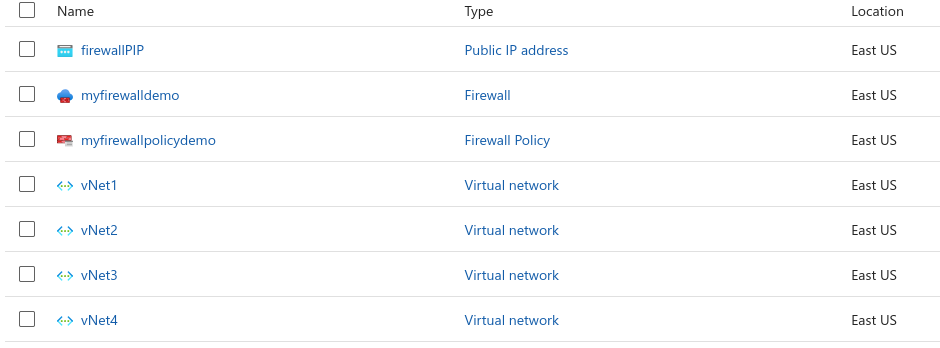
myfirewalldemo: the firewall.myfirewallpolicydemo: the policy, its own resource. The rules live here, not on the firewall. Free with one firewall, $100 a month per region once it’s attached to more than one.firewallPIP: the firewall’s public IP.
Stop it when it’s not in use
Standard bills $1.25 an hour (about $30 a day, $913 a month) from the moment it’s deployed, traffic or not. Deallocating it in PowerShell stops that:
$rg = "vNetDemoRG"
$azfw = Get-AzFirewall -Name myfirewalldemo -ResourceGroupName $rg
$azfw.Deallocate()
Set-AzFirewall -AzureFirewall $azfw
Starting it again needs the VNet and public IP handed back:
$rg = "vNetDemoRG"
$azfw = Get-AzFirewall -Name myfirewalldemo -ResourceGroupName $rg
$vnet = Get-AzVirtualNetwork -Name vNet1 -ResourceGroupName $rg
$pip = Get-AzPublicIpAddress -Name firewallPIP -ResourceGroupName $rg
$azfw.Allocate($vnet, @($pip))
Set-AzFirewall -AzureFirewall $azfw- The private IP can change after a restart, which breaks any UDR pointing at the old one. Check it after starting.
- The public IP keeps billing on its own (a few dollars a month).
How a policy is organized
From the policy rule sets page the course walks through:
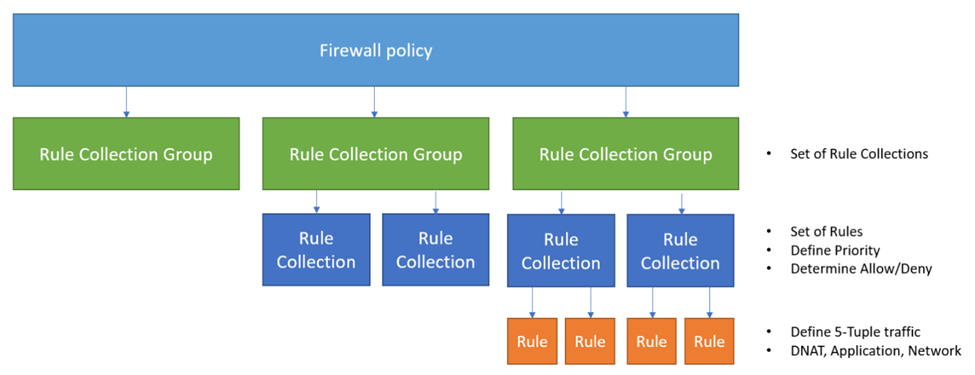
Diagram: Microsoft Learn.
| Level | Holds | Priority |
|---|---|---|
| Rule collection group | Rule collections, any type | Yes, lowest first |
| Rule collection | Rules of one type, and one action: Allow or Deny | 100 to 65,000, lowest first |
| Rule | Source, destination, protocol, port | None |
Every policy starts with three rule collection groups:
| Default group | Priority |
|---|---|
| DNAT | 100 |
| Network | 200 |
| Application | 300 |
The portal names them DefaultDnatRuleCollectionGroup and so on.
- The defaults can’t be deleted and their priorities can’t change. For a different order, create custom groups with your own priorities and use only those.
- A collection’s action applies to every rule in it. Rules have no action or priority of their own, so blocking something takes a Deny collection. Inside a collection, rules are checked top-down.
- Rule and collection types have to match: a DNAT rule only goes in a DNAT collection.
Processing order
The part that’s easy to get wrong:
- Threat intelligence runs before any rule. It’s on in Alert only mode by default; Alert and deny blocks known-bad IPs and domains.
- Then DNAT, network, application, always in that order, no matter the group or collection priorities. Priority only sorts collections of the same type.
- Within a type, rules inherited from a parent policy go first.
- Rules are terminating: the first match decides. If a network rule matches, the application rules never see that traffic.
- No match means denied. It’s default deny.
The policy menus
The video shows Rule collections and Parent policy together under Settings. Now there’s a Rules group (Rule collections, DNAT rules, Network rules, Application rules), and Parent policy is under Settings with the rest:
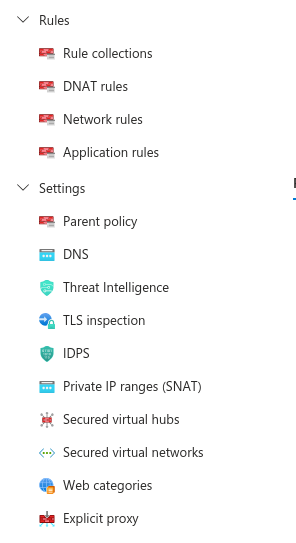
- DNS: custom DNS servers and DNS proxy. Proxy has to be on for FQDNs in network rules.
- Threat Intelligence: where Alert only becomes Alert and deny.
- TLS inspection, IDPS: Premium only. A Standard policy just says they aren’t supported.
Parent policy: the course says it’s for using one policy across several firewalls. One policy can already be attached to several firewalls. A parent is a base policy that other (child) policies inherit: company-wide rules in the parent, a team’s or region’s own rules in each child.
- The child gets the parent’s network and application rule collections, and they run before its own.
- DNAT collections aren’t inherited. They belong to one firewall.
- Threat intel mode is inherited too. A child can make it stricter, not looser.
- Parent and child have to be in the same region.
Network rule
Rule collections → + Add a rule collection:
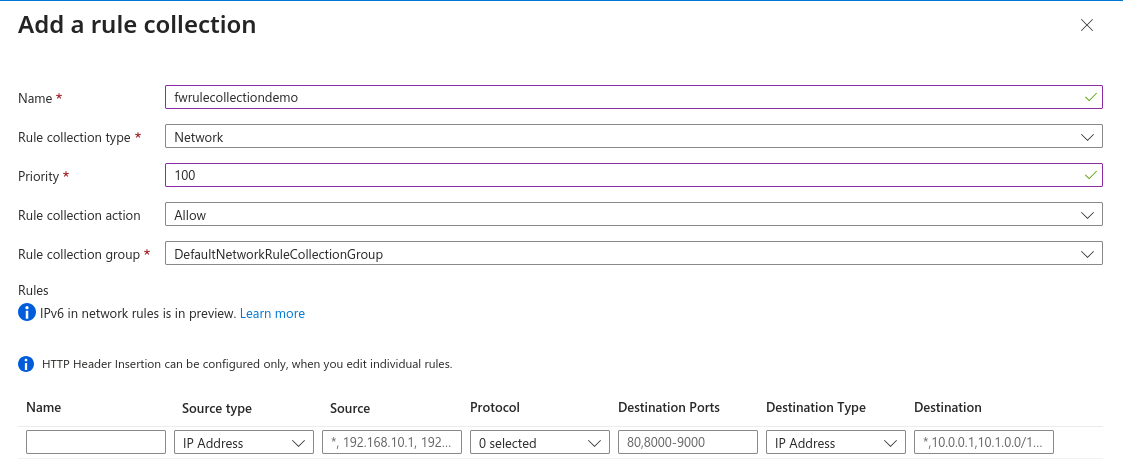
Rules can go in that grid right away or be added one at a time later. Network rules → + Add rule:
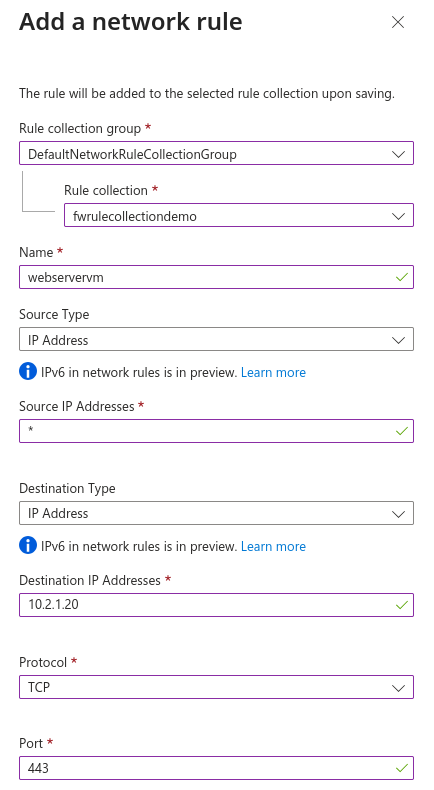
webservervm: source * to 10.2.1.20, TCP 443.
- Layer 3 and 4, like an NSG rule. The source can also be an IP group (a reusable list of addresses, its own resource), and the destination a service tag or an FQDN (FQDNs need DNS proxy).
- 10.2.1.20 is a made-up web server in Subnet2A. There’s no VM yet, and vNet2 isn’t peered with vNet1, so nothing reaches this rule. Spoke traffic only gets to the firewall with a peering plus a UDR pointing at it (route table post).
*is fine for a demo. For real, use the spoke ranges or an IP group.

The note above the list is the processing order from earlier.
DNAT rule
DNAT (destination NAT) is the inbound one: traffic to the firewall’s public IP on a port gets forwarded to a private IP inside. Typical use: publishing a server.
First a DNAT collection: dnatcollection, priority 102, in the
default DNAT group. Its action is always DNAT. Then DNAT rules →
+ Add rule:
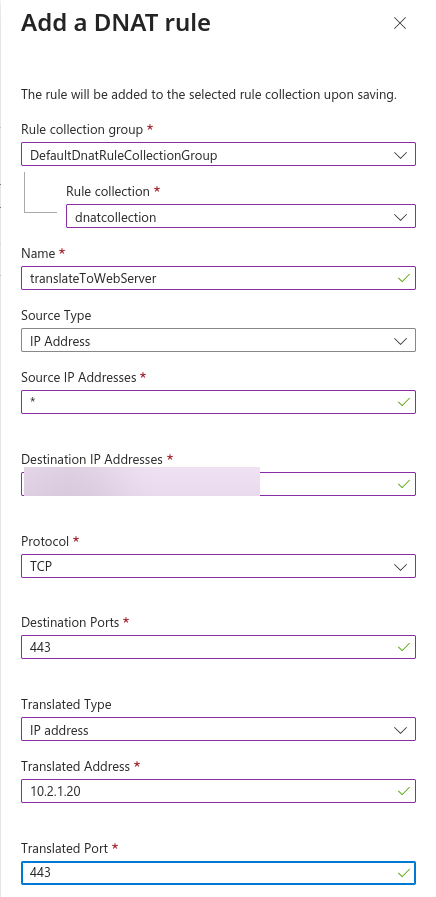
translateToWebServer: source * to the firewall’s public IP on TCP
443, translated to 10.2.1.20 port 443.
- The public IP is on the
firewallPIPresource’s Overview. - The translated address can be an IP or an FQDN.
- A DNAT rule automatically allows the translated traffic (an implicit network rule), so no separate network rule is needed.
*as the source is the whole internet. Microsoft recommends a specific source.- For a name like
www.division3builds.comto land here, its public DNS record points at the firewall’s public IP. That’s the “DNS zones” part the course skips.
Application rule
Collection first: apprulecollection, Application, priority 105,
Allow, in the default application group:
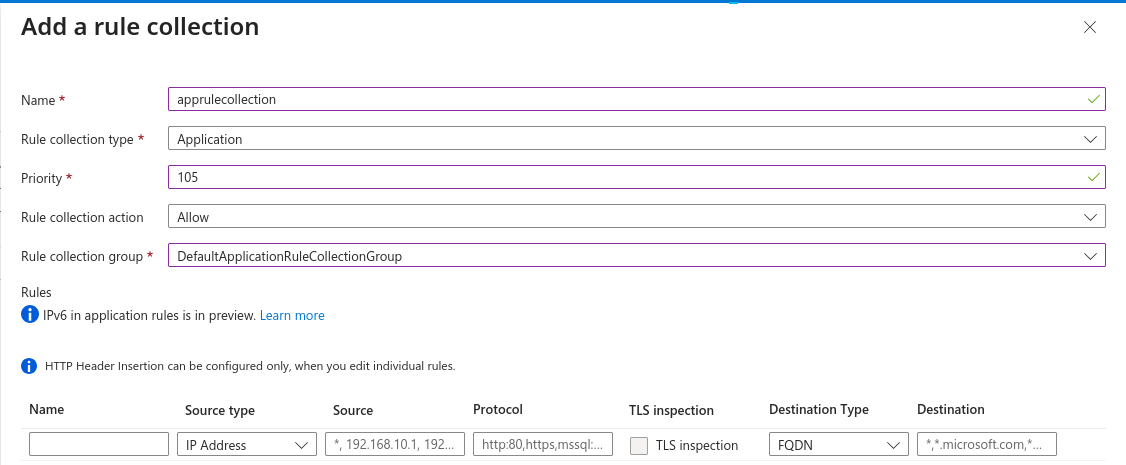
Then Application rules → + Add rule:
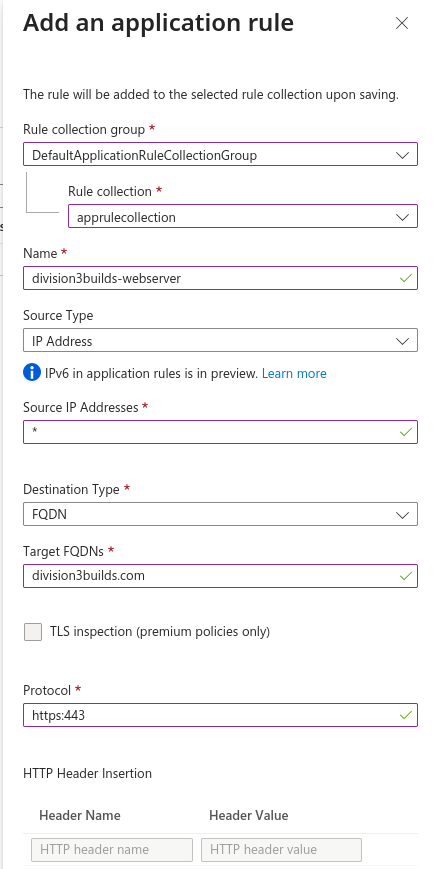
division3builds-webserver: source * to FQDN division3builds.com
over https:443. (The course uses examlabpractice.com.)
- Layer 7: matches FQDNs, FQDN tags, and web categories, or full URLs with Premium. Protocols are HTTP, HTTPS, and MSSQL.
- The course has this one backwards. It’s set up so people on the internet can reach the web server by name. Application rules don’t apply to inbound traffic at all, only outbound and east-west. What this rule really does is let anything behind the firewall browse to division3builds.com over HTTPS. Inbound web traffic comes in through DNAT, and Microsoft’s answer for layer 7 filtering on the way in is a WAF (Web Application Firewall, on Application Gateway or Front Door).
- TLS inspection checkbox: Premium policies only.
- HTTP Header Insertion (bottom of the pane) adds headers to
matching requests, e.g.
Restrict-Access-To-Tenantsto limit which Microsoft 365 tenants users can sign in to. Standard does it for plain HTTP; HTTPS needs Premium with TLS inspection.
AVD and Azure Firewall
The AZ-140 outline names Azure Firewall, with NSGs and UDRs, under network security. The usual setup, from Microsoft’s AVD page:
- Session hosts in a spoke, with a
0.0.0.0/0UDR to the firewall. - An application rule with the
WindowsVirtualDesktopFQDN tag for the AVD service URLs. - Network rules for what the tag doesn’t cover, like KMS activation
(
azkms.core.windows.net, TCP 1688), and DNS if the DNS servers are on the far side of the firewall. - DNS proxy on, for FQDNs in network rules.
- No TLS inspection on AVD traffic. Microsoft says not to.
- A route for the
WindowsVirtualDesktopservice tag with next hop Internet, so traffic to the AVD gateway and broker skips the firewall. Without it sessions can drop when the firewall scales in. - An IP group of the session hosts makes a tidy rule source.
Quick reference
| Rule | Traffic | Matches on |
|---|---|---|
| DNAT | Inbound to a firewall public IP | Public IP, port |
| Network | Inbound, outbound, east-west | IP, port, protocol |
| Application | Outbound, east-west | FQDN, URL, category |
Order: threat intel → DNAT → network → application → deny.
 My Computer


 Getting around


