


Visualizing storage for FSLogix components
The course walks through an older Microsoft diagram of FSLogix in an AVD build. It’s a cousin of the enterprise diagram, with two host pools and three storage accounts. Follows plan storage for AVD user data.
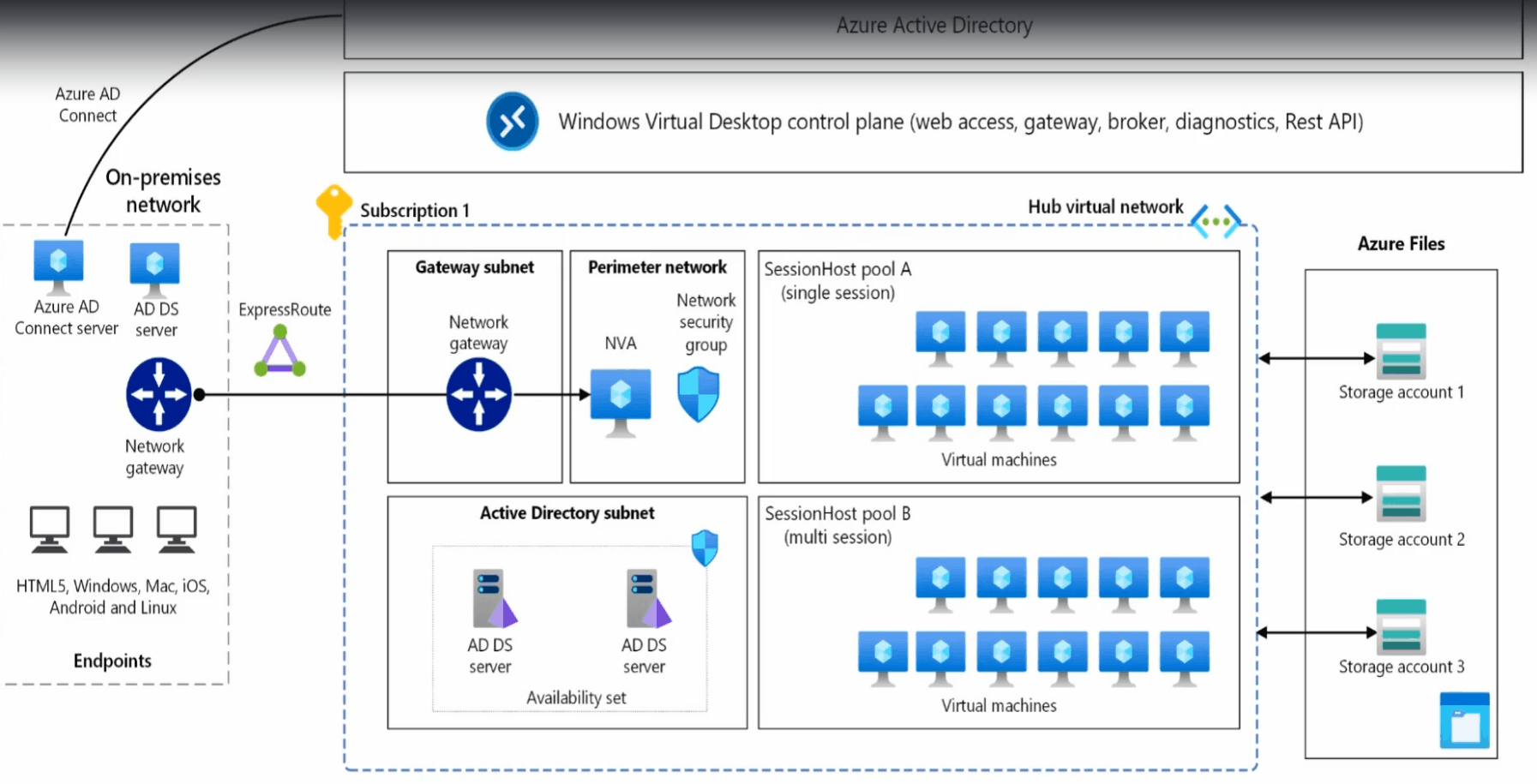
Diagram: Microsoft, as shown in the course. The slide’s link now opens FSLogix’s Configuration examples, which doesn’t have it anymore.
What’s in it
Same old names as the enterprise diagram: Azure Active Directory is Microsoft Entra ID, Azure AD Connect is Microsoft Entra Connect, and the Windows Virtual Desktop control plane is the Azure Virtual Desktop service, run by Microsoft.
| Piece | What it’s for |
|---|---|
| Endpoints | The devices users connect from |
| AD DS server | The on-prem domain |
| Entra Connect server | Syncs AD DS users to Entra ID |
| ExpressRoute | Private link from on-prem into the hub |
| Control plane | Web access, gateway, broker, diagnostics, REST API |
| Perimeter network | NVA and NSG filtering what comes in from on-prem |
| AD subnet | Two more DCs, in Azure, behind an NSG |
| Pool A | Single session: one user per VM |
| Pool B | Multi-session: several users per VM |
| Azure Files | Three storage accounts holding the containers |
- Endpoints run Windows App now (Windows, macOS, iOS/iPadOS, Android/ChromeOS) or a browser, the diagram’s HTML5. The old Remote Desktop client for Windows lost support on March 27, 2026. Linux has no Microsoft app: a browser, or a partner thin client (10ZiG, Dell, HP, IGEL, and others) (thin clients).
- The DCs sit in an availability set. Microsoft’s AD DS in Azure guidance now says two DCs in different availability zones, and an availability set only where the region has no zones (DC post).
- The NVA is a third-party firewall VM. In my lab Azure Firewall in VNet1 does that job (firewall post).
- The arrows to Azure Files are SMB (TCP 445) from the session hosts.
VPN, ExpressRoute, or neither
The course: you used to need a VPN gateway or ExpressRoute, and now it works over the internet.
- The user’s connection doesn’t need either. The client and the session host both connect out to the AVD gateway on TCP 443, and the gateway joins them (reverse connect) (connectivity post).
- The ExpressRoute here is for the session hosts: reaching a DC (they’re joined to AD DS) and anything else still on-prem, like apps and file servers. This diagram also has DCs in Azure, so sign-ins don’t hang on the link.
- My guess at the “used to”: until 2021 a session host always had to join a domain. Joining session hosts straight to Azure AD (now Entra ID) arrived in preview in July 2021 and went GA that September. With the DCs only on-prem, a domain join meant a VPN or ExpressRoute. Entra joined hosts don’t need a DC.
- Private Link (optional) puts the AVD connections on private endpoints in a VNet. Then an on-prem client does come in over the VPN or ExpressRoute.
How a sign-in reaches the profile
The course has AD DS and Azure AD authenticate the user together, Azure AD hand out a session token, and the control plane “link them to whichever storage account contains” their VHD. Two fixes: there are two sign-ins, and the control plane never touches the profile.
- Entra ID. The user signs in to Windows App with their Entra ID account (synced from AD DS here). With password hash sync, Entra ID checks the password itself; pass-through auth and AD FS check it on-prem against AD DS (sign-in methods). Entra ID issues tokens and the client shows the user’s desktops.
- Broker. The user opens a desktop and the broker picks a session host: by load balancing (breadth-first or depth-first) in a pooled host pool, the user’s own VM in a personal one.
- Gateway. It joins the client’s connection to the session host’s, both outbound on 443. It only relays; the broker decided.
- Windows. The user signs in to Windows on the session host with their AD DS account, checked by a DC. That’s a second password prompt unless single sign-on is set up (Entra authentication needs Entra joined or hybrid joined hosts; AD-only hosts can use AD FS).
- FSLogix. FSLogix on the session host reads VHDLocations, finds the user’s folder on the share or creates it, and attaches the VHDX. It opens the share as the signed-in user, which is why the permissions are per user.
- Sign-out. FSLogix detaches the disk. Next time, maybe on another VM, it attaches the same one.
Where the profile lives is a setting on each session host (registry or Group Policy), not something the broker hands out. Every host in a pool needs the same VHDLocations.
On the share, with Microsoft’s Standard settings below:
<share>\
  jdoe_S-1-5-21-...-1105\
    Profile_jdoe.vhdx
FSLogix’s default folder name puts the SID first
(%sid%_%username%); the flip-flop setting below swaps it so folders
sort by user name. The file is a .vhd until VolumeType says VHDX.
VHD or VHDX
The course: “VHD being the newer format can hold more than two terabytes.” It’s the other way around:
| Format | Max size |
|---|---|
| VHD (older) | 2,040 GB |
| VHDX (Windows Server 2012) | 64 TB |
- VHDX also logs its metadata updates, so a power cut is less likely to corrupt it (Hyper-V storage, limits).
- FSLogix still defaults to VHD. Microsoft recommends VHDX for “its supported size and reduced corruption scenarios”.
- Either way a container stops at SizeInMBs, 30,000 MB by default, far under both limits. The corruption part is what matters.
Why three storage accounts
The course notes they aren’t labeled. Microsoft’s guidance gives a few reasons for more than one:
- One per host pool. Microsoft’s Zero Trust guidance for AVD suggests separate storage accounts for different host pools, and for app attach shares.
- One per job. The multiregion BCDR guide gives each host pool one account for profile containers and one for Office (ODFC) containers, plus another for app attach packages. That’s three. Office data is only a cache, so its account may not need backups. FSLogix’s own advice is one profile container holding everything.
- Scale. Shares and storage accounts have size, IOPS, and bandwidth limits, plus the handle limit from the storage post. FSLogix’s object-specific settings send each user group (by SID) to its own location.
- Not failover. Several paths in VHDLocations aren’t HA. FSLogix uses the first one the user can reach, so with their share down a user can get a new, empty profile on the next one. Microsoft says to give each user access to only one location and to prefer object-specific settings. For HA there’s Cloud Cache (CCDLocations), which writes to every location.
Microsoft’s Standard setup
The page the slide links to now has seven example setups, simplest first, and Microsoft says to pick the simplest one that works. Example 1: Standard is the one “most customers should consider”: one share in VHDLocations, a profile container only (no ODFC), one connection per user, no redirections.xml.
# HKLM\SOFTWARE\FSLogix\Profiles

# Required
Enabled = 1
VHDLocations = \\<storage-account>.file.core.windows.net\<share>

# Recommended
DeleteLocalProfileWhenVHDShouldApply = 1
FlipFlopProfileDirectoryName = 1
LockedRetryCount = 3
LockedRetryInterval = 15
ReAttachIntervalSeconds = 15
ReAttachRetryCount = 3
VolumeType = VHDX

# Defaults, listed anyway
ProfileType = 0
SizeInMBs = 30000
All DWORDs except VHDLocations (REG_SZ or MULTI_SZ) and VolumeType
(REG_SZ). Set on every session host, in the registry or with Group
Policy (the FSLogix download includes ADMX templates).
- Enabled: after install FSLogix does nothing until this is 1.
- Delete local profile when VHD should apply: removes a leftover local profile, so the user doesn’t land in it and lose data.
- Flip-flop directory name: user name first in the folder name, easier to browse. New deployments only: changing it (or the SID and VHD name patterns) where containers already exist makes FSLogix miss them and give users new, empty profiles.
- Locked and reattach retries: 3 tries, 15 seconds apart, so a locked or dropped disk fails fast instead of stalling the session.
- ProfileType 0: one session at a time per profile. AVD doesn’t support multiple connections in the same host pool anyway.
- SizeInMBs: the cap per container. Disks are dynamic, so they only take up what’s been written.
My lab
- AD DS and Entra Connect already run in Azure on the lab’s DC, so there’s no on-prem side and no ExpressRoute.
- Azure Firewall in VNet1 stands in for the NVA.
- One storage account and one share with the Standard settings is plenty here. The next lessons build the storage account and file share.
Quick reference
- Broker and gateway get the user to a session host. FSLogix on that host finds the profile, from VHDLocations.
- Two sign-ins: Entra ID in Windows App, then Windows on the session host (AD DS), unless single sign-on.
- User connections go out over the internet on 443 (reverse connect). VPN or ExpressRoute is for reaching on-prem DCs and apps.
- VHDX: newer, 64 TB, fewer corruption cases. VHD: older, 2,040 GB. FSLogix defaults to VHD; set VHDX.
- More than one storage account: per host pool, per container type, app attach separate, or scale. Several VHDLocations paths aren’t failover; Cloud Cache is.
- Start from Microsoft’s Standard example. Flip-flop only on new deployments.
 My Computer


 Getting around


